
A website security service is a set of protections that scan your site for malware, filter malicious traffic, watch for changes and help you recover when something gets through. To choose one, match each layer to a specific threat, confirm who does the cleanup, and test the service before you need it.
This guide is for business owners, agencies and developers who run WordPress or other PHP sites and want a clear way to buy and configure protection. It walks through seven steps: scoping the service, malware scanning, a web application firewall, patching, multi-factor login, backups, and monitoring with an incident plan. It ends with what no website security service can promise.
Step 1: Decide what a website security service must cover
Start with the threats, not the product names. Sites are usually compromised through an outdated plugin, a stolen password, or a vulnerable script that automated bots find on their own. A website security service should address each of those paths, or you should know which ones you are covering yourself.
Use the table below as a map of website security service layers. Each layer stops one kind of problem and misses others, which is why no single product is enough.
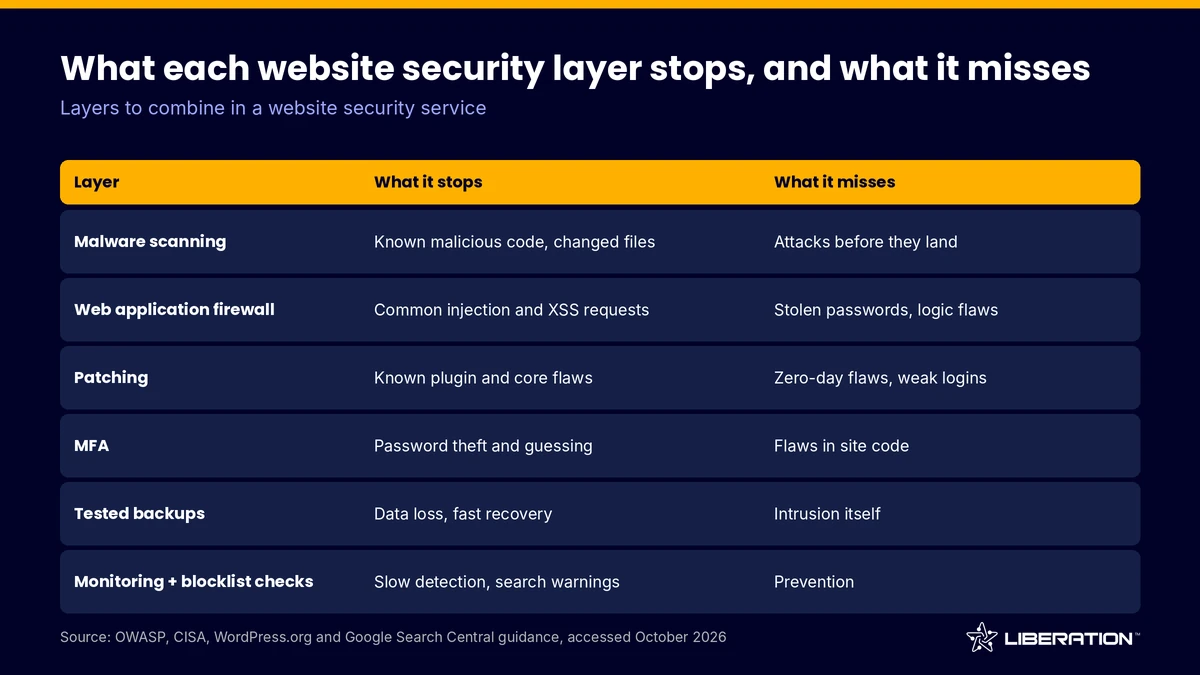
Write down your own answers to three questions before you talk to any vendor. What would an outage or a defaced home page cost you per day? Who has admin access today? Where is the last clean copy of the site stored? Those answers tell you how much of the table you need.
Common mistake: buying a scanner and assuming the site is protected. A scanner reports problems after they exist. It does not keep an attacker out.
Step 2: Set up website malware scanning
Website malware scanning compares your files against known malicious code and flags unexpected changes. It is the layer that finds an infection you did not know about, such as a hidden spam page or a redirect that only shows to visitors from search engines.
Ask three things about any website security service. How often does it scan? Does it check files only, or the database and public pages too? And what happens after it finds something? Our SiteLock scanning starts at $14.99 per month, and our backup layer includes CodeGuard, which monitors for file changes and malware once a day. The two overlap on purpose: one looks for known bad code, the other tells you what changed and gives you a copy to compare against.
What to check: that alerts go to a mailbox someone reads, not to an old address. Common mistake: ignoring a “low risk” alert for weeks. Attackers often leave a small backdoor first and return later.
Step 3: Put a web application firewall in front of the site
A web application firewall (WAF) applies a set of rules to web traffic before it reaches your application. OWASP describes a WAF as an application firewall for HTTP applications, and says its rules generally cover common attacks such as cross-site scripting and SQL injection (OWASP community page, accessed October 2026). OWASP also notes that customizing a WAF can take significant effort and has to be maintained as the application changes.
That second point matters when you choose a service. A web application firewall with rules that the vendor updates is very different from one you have to tune yourself. Ask where the WAF runs (at the server, or at a network edge in front of it), who maintains the rules, and whether it blocks or only logs.
Our reseller hosting plans include Imunify360, which adds a server-level firewall and malware scanning. That is specific to the reseller plans, so on other hosting, ask your provider exactly which firewall it runs. You can read how we layer protections on our secure WordPress hosting guide.
Common mistake: switching a WAF on in log-only mode and forgetting to enable blocking. Review the first week of logs, then block.
Step 4: Patch WordPress, plugins and PHP on a schedule
Patching is the least exciting part of WordPress security and the most effective. The WordPress developer documentation says to keep WordPress up to date because older versions are not maintained with security updates, and to delete plugins you are not using (WordPress hardening guide, accessed October 2026).
Put patching on a calendar, since WordPress security depends on routine more than tools. A weekly check works for most sites, with a faster path for any update that mentions a security fix. Test on a staging copy first so an update does not break checkout or a contact form. If you manage many sites and do not want to own this routine, our WordPress care plans cover maintenance and monitoring.
The same guide recommends disabling the dashboard file editor with DISALLOW_FILE_EDIT in wp-config.php, and setting directories to 755 and files to 644. These are small settings that remove common footholds.
Common mistake: leaving a deactivated plugin installed. Deactivated code can still be reached by a request, so delete it.
Step 5: Lock down logins with multi-factor authentication
Stolen passwords are a routine way into admin panels, so a second factor closes a large gap in WordPress security. CISA states that users who enable MFA are significantly less likely to get hacked, and that even if an attacker compromises one factor such as a password, they cannot meet the second requirement (CISA, accessed October 2026).
CISA also says not all MFA is equal. Phishing-resistant methods based on FIDO/WebAuthn are the standard to work toward, but any MFA is better than none. For a small business site, an authenticator app on every admin account is a solid start. Apply it to WordPress, your hosting control panel, your domain registrar and your email.
What to check: that every account with admin rights has MFA, including the contractor who built the site two years ago. Common mistake: sharing one admin login across a team. Give each person an account so you can remove one person without changing everyone’s access.
Step 6: Pair the service with backups you have tested
Every website security service, however good, eventually meets an incident it cannot prevent. A clean backup turns that incident into a restore instead of a rebuild. Daily encrypted off-site copies, version history, and restores you can stage before going live are the features to look for.
Our hosting includes a data-center backup layer that runs daily with 7 days of retention, and CodeGuard is included on most hosting plans (confirm per plan). Version history length depends on the plan. For the full picture, see our website backup service guide and our backup and disaster recovery page.
Test a restore every quarter. A backup you have never restored is a guess. Common mistake: restoring a backup without finding the entry point. The attacker’s access method is still there, and the site is infected again within days.
Step 7: Plan website malware removal and website security monitoring
Website security monitoring is the habit of noticing problems quickly: file changes, new admin users, traffic spikes, uptime drops and warnings from search engines. It shortens the time between compromise and response, which is where most of the damage happens.
Pair automated alerts with two manual checks. First, review the Security Issues report in Google Search Console, where Google lists suspected files on your site. Google says that after you fix the problem you can request a review in that report (Google Search Central, accessed October 2026). Second, look up your domain on the public blocklists that mail providers and browsers use, so you hear about a listing before a customer does.
Then write a one-page incident plan. It should name who decides to take the site offline, who contacts the host, where the latest clean backup lives, and who changes passwords. When infection is confirmed, website malware removal usually follows this order:
- Preserve a copy of the infected site for investigation, then isolate it.
- Remove malicious files and database entries, or restore a clean backup taken before the infection.
- Update everything, rotate every password and key, and remove unknown users.
- Find and close the entry point, then re-scan.
- Request a review from Google if the site was flagged.
Ask any website security service whether website malware removal is included in the price, billed per incident, or left to you. This single question separates a service that helps from one that only alerts.
What a website security service cannot do
An honest website security service tells you where its protection ends. No provider can guarantee a site will never be compromised, and you should be wary of anyone who does.
- It cannot fix a weak or reused password, or an employee who gives away a login.
- It cannot patch a plugin you chose not to update, though a firewall may reduce the exposure.
- It cannot see inside accounts at third-party services that your site connects to.
- It cannot restore data that was never backed up or that is older than the retention window.
- It cannot replace your own review of who has access.
Treat the website security service as one half of the work and your own habits as the other. If you want help choosing a website security service, talk to our team. We are US-owned and run our own hardware in the US, and we migrate sites to our WordPress hosting for free, so you can move without paying for the switch. For larger or regulated environments, our custom IT solutions include security management scoped to your needs.
Frequently asked questions
What is a website security service?
It is a bundle of protections that usually includes malware scanning, a firewall, change monitoring and some form of cleanup or recovery. Scope varies by provider, so ask for each item in writing.
Do I need a web application firewall if I have a scanner?
Yes, because they do different jobs. A scanner finds malicious code that is already on the site, while a web application firewall tries to block malicious requests before they reach it.
Is website malware removal included in a security service?
It depends on the provider. Some include cleanup, some charge per incident, and some only send alerts. Confirm which one you are buying and how quickly cleanup is expected to start before you sign.
How often should I patch WordPress?
Check weekly and apply security updates as soon as you can after testing on staging. The WordPress documentation says older versions do not receive security updates and that unused plugins should be deleted.
Can any service guarantee my site will not be hacked?
No. A good website security service reduces the chance of compromise, finds problems sooner and makes recovery faster, but it cannot remove the risk entirely. Strong passwords, MFA and tested backups remain your responsibility.
Sources
- OWASP, Web Application Firewall (accessed October 2026)
- CISA, More than a password: multi-factor authentication (accessed October 2026)
- WordPress developer documentation, Hardening WordPress (accessed October 2026)
- Google Search Central, malware and Security Issues report (accessed October 2026)
Related reading: secure WordPress hosting, website backup service and WordPress hosting plans.