
Migrating business email is mechanically simple and goes wrong in exactly one way: changing the MX records before the mail has finished copying. Do it in the right order – new mailboxes, copy the archive, verify, then switch DNS, keeping the old mailboxes receiving for two weeks – and nothing is lost. Do it in the wrong order and mail bounces silently, which senders read as you ignoring them.
This is the order, with the checks at each step.
Before you migrate business email: the inventory
- List every mailbox and every alias. Not just people – the info@, support@, billing@ and no-reply@ addresses, plus forwarders pointing somewhere else and any address a form or invoice system sends from.
- Check who owns the domain. The migration happens at the registrar, not at the mail host. If an old web designer holds the domain, sort that out first.
- Note your current mail volume. A 40GB archive and a 400MB one are very different jobs.
- Lower the DNS TTL to 300 seconds a day or two ahead. This single step turns a two-day cutover into a ten-minute one.
- Do not cancel the old service. It stays paid and live throughout.
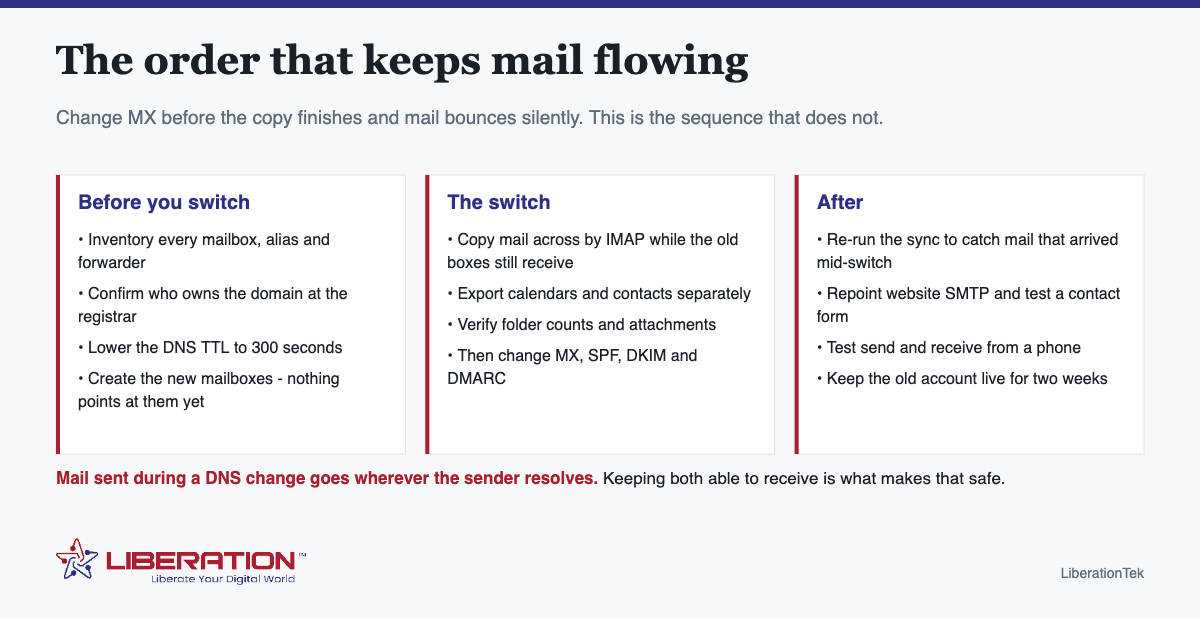
How to migrate business email, in order
- Create the mailboxes on the new provider. Same addresses, on the same domain. Nothing is pointed at them yet, so this is entirely safe.
- Copy the mail across. An IMAP sync copies messages and folder structure from the old server to the new one while both are running. Large archives can take hours; it can run overnight.
- Copy calendars and contacts separately. They are not part of the mail sync. Export and import them, or let your provider handle it.
- Verify before switching. Log into a migrated mailbox and check folder counts, the oldest message, and that attachments open. Spot-check the busiest mailbox, not the easiest one.
- Change the MX records at the domain, and update SPF at the same time. Add DKIM and DMARC for the new provider.
- Run a second sync. Anything that arrived at the old server during the switch gets copied across. This is the step that separates a clean migration from a nearly clean one.
- Test in both directions from an outside address, and from a phone.
- Wait two weeks, then close the old account.
The five things that actually break when you migrate business email
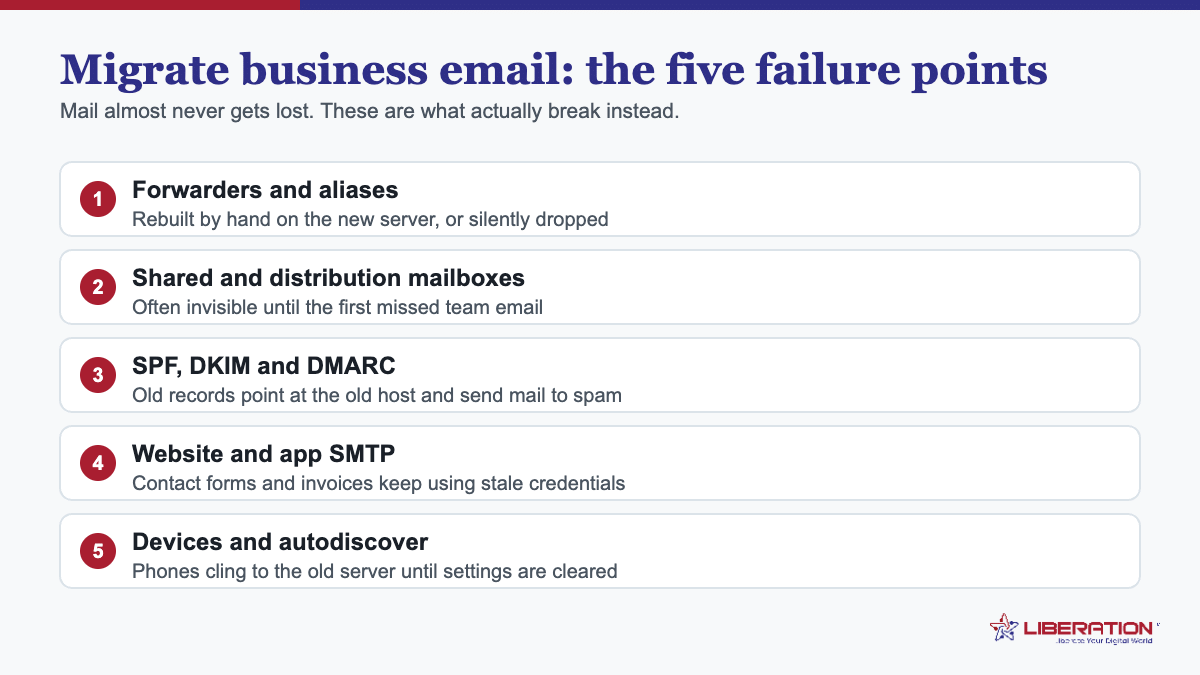
| What breaks | Why | Prevention |
|---|---|---|
| Mail bounces during the switch | Old mailboxes closed before DNS finished propagating | Keep the old account live and receiving for two weeks |
| Mail lands in spam afterwards | SPF still names the old provider; no DKIM on the new one | Update SPF, DKIM and DMARC at the same time as MX |
| Website forms stop sending | The site was sending through the old mail server | Reconfigure the site’s SMTP before the cutover |
| Calendars and contacts vanish | They are not part of an IMAP mail sync | Export and import them as a separate step |
| Shared or role mailboxes left behind | Nobody owns them, so nobody lists them | Inventory aliases and forwarders up front |
The website SMTP trap
This one catches almost everybody. Contact forms, order confirmations and password resets are usually sending through the mail server, and when the mail server changes, they stop – silently, because nobody tests a contact form after a migration. Before the cutover, find where the site sends from and point it at the new SMTP credentials. Then submit your own contact form and confirm the message arrives.
Migrate business email yourself, or have it done
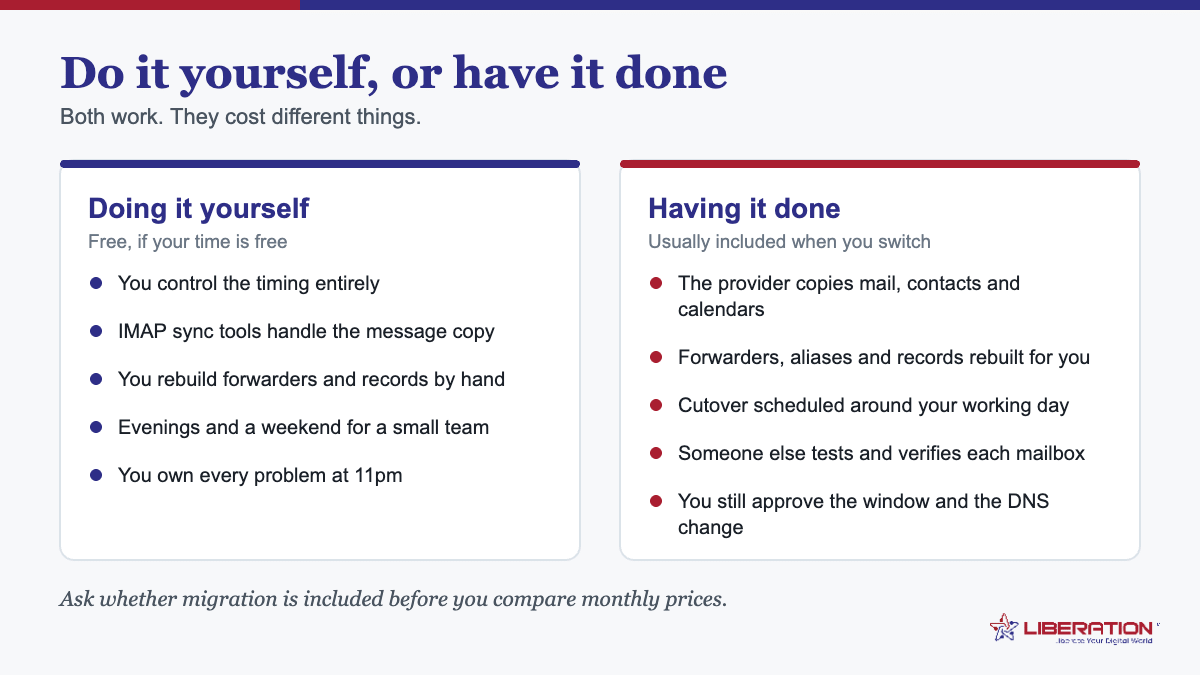
One mailbox with a small archive is a comfortable afternoon. Ten mailboxes with years of mail, shared calendars and a website sending through the server is a project with a specific failure mode that costs business.
We migrate the mail for you as part of setting up Liberation Email, from $1.95 per user per month with no long-term contract, or Hub For Teams from $7.49 per user if you also want shared inboxes, chat, video and files in the same subscription. Both run on hardware we own in the United States, both speak IMAP, SMTP, CalDAV and CardDAV so your existing apps keep working, and both let you export everything whenever you want.
How long it takes to migrate business email, step by step
| Step | Typical time | Can it run unattended? |
|---|---|---|
| Creating mailboxes | Minutes | – |
| IMAP copy, small mailbox | Minutes | Yes |
| IMAP copy, multi-year archive | Hours – run it overnight | Yes |
| Calendars and contacts | Minutes per user | No |
| DNS propagation after MX change | Minutes to 48 hours, depending on TTL | Yes |
| Second sync to catch stragglers | Minutes | Yes |
| Verification | An hour, properly done | No |
The clock time is mostly waiting. The work is the inventory at the start and the verification at the end, and both are the steps people shorten when they are in a hurry.
Choosing the cutover window to migrate business email
Late on a Friday is the traditional choice and the wrong one, because if something needs attention you have the weekend to notice it and nobody available to fix it. A Tuesday or Wednesday morning is better: low inbound volume, everyone at their desks, and a full working day to catch anything odd.
Tell people it is happening. A one-line note – “we are moving our email on Tuesday morning; if anything bounces, resend after lunch” – converts a mystery into a scheduled inconvenience.
Special cases worth planning for
- Shared mailboxes. If support@ or info@ is currently a group or a forwarder, decide whether it becomes a shared inbox on the new platform. Shared inboxes are better because replies come from the role, not from whoever picked it up.
- Very large archives. Anything past a few tens of gigabytes benefits from being staged – copy the bulk ahead of time, then sync the recent mail at cutover.
- Addresses nobody owns. Every business has an old address that still receives something important once a quarter. Keep it as an alias rather than deleting it.
- Mail sent by software. Invoicing, CRM, newsletters and the website all send as your domain. Each needs its SPF include updated, or its mail starts failing authentication.
How to verify properly after you migrate business email
- Open the busiest migrated mailbox and compare folder counts with the old one.
- Open the oldest message you can find, and one with an attachment.
- Send from the new mailbox to an outside address, and reply back.
- Submit your own website contact form and confirm the message arrives.
- Check a phone, not just a desktop client.
- Send a test to a role address and confirm the right people see it.
If all six pass, the migration is done and the remaining two weeks are insurance. We run this process for you as part of setting up Liberation Email from $1.95 per user per month.
What having it done actually costs
Worth being direct, because the industry is not. A managed email migration is included when you set up mailboxes with us – it is part of onboarding rather than a separate line, and that covers the mail, folders and contacts for the mailboxes you are moving.
What sits outside that is anything that is not really email: rebuilding a complex set of server-side rules, migrating a shared document store, or reconfiguring several systems that send as your domain. Those are scoped separately if you want help with them, and quoted before anything starts.
The honest reason to have it done is not difficulty. It is that the failure mode – silently bouncing mail during a cutover – costs business in a way that is invisible until a client mentions it weeks later, and avoiding that is worth more than the hour it saves.
Getting authentication right when you migrate business email
If something goes wrong in the week after a move, it is usually not lost mail – it is mail that sends but lands in spam. That is an authentication problem, and it is entirely avoidable if you handle three DNS records deliberately rather than hoping the defaults carry over.
SPF names who may send as you. Your old provider’s SPF include is almost certainly still in the record, and your new provider’s almost certainly is not. During the changeover, keep both; once the old mailboxes are closed, remove the old one. A domain may only have one SPF record, so the includes go in a single line rather than two separate records – a mistake that quietly breaks delivery for everyone who checks it. The specification lives in RFC 7208 if you want the authoritative wording.
DKIM signs the mail itself. Your new host will give you a selector and a public key to publish. Publish it before cutover, not after, so the first message sent from the new platform is already signed. Leave the old provider’s DKIM record in place for a few weeks; it costs nothing and keeps any mail still trickling through the old system valid.
DMARC tells receivers what to do when the first two disagree. If you already publish a DMARC policy at quarantine or reject, move it to p=none for the duration of the migration and put a reporting address on it. You will get daily reports showing exactly which sources are sending as your domain, which is the fastest way to find the forgotten application still relaying through the old host. Tighten the policy again once the reports are clean for a week.
Then check the things that send on your behalf. When people migrate business email they usually remember Outlook and forget everything else: the website contact form, the invoicing system, the booking tool, the CRM, the scanner in the back office. Each of these has its own SMTP credentials pointing at the old server. Make the list before cutover and work through it the same afternoon.
Warm nothing, but watch everything. A normal small business does not need to warm up a sending reputation, because the domain reputation travels with the domain rather than the server. What you should do is send a test message from each mailbox to an outside address on a different platform and confirm it arrives in the inbox rather than the junk folder. Five minutes per mailbox, and it catches almost everything.
Handled this way, the authentication side of a business email migration is a checklist rather than a risk, and the week after cutover is uneventful – which is the entire goal.
If you take one thing from this page: the decision to migrate business email is rarely the hard part, and the message copy almost never is either. The work that determines whether the week goes quietly is the inventory beforehand and the verification afterwards. Do those two properly and you can migrate business email for a ten-person team over a single evening without anyone noticing on Monday.
Frequently asked questions
How do I migrate business email to a new host without losing messages?
Set up the new mailboxes first, copy the existing mail across with IMAP sync while the old mailboxes are still receiving, verify the copy, then change the MX records. Keep the old mailboxes live for at least two weeks afterwards. Changing MX before the copy is complete is what causes lost mail.
Will I lose email during a migration?
Not if the old mailboxes stay live until after the switch. Mail sent during a DNS change is delivered to whichever server the sender’s network currently resolves, so keeping both able to receive means nothing is refused.
How long does an email migration take?
The copy takes minutes for a small mailbox and hours for a large archive. DNS changes propagate within about 24 to 48 hours, less if you lower the TTL beforehand. Plan a week end to end, most of it waiting and verifying.
Do I keep my email address when I change providers?
Yes, as long as the address is on a domain you own. The domain is what the address belongs to, and you point it at whichever provider you choose. Addresses at a free provider’s domain cannot move.
Can someone migrate the email for me?
Yes. LiberationTek migrates existing mail, folders and contacts as part of setting up Liberation Email or Hub For Teams. Send the details of the current provider and the mailboxes to move, and the team handles the copy and the cutover.
Related reading
- Business Email Setup — Putting business email on your own domain.
- Big Tech Alternatives — The full set of replacements, by category.