
Yes — if your VPS gives you root, you can install Docker. Whether you should depends on what you are running. Containers solve dependency conflicts and make deployments repeatable. They do not make a single WordPress site faster, they complicate cPanel, and they move part of the support boundary onto you. For several applications with different requirements, they are excellent.
This question usually arrives in one of two forms. A developer asking whether a managed VPS will let them work the way they are used to, or a business owner who has been told by someone that they should be “using containers” and is not sure what that means.
Both deserve a straight answer, and they are different answers.
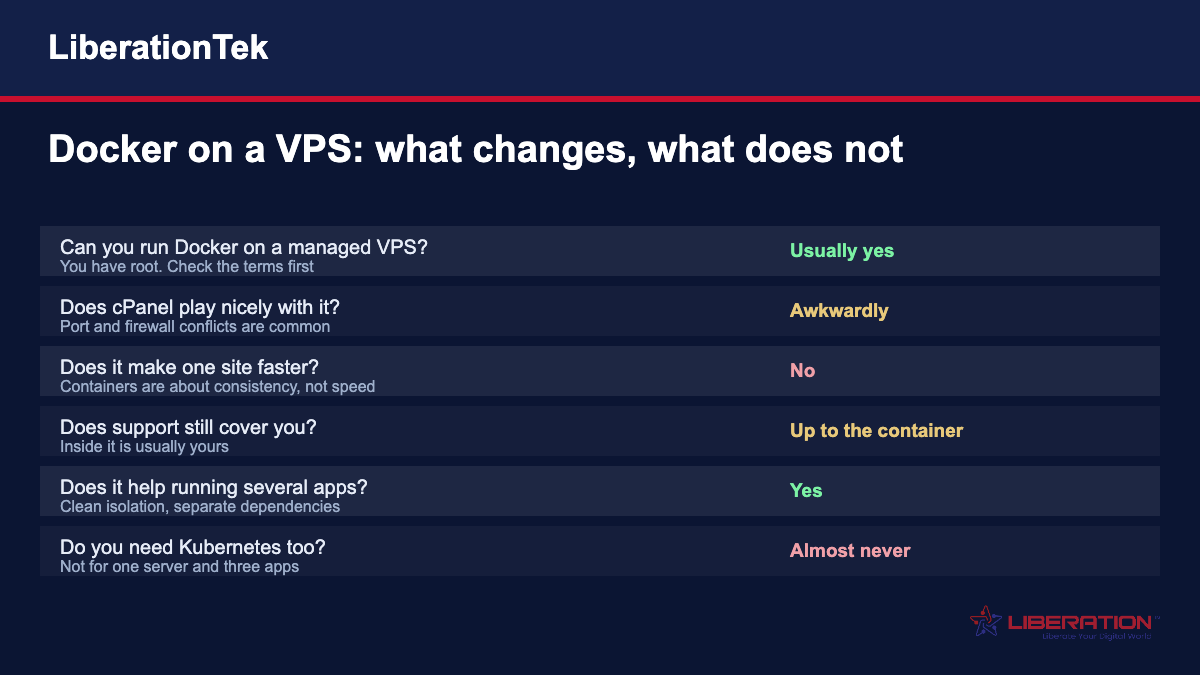
The short answer on Docker containers on a VPS
If your VPS is a real virtual machine with root access — which ours are, and most reputable managed VPS plans are — you can install Docker and run containers. It is a normal Linux package on a normal Linux server.
Two things to check before you do. First, your host’s terms: some managed plans restrict what you can install, or void support if you do. Second, the virtualisation type. Full virtualisation such as KVM runs Docker without complication; older container-based virtualisation like OpenVZ can make it awkward or impossible.
Worth asking your provider rather than assuming.
What containers actually solve
The value of a container is that it packages an application with its dependencies, so it runs the same way wherever you put it.
That solves a specific and genuinely painful class of problem. One application needs PHP 7.4 and another needs PHP 8.3. One needs an old library version that breaks something else. A deployment works on the developer’s laptop and fails on the server for reasons nobody can reproduce.
Containers make each application carry its own environment, so those conflicts stop existing. They also make deployments repeatable: the same image that passed testing is the one that runs in production.
If none of those problems are yours, containers are solving something you do not have.
What containers do not do
They do not make anything faster. A WordPress site in a container is not quicker than the same site installed directly; if anything there is a small overhead. Performance comes from caching, database tuning, PHP version and the hardware underneath, and containers change none of those.
They do not improve security by themselves. Container isolation is real but weaker than virtual machine isolation, and a badly configured container — running as root, mounting the Docker socket, built on an unpatched base image — can be worse than a conventional install.
And they do not reduce the number of things you have to maintain. You have swapped patching one operating system for patching a host plus every base image you depend on. Images that nobody rebuilds quietly rot.
The cPanel problem
This is the practical friction most people hit on a managed VPS, and it is worth understanding before you start.
cPanel expects to own the server. It manages Apache or LiteSpeed, the firewall, the DNS, the mail stack and the SSL certificates. Docker wants to bind ports, manage its own networking and insert its own firewall rules.
They can coexist, and plenty of people run both. But you will spend time on port conflicts, on firewall rules that cPanel rewrites, and on getting traffic from cPanel’s web server to a container as a reverse proxy.
If your plan is to run WordPress sites through cPanel and one containerised application alongside, that works. If your plan is to containerise everything, cPanel is fighting you and you would be better on a plain server without it.
Where the support boundary moves
Worth being explicit, because it is the part that causes disappointment.
On a managed VPS we look after the operating system, patching, the control panel, monitoring and the server staying up. Install Docker and that continues — but what happens inside your containers is generally yours. If your application fails because of something in your image, that is a development question rather than a hosting one.
Any managed host will draw the line in roughly the same place. What varies is whether they tell you clearly beforehand, so ask.
When containers are the right answer
Three situations where we would actively encourage it.
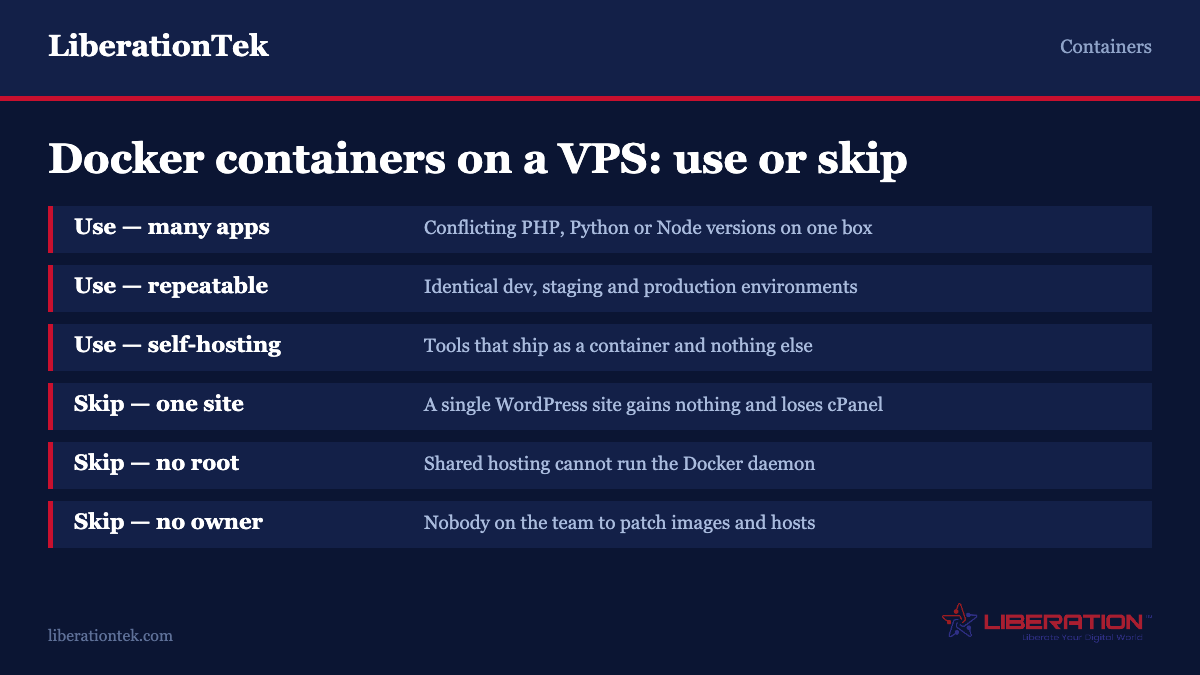
Several applications with conflicting requirements. Different language runtimes, different dependency versions, on one server. This is the case containers were built for.
You already have a deployment pipeline. If your team builds images in CI and ships them, running the same images on your VPS is straightforward and removes a category of environment bug.
Self-hosted tooling. The internal tools businesses increasingly run themselves — analytics, a wiki, a project tracker, a status page — almost all publish official images. Running six of those as containers on one VPS is far tidier than installing six applications and their dependencies side by side.
When to skip it
One WordPress site. A handful of WordPress sites. A standard LAMP application that has run happily for years.
In those cases containers add a layer of abstraction, a new set of things to patch, and a new way for things to break, in exchange for benefits you are not currently short of. cPanel and a normal install will serve you better and your host’s support will cover more of it.
There is no prize for modern architecture. The prize is a site that stays up and a bill you understand.
And Kubernetes?
Almost certainly not, and this is worth saying plainly because it gets recommended far too readily.
Kubernetes orchestrates containers across a cluster of machines. It solves scheduling, self-healing and scaling when you have many containers across many servers. On a single VPS running three applications it is enormous operational overhead for no benefit, and it will consume more of your attention than the applications do.
If you genuinely reach the point of needing it, you will know, because the problems it solves will be the problems you are having. Until then, Docker and a compose file are sufficient for the overwhelming majority of businesses.
A sensible way to start
If you want to try this, do it in a way that cannot take your live sites down.
Keep your existing sites where they are. Add Docker. Put one non-critical application in a container — an internal tool is ideal — and run it for a month. You will learn how it interacts with your firewall, how you back it up, and what happens when the base image needs updating.
Then decide whether to move anything else. Most people find they want containers for the new things and not for the sites that were already working, which is a perfectly good outcome.
Frequently asked questions
Can I install Docker on a managed VPS?
On most plans with root access, yes, including ours. Two things to verify first: whether your host’s terms restrict what you can install or affect support if you do, and what virtualisation the VPS uses. Full virtualisation such as KVM runs Docker without trouble; older container-based virtualisation like OpenVZ can make it difficult or impossible.
Will Docker make my WordPress site faster?
No. If anything there is a small overhead. Site speed comes from caching, database tuning, your PHP version and the underlying hardware, and containers change none of those. Anyone recommending containers as a performance fix for a single WordPress site has misunderstood what they are for.
Does Docker work with cPanel?
They coexist but not comfortably. cPanel expects to manage the web server, firewall, DNS and SSL for the whole machine, while Docker wants to bind ports and manage its own networking and firewall rules. Running WordPress through cPanel plus one containerised application alongside is workable. Containerising everything on a cPanel server means fighting the control panel, and you would be better off without it.
Is my host’s support still valid if I use containers?
The server stays supported — operating system, patching, control panel, monitoring, uptime. What happens inside your containers is generally your responsibility, because that is application territory rather than hosting. Every managed host draws the line in roughly the same place; the difference is whether they tell you clearly up front.
Do I need Kubernetes?
Almost certainly not. Kubernetes orchestrates containers across a cluster of machines and solves scheduling, self-healing and scaling at that scale. On one VPS running a few applications it is a large amount of operational overhead for no practical benefit. Docker with a compose file covers what the overwhelming majority of small businesses need.
Are containers more secure than a normal install?
Not inherently. Container isolation is real but weaker than virtual machine isolation, and a poorly configured container — running as root, mounting the Docker socket, built on an unpatched base image — can be less safe than a conventional install. You also take on patching every base image you depend on, and images nobody rebuilds go stale quietly.
What should I try first?
Leave your live sites alone, install Docker, and put one non-critical application in a container for a month. An internal tool is ideal. You will learn how it interacts with your firewall, how to back it up and what happens when the base image needs updating, without risking anything customers touch. Then decide whether to move anything else.
The security work containers do not do for you
Containers are frequently described as isolated, and that word does a lot of unearned work. A container is a process on your host with restricted visibility, not a virtual machine with its own kernel. Every container on the box shares the host kernel. That is precisely why they are light, and it is also the boundary you need to understand before you run Docker containers on a VPS in production.
The daemon is root. By default the Docker daemon runs as root, and anyone who can talk to the Docker socket can effectively become root on the host — mounting the host filesystem into a container is a one-line command. Adding a user to the docker group is therefore equivalent to granting them root, whatever your sudo policy says. Docker’s rootless mode exists to address this and is worth the setup on any host with more than one operator.
Published ports bypass what you expect. Publishing a port with -p writes rules directly into the firewall’s NAT table, which on many setups means the container is reachable from the internet even though your firewall appears to deny that port. Administrators discover this when a database they believed was internal turns up in someone’s scan. Bind explicitly to localhost when a service should not be public, and verify from outside the machine rather than trusting the configuration.
Images are somebody else’s code. Pulling an image runs software you did not build and probably have not read. Prefer official or verified publisher images, pin a specific tag rather than latest so a rebuild does not silently change versions, and scan images before deploying them. The convenience of a one-line install is the same convenience an attacker relies on.
Containers do not update themselves. This is the one that bites hardest six months in. A running container keeps whatever library versions its base image shipped with, indefinitely. Patching the host does nothing for it. Staying current means rebuilding images and redeploying on a schedule somebody owns, and a container that has not been rebuilt in a year is running a year-old operating system with a year of unpatched vulnerabilities.
Secrets do not belong in the image. Environment variables set at build time are baked into image layers and visible to anyone who can pull it. Use runtime secrets or an environment file kept out of version control.
What it actually costs you
Containers are cheap to run and not cheap to operate, and the second half is where small teams get caught.
Memory overhead is modest but real. Each container carries its own userland. Ten containers each bundling their own copy of a runtime consume meaningfully more memory than ten applications sharing one system installation. On a 2 GB VPS that difference decides whether things stay up. Containers save you far more disk than memory, because image layers are shared.
Disk fills quietly. Old images, stopped containers, dangling volumes and build cache accumulate until a deploy fails at three in the morning with no space left on device. A scheduled prune and a disk alert are not optional; they are the difference between a tidy host and an outage.
Logging needs a decision. The default driver writes container output to JSON files on the host with no rotation. A chatty application can fill the disk on its own. Configure log rotation or a logging driver the first time you deploy, not after the first incident.
Backups get more complicated, not less. Your data lives in volumes rather than in the container, and a backup of the container is worthless. You need to know which volumes hold state, back those up, and — this is the part people skip — actually restore one into a clean host to confirm it works. A backup you have never restored is a hypothesis. Our backup and disaster recovery page covers how we handle this on our platform.
The learning curve is the real bill. Networking between containers, persistent volumes, healthchecks, restart policies and why a build works locally but not on the server are each an afternoon the first time. Budget a week to become genuinely comfortable, and be honest about whether the thing you are trying to run justifies that week. For a single WordPress site, it does not. For four applications with conflicting runtime versions, it pays back almost immediately.
Sizing the VPS
The question that follows “can I run Docker containers on a VPS” is almost always “how big does the VPS need to be,” and the honest answer is that the container runtime itself is not what you are sizing for.
Docker Engine’s own footprint is small — the daemon and its tooling occupy a few hundred megabytes of disk and a modest amount of idle memory. What consumes the box is the applications inside the containers, plus one copy of each application’s bundled userland. Size for the sum of what you are running and then add headroom, rather than trying to compute a container overhead figure.
1 GB of RAM is enough to learn on and enough for two or three genuinely small services. It is not enough for a database and an application server and a reverse proxy at the same time, and builds will fail on it. Add swap if you use one, and expect to hit the ceiling quickly.
2 to 4 GB is the realistic starting point for anything you care about: a handful of application containers, a database, a reverse proxy handling certificates, and room to build a new image without evicting a running service.
8 GB and up is where a multi-service stack with a real database becomes comfortable, and where you stop thinking about memory during deploys.
Two things matter more than the RAM figure. Disk fills faster than people expect once images, layers, volumes and build cache accumulate — treat 40 GB as a floor and monitor it. And CPU matters mainly at build time rather than run time; a single shared core will run several small containers happily and then take ten minutes over an image build. If you build on the same host you deploy to, size for the build.
Finally, keep the host boring. The VPS should run the container runtime, a firewall and your monitoring agent, and nothing else. Every package you install directly on the host is a dependency you have just reintroduced after going to the trouble of containerising to avoid exactly that.
Sources
Container tooling changes quickly and third-party tutorials age badly. The official documentation is the only version guaranteed to match the release you are actually running.
- Install Docker Engine — Docker documentation, per-distribution instructions.
- Docker Engine security — Docker documentation, covering the daemon, namespaces and rootless mode.