
Gantt chart templates and project plan templates save you from starting with a blank page. Used well, they turn a vague goal into dates, owners and dependencies. Used badly, they become a document nobody updates. Here is how to choose one, what it should contain, and when it is time to move to real project management software.
What a Gantt chart template shows
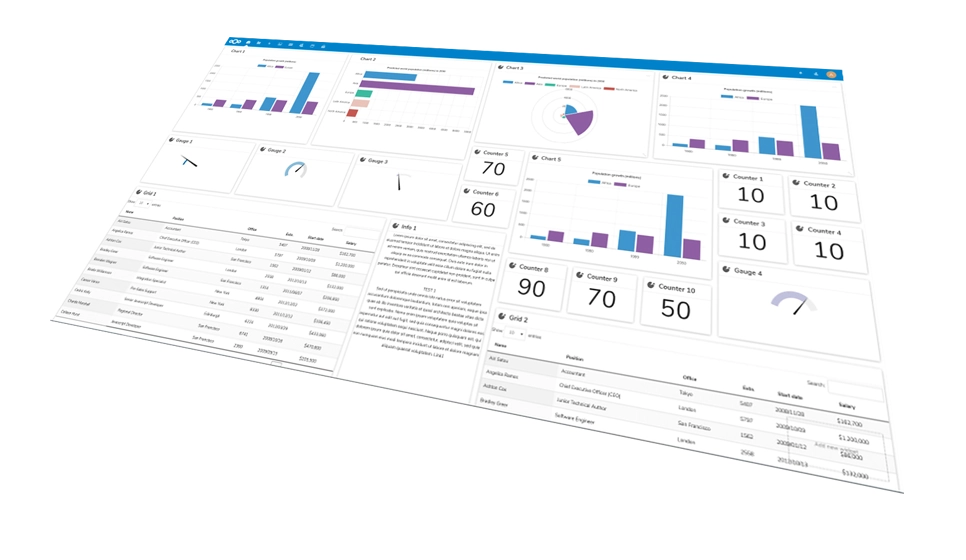
A Gantt chart lays tasks out against a calendar. Each task is a bar, the length of the bar is the time it takes, and arrows show which tasks must finish before others can start. A Gantt chart template gives you that layout already built, so you only fill in your tasks and dates.
Gantt charts are most useful when the order of work matters: a website launch, an event, a product release or a building project. They are less useful for ongoing work with no end date, where a simple task list is clearer.
What a project plan template should include
A project plan template is broader than a Gantt chart. It records the whole plan in one place. A good one has these parts:
- Goal and scope: what you are delivering and what is out of scope.
- Tasks and milestones: the work broken into steps, with the key checkpoints marked.
- Owners: one named person responsible for each task.
- Dates: a start and due date for every task.
- Dependencies: which tasks must finish first.
- Risks and notes: what could go wrong and what was decided.
How to fill in a template in five steps
- Write the finish line. Describe what done looks like in one sentence.
- List the big phases. Three to six phases is plenty for a small project.
- Break each phase into tasks. A task should take a few days at most and have one owner.
- Add dates and dependencies. Work backward from the deadline, and mark tasks that block others.
- Review weekly. Update the plan with what really happened, not what you hoped would happen.
Where templates stop working
A template in a spreadsheet or document is fine for a small project with one or two people. It starts to fail when several people need to update it, when tasks change daily, or when you need to see who owns what at a glance. Common signs:
- People keep their own copies and the versions drift apart.
- Nobody can tell which task is blocked.
- Questions about a task live in email, not next to the task.
At that point, project management software does the same job with shared access and history. Our guide to project management software explains what to look for in a small team. Hub for Teams includes a Project Manager in its Teams+ plan with task tracking, custom permissions and team chat, and there is a 30-day free trial.
Choosing between a template and software
- Use a template for a one-off project with a few people and a clear end date.
- Use software when work repeats, the team is growing, or you need one shared view of who owns what.
If you are comparing tools, see our Asana alternative and Monday.com alternative pages, or read about team collaboration tools more broadly.
A simple starting layout
If you want to build your own template today, use a table with these columns: task, owner, start date, due date, status and notes. Add a column for dependencies only if you need it. Keep one row per task, group rows by phase, and color the status column so late work stands out.
Keep the plan alive
The best template is the one your team keeps updating. Review it in a short weekly meeting, move finished tasks to done, and flag anything that slipped. A plan that is current on Friday is worth more than a perfect plan that is stale by Tuesday.