Ditch Microsoft & Google Today!
We handle each step so you can keep working.
Chat, files, boards and calendars in one workspace.

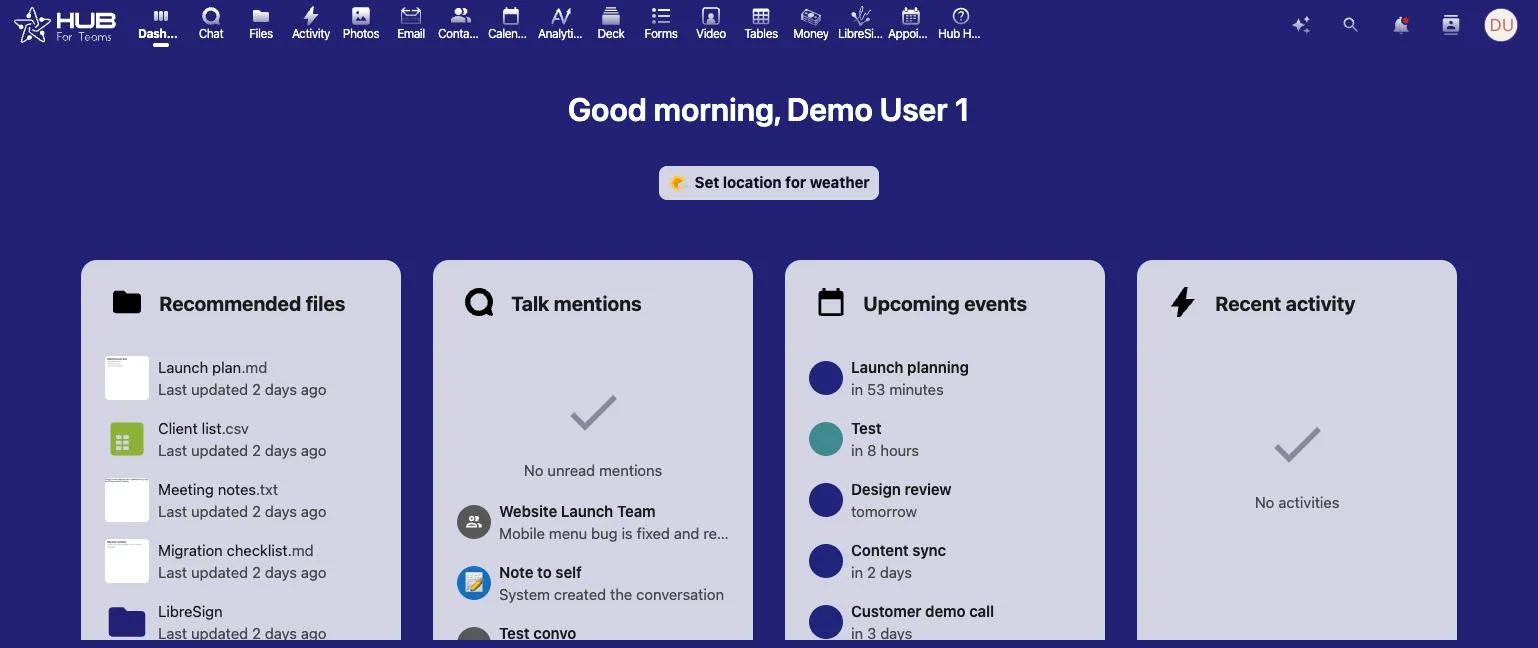
Moving off SharePoint means moving your document libraries, team sites and files into Hub for Teams — Liberation’s all-in-one chat, video, file storage and project management app, all under one login and one bill.
If you plan to move from SharePoint, start by mapping your sites and document libraries to who actually uses them. Old sites with no recent activity can be archived instead of migrated. For the ones you keep, record the folder structure, permissions and any version history you need, since those are the parts that are hardest to rebuild from memory later.
Document storage holds some of your most sensitive files, so review who has access as part of the move. CISA explains multi-factor authentication in plain terms, and the NIST small business cybersecurity resources cover access control for small teams. Our note on managing sovereign data explains where your files are stored. This is general information and not advice for your specific situation.
Teams that move from SharePoint usually want to know three things: what moves, in what order, and when the old account can be closed. The graphic below summarizes the process, and the same steps are explained in more detail further down this page.
If you are weighing whether to move from SharePoint now or wait, the timing is yours to choose. You can move from SharePoint in one window or in stages, and the old account stays live until you confirm the new one works for everyone.
People who move from SharePoint often ask about cost first. Our migration team walks through the plan with you before anything starts, so you know what it takes to move from SharePoint before you commit.
Some questions come up on almost every move from SharePoint. Can we move from SharePoint without downtime? Yes, because the old account stays live until the cutover. How long does it take to move from SharePoint? We confirm the timeline with you before anything starts. Will we lose anything when we move from SharePoint? We confirm what moves before we begin, and anything that cannot move is listed up front.
If you would rather talk it through, tell us what you use today and we will explain what it takes to move from SharePoint for your team.
Most team migrations complete within a few business days of you approving the plan, with a scheduled cutover window so there’s no unexpected disruption for your team.
Your SharePoint site stays live and untouched while we build and configure your new Hub for Teams workspace.
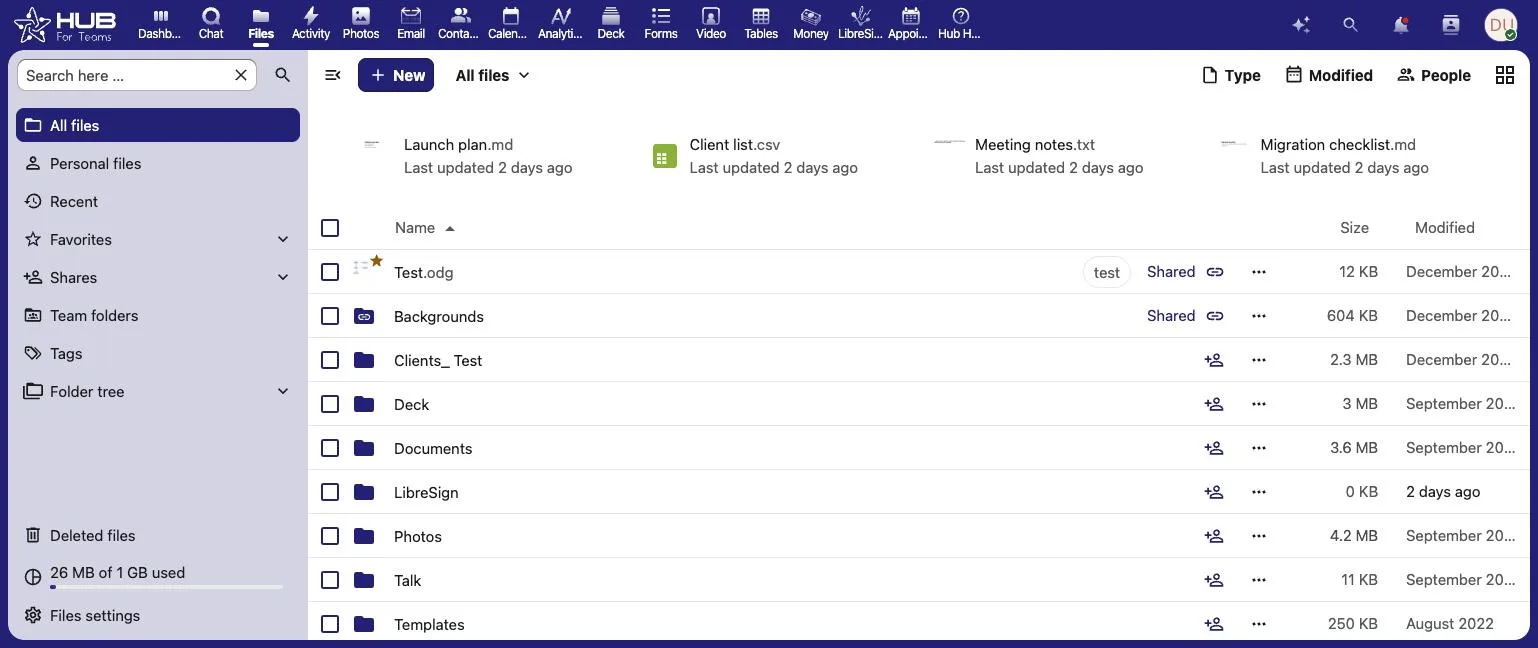
Document libraries, folder structure and permissions move into Hub for Teams’ file storage — we map your site structure to folders before anything is imported.
You pick the day your team switches over, and we’re online while everyone signs in for the first time.
There’s no dual system to manage during the transition — once your workspace is ready and your team has tried it, your SharePoint site and Microsoft 365 licenses can be wound down on your schedule.
The most common reasons: SharePoint administration — site collections, sharing links, retention and licensing — takes a dedicated admin to run well; Copilot and premium features push the per-seat price up fast; and teams often end up paying for Teams, Planner and Project as separate add-ons. See the full SharePoint vs. Hub for Teams comparison →
SharePoint document libraries and their folder structure move into Hub for Teams’ file storage, with version history preserved wherever Microsoft’s export tools make it available.
Team site membership and sharing permissions are recreated in Hub for Teams so the right people have access from day one.
If you’re also moving off Microsoft 365 mail, mailboxes, contacts and calendars transfer over IMAP alongside your files.
Starting prices, billed monthly. Free migration when you choose an annual plan.
Starting prices, billed monthly unless noted. Anything larger gets a written quote.
Your migrated workspace is checked against your live SharePoint site — folders, files, permissions — before your team gets invited in.
You pick the day your team switches, and we’re online to help with sign-in on day one.
Your old SharePoint site and Microsoft 365 licenses stay active until you’re ready to wind them down yourself.
Chat, files and meetings in one workspace.
Book a call and tell us how your team uses SharePoint and Microsoft 365 today — we’ll give you a migration timeline and a written quote, no obligation.
The mistake nearly everyone makes with SharePoint is treating it as a file server. It is a content management system with a file-shaped interface, and that distinction is the whole reason leaving it is harder than copying folders. Permissions inherit down through nested sites and libraries, documents carry version history, and metadata columns may be doing real work that no folder structure can express.
Copying the files out is trivial. Reproducing the permission model is not. In a typical estate, access has been granted at site level, library level, folder level and individual file level over several years, by several people, with inheritance broken in places nobody remembers. Before anything moves, somebody has to decide what the permissions ought to be — because recreating exactly what they currently are is usually neither possible nor desirable.
Version history is the second decision. If you need every prior version of every document, that is a very different export from the current version of each file, and a substantially larger one. For most businesses the current version plus a dated archive of the library is plenty. For anyone with retention obligations it may not be, and that is worth settling before anyone scopes the work.
Then the links. Where SharePoint has been in use for years, links to specific documents are embedded in emails, in other documents, in intranet pages and in people’s bookmarks. Those break on the day the content moves, and there is no automatic fix. The realistic approach is to keep the old location readable through a transition period while the links that matter get updated.
How we handle it: we map the libraries and what access each group actually needs, agree a permission model rather than attempting to clone the existing one, export current files with a dated archive of history where you need it, and keep the old location readable during the transition. Hub For Teams gives your team shared storage, calendars and contacts on your own domain. Book a call and bring a rough size in gigabytes.
Don’t like managing? We offer managed services for hosting, ecommerce, web sites, and more.
Liberating Your Digital World Is Our Passion
Liberation’s global edge network provides enhanced performance & security.
Stay informed on the latest tech news, new products, promotions, & more!