
Business email with your domain means addresses like [email protected], run on a hosted mailbox service that you point your domain at through DNS. The setup takes four things: a domain you control, a mail host, the right DNS records (MX, SPF, DKIM and DMARC), and a few account-security habits. If your organization handles sensitive communication, the host matters as much as the address: we own and operate our servers in the U.S., so your mail sits on infrastructure we run, with direct expert support behind it.
This guide covers what you are buying, how a real mailbox differs from forwarding, the setup steps in order, and how to pick a host you can trust with client, patient, donor or campaign mail.
TL;DR
- A business email address uses your own domain, and a hosted mailbox gives you real storage, a login and the ability to send as that address. Forwarding only passes messages along.
- Setup is mostly DNS: point MX records at your host, then add SPF, DKIM and DMARC so your mail is trusted.
- Protect the domain: two-factor sign-in on every mailbox, one SPF record only, and DMARC started at monitoring before you tighten it.
- Choose a host by who owns the servers, where the data sits and who answers when something breaks.
- Liberation Email is our private, per-user mailbox hosting on U.S.-owned servers.
Table of Contents
- What business email with a custom domain actually is
- Mailbox hosting vs. email forwarding
- How to set up email with your domain, step by step
- The DNS records at a glance
- Keep the domain’s mail secure and out of spam
- How to choose a private, secure host
- Common setups by organization type
- Business email on LiberationTek
- FAQ
- Sources
What business email with a custom domain actually is
A custom-domain address replaces a free address such as a Gmail or Yahoo account with one that carries your name: [email protected], [email protected], [email protected]. Three things make it worth doing.
It carries your identity. Clients, patients, donors and vendors see your organization, not a personal account. When someone leaves, the address stays with the business and can be reassigned.
It gives you control. You decide who has a mailbox, how long mail is kept, who can read shared inboxes and what happens to an account on a staff member’s last day.
It helps delivery. Large mailbox providers now expect authenticated mail from a domain you own. Gmail and Yahoo introduced stricter sender rules in February 2024, and DMARC is required for anyone sending 5,000 or more messages a day to those providers. Most small teams send far less than that, but the same authentication records are what keep ordinary day-to-day mail out of spam folders. Our guide to bulk sender requirements goes deeper if you send newsletters or campaigns.
Mailbox hosting vs. email forwarding
The two are often sold under the same phrase, and they behave very differently.
| Hosted mailbox | Email forwarding | |
|---|---|---|
| What it is | A real inbox on your host’s servers, with its own storage and login | A rule that passes mail sent to one address on to another inbox |
| Where mail lives | On the host’s servers, under your domain | In whatever inbox it is forwarded to, often a personal free account |
| Sending as your domain | Yes, from the mailbox itself, with your domain’s authentication | Usually needs extra setup, and replies can show another address |
| Access control | You create, suspend and remove users | The destination inbox owner controls everything |
| Best for | Staff, departments, anyone who sends and receives daily | A catch-all or alias such as info@ that lands in an existing mailbox |
Forwarding is a useful companion. An alias like info@ or press@ that lands in a staff member’s real mailbox costs nothing in storage and keeps public addresses separate from personal ones. As the main email for your people, though, a hosted mailbox is the right base: the mail is stored under your domain, on servers you chose, and you can retain or remove it when staff change.
If you receive regulated or confidential mail, forwarding it to a consumer account moves that mail onto infrastructure you do not control. A hosted mailbox keeps it in one place under one policy.
How to set up email with your domain, step by step
The steps are the same whichever host you choose. The risk sits in the details.
1. Confirm you control the domain
Log in to wherever the domain is registered and find its DNS settings. Make sure the account is held by the organization, with a shared role address and two-factor sign-in, not by a former employee or web contractor. If you lose access to the registrar, you lose access to your mail.
If your website is already live, note its existing records before changing anything. Your A record and CNAME entries serve the site and must stay as they are.
2. Pick a mail host and create the mailboxes
Decide how many people need their own mailbox and which addresses are shared. With our plans, pricing is per user per month, so a team of eight pays for eight mailboxes; Mail Starter, Mail+ and Mail Pro are the tiers, listed with current prices on the Liberation Email page. Add your domain inside the host’s control panel, then create each user.
Aliases such as sales@ or support@ should usually point to a real mailbox rather than consume a paid seat of their own.
3. Point MX records at your host
MX records tell the internet where to deliver mail for your domain. Delete the old MX entries (from a previous host or a registrar default) and add exactly the values your new host gives you, with the priorities it specifies. Mixed MX records from two providers are a common reason mail goes missing: some messages arrive at the old place, some at the new one.
Changes can take a while to spread. Many setups finish in minutes, but DNS caching means some senders may see the old records for up to a day or two. Lower the TTL on your MX records a day ahead if you are moving an active domain, and keep the old mailbox open until mail stops arriving there.
4. Add SPF
SPF is a DNS text record listing the servers allowed to send mail for your domain. A domain must have only one SPF record; if your host, your newsletter tool and your invoicing system each tell you to add “their” SPF record, you combine them into a single entry instead of publishing three. Two records cause SPF to fail outright.
5. Turn on DKIM
DKIM signs each outgoing message with a cryptographic key, and the matching public key sits in your DNS. Your host generates the key pair and gives you a record to publish. Once it is live, receiving servers can confirm the message really came from your domain and was not altered on the way. Enable it per sending service: your mailbox host, your marketing platform and any website forms that send mail as you.
6. Publish DMARC, starting gently
DMARC tells receiving servers what to do when SPF or DKIM checks fail and where to send reports. The standard approach is to start with a policy of p=none, then move to quarantine and finally reject once reports show your legitimate mail is passing. Starting at reject on day one can block your own invoices or contact-form messages if one sending service was missed.
Read the reports for a few weeks. They will show every service sending as your domain, including ones you forgot.
7. Test, connect devices and cut over
Send messages to and from a few outside accounts, including a Gmail address, and check that they land in the inbox and show your domain in the headers as authenticated. Then connect phones and desktop mail apps, import old mail if you are migrating, and tell your team the date the old addresses stop being used.
The DNS records at a glance
| Record | What it does | Common mistake |
|---|---|---|
| MX | Routes incoming mail to your host | Leaving old MX entries beside the new ones |
| SPF | Lists the servers allowed to send for your domain | Publishing more than one SPF record |
| DKIM | Signs outgoing mail so it can be verified | Enabling it for the mailbox host but not for marketing or form tools |
| DMARC | Sets the policy when SPF or DKIM fail and sends reports | Jumping straight to reject without reading reports |
The DNSimple guide to email DNS records describes each of these in more detail if you manage your own zone file.
Keep the domain’s mail secure and out of spam
A custom domain makes you responsible for a few habits that free accounts handle for you.
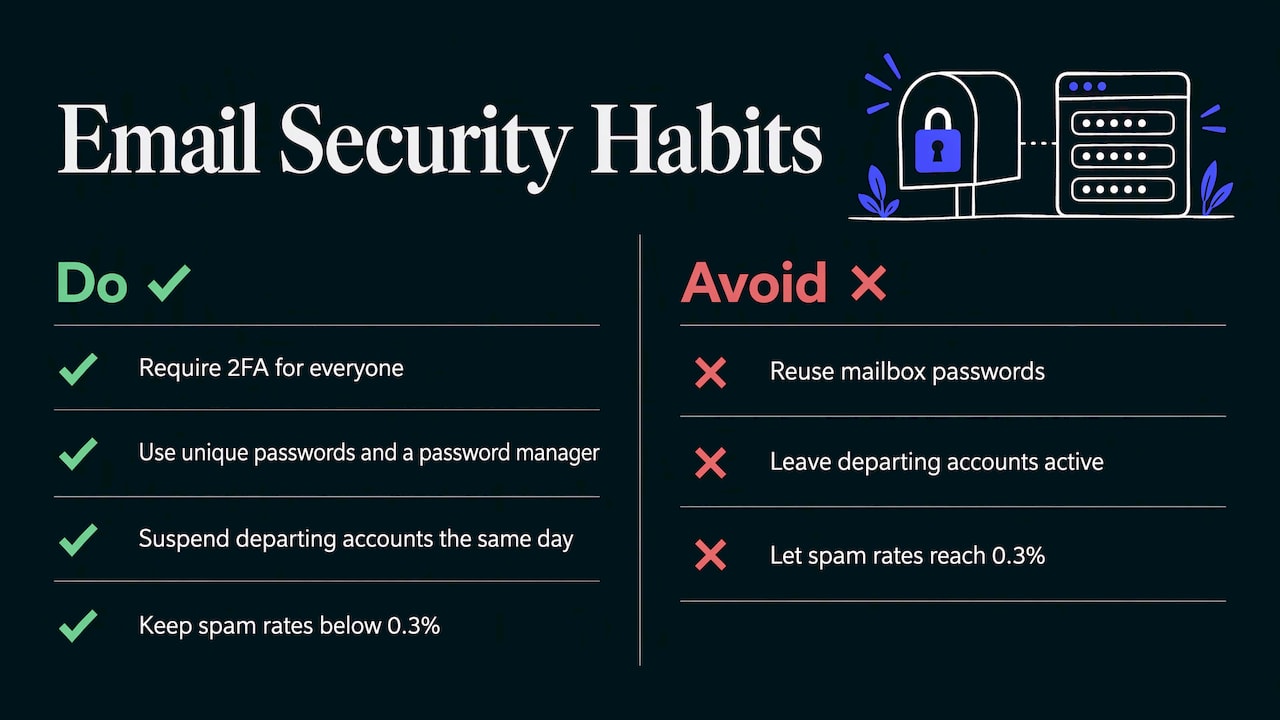
Two-factor authentication on every mailbox. One phished password on a shared finance or admin account is enough for fraudulent invoices to go out under your name. Require it for everyone, including owners.
Strong, unique passwords. Use a password manager and never reuse a mailbox password for other services.
Spam and malware filtering. Confirm filtering is on for inbound mail and review quarantine settings so legitimate mail is not held back.
Offboarding. When someone leaves, suspend the account the same day, reassign shared mail and forward the address to their successor for a set period.
Keep your sending clean. If you send mass mail through your domain, large providers look at complaint rates as well as authentication. Google’s bulk-sender guidance, summarized by Red Sift, asks senders to keep spam rates below 0.3% and to offer one-click unsubscribe, on top of SPF, DKIM and DMARC.
Back up what matters. Know how long deleted mail is recoverable and whether your host keeps retention under your control.
How to choose a private, secure host
The address itself looks identical from any provider. What differs is what happens behind it. For a law firm, a healthcare practice, a ministry or a campaign, these are the questions that decide the choice.
- Who owns the servers? Many providers resell capacity from a large cloud company, which puts your mail on someone else’s infrastructure and under that company’s terms. We own and operate our servers in the U.S., so there is no reseller layer between you and the machine holding your mail.
- Where does the data sit? Know the country and the operator. If your clients or regulators expect U.S.-based storage, the answer should be simple. Our article on cloud hosting outside the US explains why location matters to small businesses.
- Who answers the phone or ticket? When mail stops, you need a person who can read your DNS and fix it. All our plans come with direct, expert U.S. support.
- Is pricing predictable? Per-user pricing scales with headcount and has no surprises when a mailbox grows. Check what is included per user and what changes between tiers.
- Can email grow into collaboration? Many teams soon want shared calendars and chat. Our Teams plans add those on the same independent footing.
- Are you comfortable with the provider’s independence? Organizations that want to step away from Big Tech platforms should check that the host is not simply a front for one. Our comparison of email service providers and the overview of business email solutions lay out the criteria in more detail.
Industry-specific needs follow the same logic. A firm weighing client confidentiality can read our law firm IT support guide, and organizations that care where their provider stands can see how we approach it in our guide to choosing a conservative email service.
Common setups by organization type
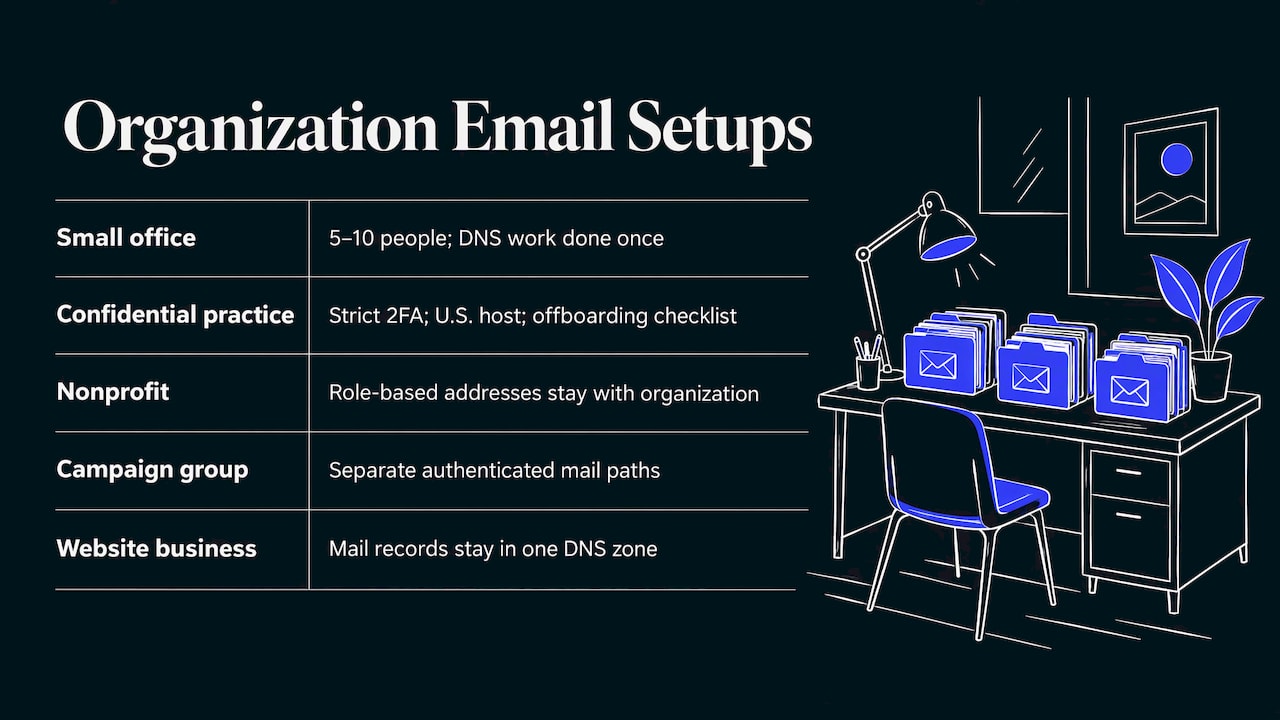
A small office of five to ten people. One mailbox per person, a few aliases (info@, billing@, support@) pointing at the right owners, SPF, DKIM and DMARC published on day one. Most of the work is the DNS, and it is done once.
A practice or firm handling confidential matters. The same base, plus strict two-factor enforcement, a written offboarding checklist and a host whose servers and support staff are in the U.S.
A ministry or nonprofit with volunteers. Give volunteers role-based addresses rather than personal ones, so the mailbox and its history stay with the organization when people rotate out.
A campaign or advocacy group. Expect bursts of outbound mail. Keep transactional mail, staff mail and mass mail on separate authenticated paths, and watch DMARC reports closely so a single misconfigured sender does not hurt everything else.
A business with a website on the same domain. Keep website hosting and mail records straight in one DNS zone. Mailboxes are stored separately from your site’s files, so site growth does not eat mail space, and our WordPress hosting pairs with the mail service on the same domain.
Business email on LiberationTek
Liberation Email is our private email hosting for organizations that want their own domain on servers we own in the U.S. It is priced per user per month in three tiers, Mail Starter, Mail+ and Mail Pro, and each plan comes with direct, expert support from our U.S. team rather than a reseller’s ticket queue. If you also want shared calendars and chat for your staff, the Teams plans add them.
See the current plans and what each tier includes on the Liberation Email page, or start from our home page if you also need hosting or a website.
FAQ
Can I get business email with my domain if I do not have a website?
Yes. Email and website hosting are separate services that share a domain. You only need the domain and a mail host, then you set the MX, SPF, DKIM and DMARC records. Adding a site later does not disturb the mail records.
What is the difference between custom domain email forwarding and a mailbox?
Forwarding redirects messages sent to your domain address to another inbox. A mailbox is a real account on your host’s servers with its own storage, login and the ability to send as your domain. Use forwarding for aliases like info@, and mailboxes for the people who send and receive daily.
How long does it take for domain email to start working?
Entering the records takes a few minutes. DNS changes can take longer to reach every sender, so allow up to a day or two before treating a missing message as a fault. Keep the old mailbox open during that period, and send tests from outside accounts.
Do I need SPF, DKIM and DMARC for a small business?
Yes. They are how receiving servers confirm that mail claiming to be from your domain really is. Gmail and Yahoo made authentication mandatory for bulk senders in February 2024, and the same records improve inbox placement for everyday mail from small teams.
Is a free email address good enough for business?
For an organization that sends to clients, patients or donors, a domain address is the standard. It carries your name, stays under your control when staff change, and lets you set the authentication that mailbox providers look for.
Sources
- Manage Email DNS Records, DNSimple Help
- Understanding Gmail and Yahoo DMARC Requirements, dmarcian
- Gmail’s enforcement ramps up: What bulk senders need to know, Red Sift