
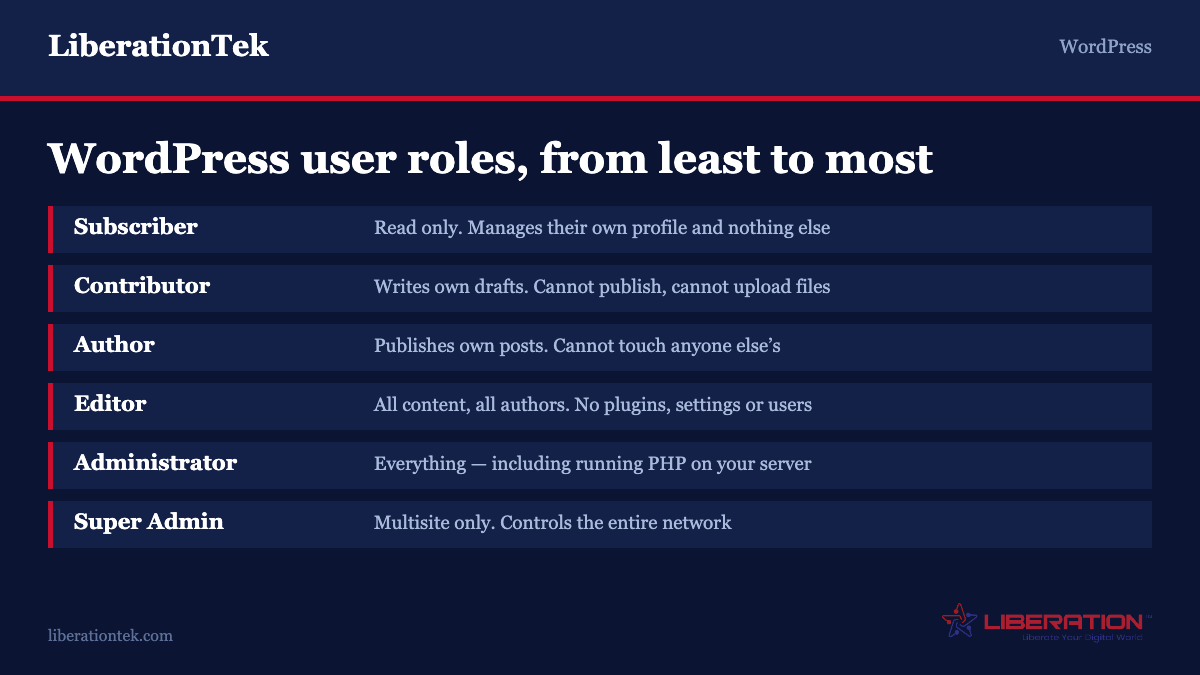
WordPress user roles come in six flavours. Administrator can install and edit plugin and theme code, which makes an Administrator account functionally equivalent to server access. Editor is the right answer for most people who need to manage content. Author for staff who publish their own work, Contributor for anyone whose work should be reviewed, Subscriber for logged-in customers. Assign the smallest role that lets someone do their job, review the user list quarterly, and never share a login.
Most WordPress sites are running with too many administrators. It happens gradually and for understandable reasons: a designer needed to change a template, a marketing contractor needed to install a tracking plugin, the bookkeeper needed to see WooCommerce orders. Each time, Administrator was the role that definitely worked, so Administrator is what they got.
The result is a site where five or six people hold an account that can install arbitrary code, edit theme files, create more administrators and delete everything. Some of those accounts belong to people who finished the job eighteen months ago.
WordPress has a well-designed permission system underneath. It is worth ten minutes to understand what each role can actually do, because the fix is usually just assigning a different one.
How WordPress user roles actually work
A role is a named bundle of capabilities. A capability is a single specific permission — edit_posts, publish_pages, install_plugins, manage_options. WordPress ships with over sixty of them.
When WordPress decides whether someone can do something, it does not check their role. It checks whether their role includes the relevant capability. That matters, because it means roles are not a fixed hierarchy carved into core — they are editable lists, and you can create your own.
Roles are stored in the database rather than in code, which has one consequence people trip over: if a plugin adds capabilities to a role and you later remove the plugin, those capabilities can persist. This is why a site that has been running for eight years often has roles that no longer match what the documentation describes. If you inherit a site, check what the roles actually contain rather than assuming.
The six built-in roles, in plain terms
Subscriber has exactly one capability: read. They can log in and manage their own profile. That is it. This is the role for customers, members and newsletter signups — anyone who needs an account but should never touch content.
Contributor can write and edit their own posts but cannot publish them, and cannot upload files. That last part surprises people: a contributor cannot add an image to their own draft. It is deliberate, and it makes Contributor the right role for guest writers and anyone whose work should pass through review. Someone else hits publish.
Author can write, upload files, publish their own posts and delete their own published posts. They cannot touch anyone else’s content and cannot see the settings. This is the role for staff who produce their own material and are trusted to put it live.
Editor can publish and manage all posts and pages including other people’s, moderate comments, manage categories and upload files. They cannot install plugins, change themes, edit settings or manage users. For most people who ask you for admin access, Editor is the correct answer. A content manager, a marketing lead, an agency handling your blog — Editor covers all of it.
Administrator has every capability on a single site. Read that list carefully, because it includes install_plugins, edit_plugins, edit_themes and edit_files. An Administrator can open the plugin file editor and write arbitrary PHP that runs on your server. They can create other administrators. They can delete the site.
Super Admin exists only on multisite networks and holds the network-level capabilities: create_sites, manage_network, manage_network_users, manage_network_plugins and the rest. On a single-site install this role does not exist, and Administrator is effectively equivalent.
Administrator is not a permission level, it is server access
This is the point the six-roles-explained articles tend to bury.
The edit_plugins and edit_themes capabilities let a user write and save PHP through the WordPress dashboard. That code executes on your server with whatever privileges your PHP process holds. There is no meaningful distinction between handing someone an Administrator account and handing them the ability to run code on your hosting.
install_plugins reaches the same place by a longer route: upload a zip containing anything you like, activate it, and it runs.
So the question to ask before granting Administrator is not “do I trust this person with the website?” It is “do I trust this person, and everyone who might ever compromise their password, with the server?” Those are different questions and the second has a much shorter list of yes answers.
Two practical mitigations. First, disable the built-in file editors by adding define( 'DISALLOW_FILE_EDIT', true ); to wp-config.php. This removes the plugin and theme editors from the dashboard for everyone, including administrators, and costs you nothing if you deploy changes any other way. Second, require multi-factor authentication on every account holding the Administrator role. A compromised admin password on a site without MFA is a full compromise.
unfiltered_html, the capability nobody mentions
The unfiltered_html capability allows a user to post raw HTML and JavaScript in posts, pages, comments and widgets. WordPress strips dangerous markup from users who lack it.
On a single-site install, both Administrators and Editors have it by default. That means an Editor — the role recommended above as the safe alternative to admin — can inject script tags into a page. For an in-house content manager that is usually fine and occasionally necessary. For an outside contractor, it is worth knowing about.
On multisite, WordPress takes this more seriously: only Super Admins have unfiltered_html. Administrators and Editors on individual network sites do not. If you have ever moved a site into a network and found an embed code stopped working, this is why.
There is a related capability, unfiltered_upload, which allows uploading file types outside the allowed list. No role has it by default, including Super Admin, and enabling it requires defining ALLOW_UNFILTERED_UPLOADS in wp-config.php. Leave it alone.
Which role to give which person
A practical mapping for a small business site.
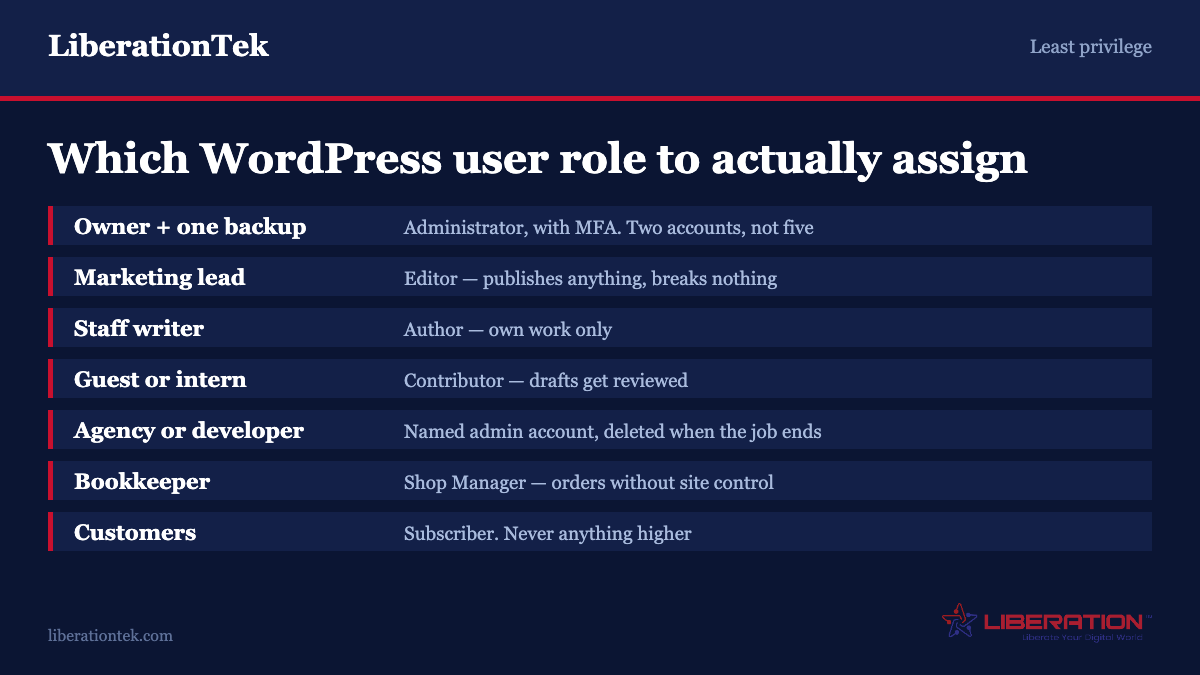
You, the owner — Administrator. One account, with MFA and a strong unique password. Not shared.
A second trusted person — Administrator. You want exactly one other person who can get in if you are unreachable. Not three.
Marketing manager or content lead — Editor. They can publish anything and edit anyone’s work. They cannot break the site by installing something.
Staff writer — Author. Publishes their own work, cannot touch anyone else’s.
Guest writer or intern — Contributor. Drafts get reviewed. Remember they cannot upload images, so someone else adds the artwork.
Designer, developer or agency — a named Administrator account created for them and deleted the day the work ends, never your own login. There is more to this than the role itself, and we covered it separately in is it safe to give a developer your WordPress password.
Bookkeeper or order fulfilment — WooCommerce adds a Shop Manager role for exactly this: orders, products, coupons and reports, without site administration. Use it.
Customers and members — Subscriber, or whatever role your membership plugin creates. Never anything higher.
The person who left in 2023 — deleted. WordPress asks what to do with their content when you remove the account; reassign it to another user rather than deleting the posts.
Custom roles, when the six do not fit
The gap people hit most often is someone who needs to edit pages but not posts, or manage one custom post type and nothing else. None of the built-in roles cover that.
A role editor plugin lets you build roles through the dashboard by ticking capabilities. It is the fastest route and right for most sites. Because it writes to the database, removing the plugin later does not necessarily undo the changes — it just removes your ability to manage them through a UI. Before installing one, run it through the checks in our guide to vetting a WordPress plugin; a plugin that controls permissions is exactly the kind you do not want abandoned.
Code in a small custom plugin. WordPress provides add_role() and WP_Role::add_cap(). Roles persist in the database once created, so this code should run once on plugin activation rather than on every page load. This is the cleanest approach if you have a developer, and the role definition lives in version control.
Add one capability to an existing role. Often the requirement is not a whole new role but a single missing permission. Granting edit_pages to Author, for example, is a two-line change and avoids inventing a role nobody will remember the purpose of.
Whichever route you pick, the principle holds: start from the smallest role that works and add the specific capability that is missing, rather than starting from Administrator and hoping nobody notices.
Housekeeping that actually prevents incidents
Audit the user list quarterly. Open Users, sort by role, and ask of every Administrator whether they still need it. This takes five minutes and is the single highest-value item on this page. Most sites find at least one account that should have been removed.
One account per person. Shared logins destroy your audit trail and mean offboarding one person requires changing a password everyone uses. Named accounts cost nothing.
Do not use an account called “admin”. It is the first username every credential-stuffing bot tries.
Log activity. An activity log plugin records who changed what and when. When something breaks at 2am, the difference between having one and not is the difference between a five-minute answer and an afternoon.
Limit login attempts and require MFA. Roles control what a user can do once they are in. They do nothing about someone guessing a password. Both halves matter.
Keep a current backup. Permissions reduce the odds of a bad change; they do not eliminate them. Our backup and disaster recovery page covers what we include and how restores work.
How roles change on multisite
If you run or are considering a network, the permission model shifts in ways that surprise people.
Site-level Administrators on a multisite network lose a large block of capabilities that belong to the Super Admin instead: update_core, install_plugins, install_themes, delete_plugins, edit_files, create_users, delete_users and unfiltered_html, among others. A site admin can activate a plugin the network has installed; they cannot install one.
For a lot of organisations that is the actual reason to run multisite — it is the only configuration in which you can give someone full control of their own site without giving them the ability to install code. Departmental sites, franchise locations and campus units all benefit from that boundary.
It also means users are network-wide entities added to individual sites with a role, rather than belonging to one site. If the same person needs access to four sites in the network, that is one user with four site memberships, not four accounts.
What WordPress user roles do not protect you from
Roles are an authorisation system. They decide what an authenticated user is allowed to do. They are not an authentication system, not a network boundary, and not a substitute for the other half of the work.
They do nothing about a stolen password. An attacker logged in as your Editor has every capability your Editor has, including — on a single-site install — the ability to inject scripts. Roles limit the blast radius of a compromise; they do not prevent one. Multi-factor authentication, rate-limited logins and unique passwords are the controls that do.
They stop at the WordPress boundary. Hosting control panel access, SFTP credentials, database access and DNS are all separate systems with their own permissions. Someone with no WordPress account at all but a copy of your SFTP password owns the site completely. Grant and revoke those on the same schedule you use for roles, and treat the hosting login as more sensitive than the WordPress one, because it is.
They do not segment the database. Every plugin runs with the site’s single database user, which has full access to every table. A role restricts what a person can do through the interface; it does not restrict what code can do once it is running. This is the underlying reason Administrator is such a consequential role, and the reason plugin choice matters as much as user management.
They do not survive a bad plugin. A plugin that registers its own settings page without a proper capability check can expose administrative functions to lower roles. This is a routine class of WordPress vulnerability — broken access control rather than anything exotic. No amount of careful role assignment helps if the code ignores it.
Think of roles as one of four layers: who can log in at all, what they can do once in, what the code running on the site can reach, and who can get at the server underneath. Roles are the second. Getting them right is worth doing, and it is not finished work on its own.
Frequently asked questions
What is the difference between Editor and Administrator in WordPress?
An Editor can publish and manage all content — posts, pages, comments, categories and media — including other people’s. An Administrator can do all of that plus install and delete plugins and themes, edit PHP files through the dashboard, change site settings, and create or delete users including other administrators. Because Administrator includes the ability to run arbitrary code on your server, Editor is the correct role for anyone whose job is managing content rather than managing the installation.
Can a Contributor upload images in WordPress?
No. The Contributor role deliberately excludes the upload_files capability, so a contributor can write and edit their own drafts but cannot attach images to them, and cannot publish. This makes Contributor the right role for guest writers and anyone whose work should be reviewed, with an Editor or Author adding media and publishing. If a contributor needs to upload, either grant upload_files to the role or move them to Author.
How many WordPress administrators should a site have?
Two. One for the owner and one trusted backup so the site is not locked away if the first person is unreachable. Every additional Administrator is another account that can install code on your server, and most sites accumulate them because Administrator was the quick answer to a temporary request. Audit the list quarterly and downgrade anyone who does not need plugin installation or settings access to Editor.
Is it safe to give a developer or agency Administrator access?
It is often necessary, but do it properly: create a named account for each individual rather than sharing a login, so you can see who changed what and revoke one person without disrupting the rest. Delete the account the day the engagement ends and require multi-factor authentication while it is open. If the work does not require installing plugins or editing files, a custom role or Editor is usually enough.
What does unfiltered_html do and who has it?
It allows a user to post raw HTML and JavaScript in posts, pages, comments and widgets without WordPress stripping potentially dangerous markup. On a single-site installation both Administrators and Editors have it by default. On multisite only Super Admins have it, which is why embed codes sometimes stop working after a site is moved into a network. It is needed for third-party embeds, but it also means an Editor can inject scripts into a page.
Can I create a custom user role in WordPress?
Yes. Roles are stored in the database rather than hard-coded, so you can add one either with a role editor plugin or with the add_role() function in a small custom plugin, run once on activation rather than on every page load. Often you do not need a whole new role: adding a single missing capability to an existing one, such as granting edit_pages to Author, solves the problem with less to maintain.
Sources
Both of these are official WordPress documentation and both are more precise than any summary of them, including this one.
- Roles and Capabilities — WordPress.org. The complete capability list for every role, including multisite differences.
- Security APIs — WordPress Developer Handbook. How capability checks are meant to be written.