
WHMCS automation lets a reseller run hosting without touching each client by hand: a paid invoice creates the cPanel account, a late one triggers reminders and then a suspension, and a payment reverses it. You set it up once with a cron job, a connection to WHM, products that match your packages, and a handful of billing rules.
This guide is for agencies, MSPs and freelancers who sell hosting and still bill from a spreadsheet. It covers eight steps of WHMCS automation, from the cron job to a full test order, and each step covers what to do, what to check and a common mistake. WHMCS is third-party software that you license separately from your host. Everything here is general guidance based on the WHMCS documentation as read in October 2026.
Why reseller hosting billing software matters
Reseller hosting billing software does three jobs: it takes the order, creates the account on the server, and chases the money. WHMCS for resellers is a common choice because it ships with a cPanel and WHM module. Our guide to how reseller hosting works covers the model if you need background.
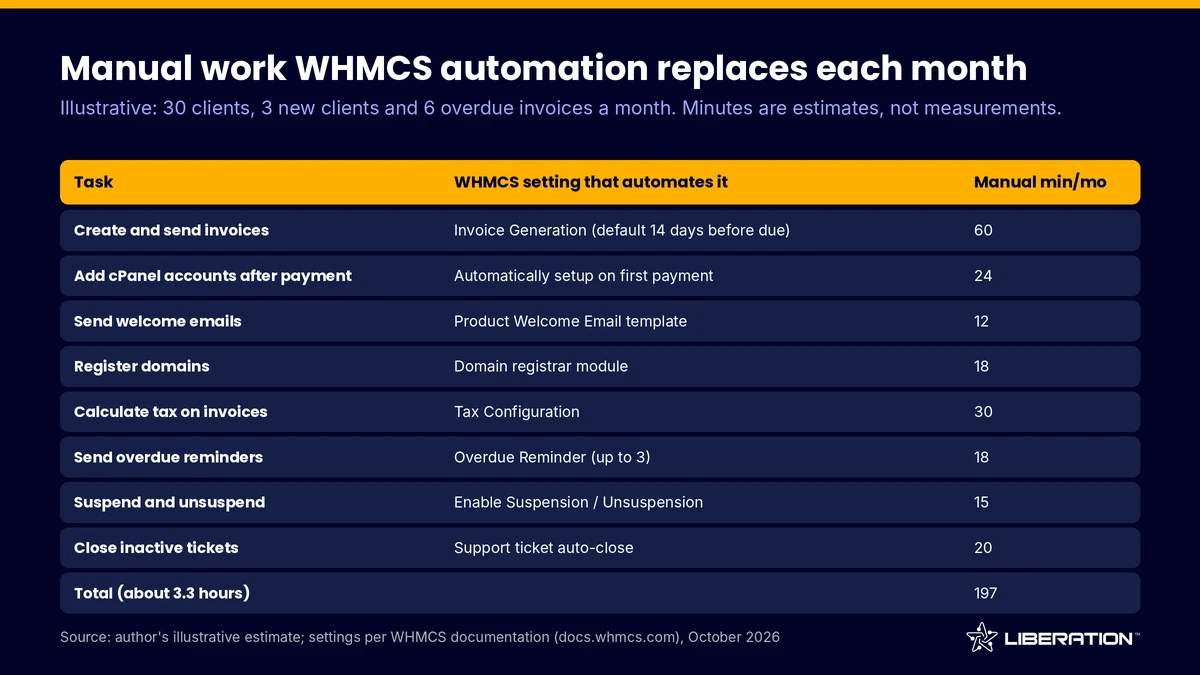
You rarely need it for your first few clients. Past roughly ten clients, invoices, reminders and suspensions eat real hours. The table below is illustrative for a 30-client reseller, and each row maps to a setting in this guide.
1. Set up WHMCS automation and the cron job first
Every piece of WHMCS automation runs from one scheduled task, the system cron. If you self-host WHMCS, the documentation says to run it at least every 5 minutes, and it recommends exactly that. WHMCS Cloud handles the cron for you. Without it, none of the later steps fire.
What to do: copy the cron command from Configuration > System Settings > Automation Settings and add it to the server that hosts WHMCS. Then pick the hour for daily tasks under Time of Day. By default, WHMCS runs invoicing and other daily jobs at 9:00am server time.
What to check: open the Automation Status page the day after setup and confirm the last run shows today’s date. Also make sure the timezone in WHMCS matches the server’s timezone, as the docs instruct.
Common mistake: forgetting to back up WHMCS itself. It holds your invoices and client records, so see our notes on backup and disaster recovery.
2. Set up cPanel WHM provisioning
This is the cpanel whm provisioning link. In WHMCS you go to Configuration > System Settings > Servers, add a server, choose the cPanel module and enter the hostname plus your WHM username and password or an API token. The module supports create, suspend, unsuspend, terminate, change package and change password.
You generate an API token in WHM under Development > Manage API Tokens, and WHMCS lists the permissions it needs, including create-acct, suspend-acct, kill-acct and list-pkgs. Click Test Connection before you save.
What to check: your WHMCS server must be able to reach WHM on outbound ports 2086 and 2087. If two-factor authentication is on for your WHM login, the docs say you must disable the requirement for API requests, or the module will fail.
Common mistake: assuming the access level. If you are still choosing a plan, our guide to hosting reseller plans shows what to compare. WHMCS documents that reseller-type products need root-level access, which matters if you were planning to sell reseller accounts yourself. Most resellers sell individual cPanel accounts instead, so confirm with your host what your WHM login and token can do.
3. Build WHMCS products that match your WHM packages
A WHMCS product is what the client buys, and a WHM package is what the server creates. They must line up. First create the package in WHM under Packages > Add a Package, with your disk, bandwidth and email limits. Then create a Shared Hosting product and pick that package from the WHM Package Name list.
Put products into a product group so the order form stays tidy. If you skip the package and use custom options, blank quota fields mean unlimited, according to the docs.
What to check: price each product by cycle, and work backward from your plan cost; our post on whether reseller hosting is profitable has break-even figures.
Common mistake: pointing a product at the wrong WHM package, so clients get the wrong limits. Order a test account for each product first.
4. Turn on automatic provisioning after payment
By default, WHMCS holds every order until an admin approves it. To change that, edit the product, open the Module Settings tab and find the Automation Settings section. The documentation lists two automatic options: set up the product as soon as an order is placed, which provisions before payment, or set it up as soon as the first payment is received.
For most resellers the second WHMCS automation option is the safer default, because no account exists until money arrives.
What to check: after a test payment, check Utilities > Module Queue and the Module Log under System Logs. The docs name those two places as the first stop for provisioning errors such as access denied or an empty username.
Common mistake: provisioning on order and then finding unpaid orders created live accounts. Decide per product.
5. Configure automated billing for hosting
Automated billing for hosting comes from the Billing Settings and Automatic Module Functions sections of Automation Settings. The docs describe these controls: how many days before the due date to generate an invoice (14 by default), whether to send an unpaid reminder before the due date, up to three overdue reminders, a late fee after a set number of days, and automatic suspension, unsuspension and termination.
You can set a different generation window per billing cycle, such as 7 days for monthly and 14 for annual. Setting a reminder to 0 turns that email off.
What to check: switch on Enable Suspension and Enable Unsuspension together. The docs state that automatic unsuspension applies when the client pays the overdue invoice, but it will not reverse a manual suspension you gave a custom reason, such as a terms violation.
Common mistake: enabling Enable Termination with a short window. Termination removes the account from the server, so allow far more time than you think you need, and keep backups.
6. Build a dunning routine in WHMCS automation
Dunning is the sequence of reminders and consequences that follows a missed or failed payment. A good routine is firm, predictable and written down before the first late client. WHMCS provides the pieces: capture timing, retries, overdue reminders, late fees, suspension and termination days, and automatic cancellation of old unpaid invoices.
For card payments, Process Days Before Due sets when the first charge attempt happens. By default WHMCS retries unpaid card invoices daily until they succeed. The Retry Every Week For setting changes that to one retry every seven days for a number of weeks you choose. Choose whichever fits your clients and your gateway’s rules.
An example schedule, which is a suggestion and not a WHMCS default:
- Invoice generated 14 days before the due date, with an unpaid reminder 3 days before.
- Overdue reminders on days 1, 5 and 10.
- Suspension on day 7 and a late fee on day 7, if your contract allows one.
- Termination on day 30 or later, after a final warning.
Put the timeline in your terms of service. Our reseller client protection policy is one reference for wording.
Common mistake: suspending a live business site on day 1. Give clients a short grace period. The CC Expiry Notices Date setting emails card customers before their cards lapse, which heads off some failures.
7. Automate welcome emails, domains and tax
First, the welcome email: create a template in the Product/Service Messages category, then select it as the Welcome Email on the product’s Details tab. Include your support link, cPanel login address and nameservers.
Second, domains. WHMCS ships with registrar modules for many providers, and you set the registrar per top-level domain so a paid domain order registers automatically. Check that your registrar has a WHMCS module before you commit, and set default nameservers in General Settings so domain-only orders work.
Third, tax. WHMCS handles it under Configuration > System Settings > Tax Configuration, where you turn on Tax Support and choose inclusive or exclusive pricing. The docs also include guides for EU VAT, UK VAT and Indian GST. For US sales tax on hosting, rules vary by state, so confirm with an accountant before you enable rates.
Common mistake: turning tax on without setting it per product. Each product has its own tax toggle, so a forgotten box means untaxed invoices.
8. Route tickets and test your WHMCS automation
The WHMCS ticket desk offers threaded replies, departments, predefined replies and automatic closure of inactive tickets. Create Billing and Technical departments, and add knowledgebase articles so WHMCS can suggest answers as clients write tickets.
Then test everything end to end with a throwaway domain and a low-priced product:
- Place an order and pay it through your gateway’s test mode.
- Confirm the cPanel account appears in WHM and the welcome email arrives.
- Let an invoice go overdue on a test service and watch the reminder, suspension and unsuspension.
- Open a ticket and check it lands in the right department.
WHMCS gateway modules cover merchant, third-party, tokenization and manual payments, so pick one your customers already trust. Our guide to starting a reseller hosting business covers the sales side, and white label reseller hosting covers branding.
Common mistake: going live without testing the unsuspend path. A client who pays and stays offline is the fastest way to lose trust.
Where Liberation fits
WHMCS handles billing and provisioning, and your host supplies the server. Our reseller hosting plans run cPanel and WHM on a private VPS, with private nameservers, a domain reseller account and free client migrations. We do not sell or bundle WHMCS, so you license it separately. For related planning, see reseller email hosting and cPanel vs DirectAdmin vs Plesk.
Frequently asked questions
What is WHMCS automation?
WHMCS automation is the set of tasks the system runs on a schedule through its cron job: generating invoices, sending reminders, provisioning accounts, suspending overdue services and unsuspending them after payment. You control the timing in Automation Settings. A self-hosted install should run the cron at least every 5 minutes.
Is WHMCS for resellers worth it?
WHMCS automation tends to pay off once the monthly billing routine takes hours. WHMCS is licensed separately, so compare its cost with the time it replaces. Very small resellers can bill by hand at first.
Does WHMCS automation work with cPanel and WHM?
Yes. WHMCS includes a cPanel module that supports create, suspend, unsuspend, terminate, change package and change password. You connect it with a WHM username and password or an API token, and your WHMCS server needs outbound access to ports 2086 and 2087.
How should I handle dunning for failed payments?
Set a written timeline: reminders before and after the due date, a short grace period, then suspension, with termination much later. WHMCS can retry declined cards weekly or daily. Tell clients the schedule in your terms.
Does Liberation include WHMCS with its reseller plans?
No. We provide cPanel and WHM reseller hosting, and you license WHMCS or any other billing tool yourself. Ask us through the contact page if you want to check how a billing tool would connect to your plan.
Sources
- WHMCS documentation, Automation Settings (accessed October 2026)
- WHMCS documentation, System Cron (accessed October 2026)
- WHMCS documentation, cPanel module (accessed October 2026)
- WHMCS documentation, Automatically Provision Services (last modified August 4, 2026)
- WHMCS documentation, Tax Configuration (accessed October 2026)
- WHMCS documentation, Domain Registrars (accessed October 2026)
- Liberation Technology Services reseller hosting plans
Related reading: how reseller hosting works, best reseller hosting checks and reseller hosting vs VPS.