
Website backups have to include files and database together, be stored somewhere other than the hosting account, be kept long enough to predate a slow-moving compromise, and have been restored at least once by you. Most small business backup setups fail at least one of those four, usually the last two, and find out at the worst moment.
Almost everyone has website backups of some kind. Far fewer have backups that would actually work, and the gap between those two states is only ever discovered under pressure.
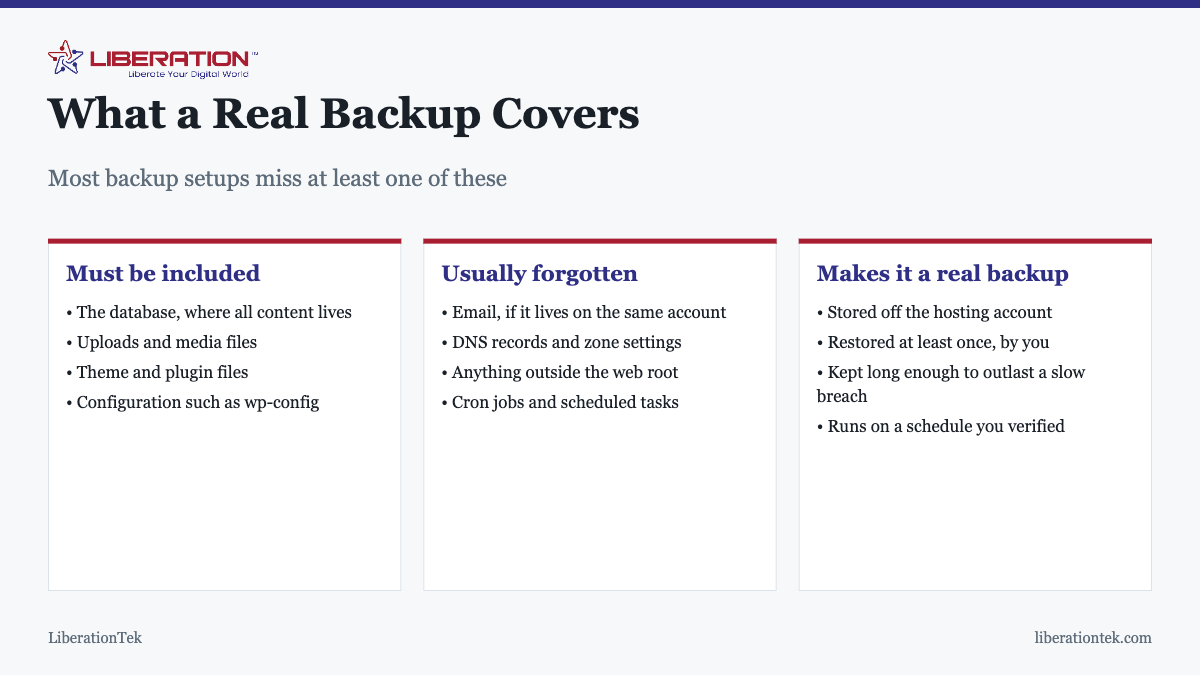
What has to be in it
A website is two things, and a backup of one without the other restores nothing usable.
- The database. Posts, pages, products, orders, users, settings. Almost everything you think of as your site’s content lives here, not in a file you could find.
- The files. Uploads and media, your theme, your plugins, and configuration such as
wp-config.php.
Restoring a database into a site whose plugins are missing produces errors. Restoring files without the database produces an empty site. They have to be captured together, and ideally from the same moment, so that the two halves match.
The pieces people forget
- Email, if your mailboxes live on the same hosting account. Website backup tools generally do not touch mail, and mail cannot be reconstructed.
- DNS records. Not part of any hosting backup, and needed urgently if you ever have to rebuild somewhere else. Export the zone and keep a copy.
- Anything outside the web root, including files a developer left in a home directory.
- Cron jobs. Scheduled tasks are server configuration, not site files, and a restored site quietly stops doing whatever they did.
How often
Frequency is a question about how much work you could afford to lose, not about best practice in the abstract.
| Site type | Sensible frequency | What a gap costs |
|---|---|---|
| Brochure site, rarely changes | Weekly | Very little |
| Active blog | Daily | A post or two |
| Membership or community site | Daily | User accounts and activity |
| Store | Daily at minimum, ideally more | Orders, which cannot be reconstructed |
| Before any update or migration | Always, manually | The whole site, occasionally |
That last row is the one that saves people most often. A manual backup immediately before applying updates turns a bad plugin update from a crisis into a ten-minute inconvenience.
Where they have to live
Off the hosting account. This is the single most common structural failure in small business backup setups, and it is worth being blunt about why.
A backup stored on the same server as the site disappears with the site if the account is suspended over a billing dispute, if the server has a hardware failure, or if an attacker with file access deletes the backup folder before doing anything else, which is standard practice. In each of those cases you had backups right up until the moment you needed them.
Off-site means a different service entirely: cloud storage, a local machine, anywhere that does not share a fate with the hosting account.
How long to keep them
This is the quietly critical one, and short retention is where otherwise sensible setups fail.
Compromises are frequently discovered weeks after they start, because the useful kinds are designed to be unobtrusive. If you keep seven days of backups and discover an infection that has been present for a month, every copy you hold already contains it. You have a complete backup history and nothing to restore.
A reasonable shape: daily backups for the last week or two, weekly for a couple of months, and a monthly copy kept for longer. The storage cost is trivial and it is the difference between recovery and rebuilding. The signs that you may be in this situation are in how to tell if your site has been hacked.
Ransomware, specifically
Backups are the main defense that actually works, but only under the conditions above. Ransomware that reaches your hosting account encrypts or deletes what it can reach, and backups on the same server are usually within reach.
What makes a backup ransomware-proof is that it is somewhere the compromised system cannot write to, and that you hold a copy from before the infection began. Paying attention to storage location and retention matters more here than backup frequency, because a thousand recent backups on the affected server are worth nothing.
The test that makes it real
Restore one. Not eventually, and not during an incident.
Backups fail silently and the failure modes are mundane: a database exported without its tables, a plugin that stopped running months ago after an update, storage that filled up, a schedule that was never actually enabled. None of these announce themselves. The backup dashboard keeps showing green.
- Restore to a staging location or a subdomain, not over your live site.
- Check that content is present and current, including recent posts or orders.
- Test that the site functions, not just that pages load. Forms, logins, checkout.
- Note how long it took. That number is your real recovery time, and it is usually longer than expected.
- Repeat occasionally, particularly after changing hosts or backup tools.
Write down the restore, not just the backup
The thing worth producing from that test is a short written procedure: where the backups are, which credentials are needed to reach them, the order of steps, and roughly how long each takes. Half a page is enough.
This matters because restores happen at bad moments, often when the person who set the backups up is unavailable, on holiday, or no longer with the business. A procedure that exists only in one person’s memory is a single point of failure sitting on top of your recovery plan. Keep the note somewhere that does not depend on the website being up.
What your host covers, and what it does not
Host backups are a real safety net and worth having. They are designed around server failure rather than around your mistakes, so it is worth knowing the answers to a few questions before you rely on them: how far back they go, whether you can trigger a restore yourself or must raise a ticket, how long a restore takes, and whether they remain available if the account is suspended.
Where any of those answers is unsatisfactory, keep your own alongside. LiberationTek shared hosting at $7.99 a month includes cPanel access so you can take and download your own backups whenever you want, and managed VPS hosting adds fuller control. Either way, the copy stored somewhere else is the one that saves you.
Frequently asked questions
What should a website backups include?
Files and database together. The database holds your posts, pages, orders and settings; the files hold your uploads, theme and plugins. A backup of one without the other cannot restore a working site. Also worth capturing separately: your DNS records, and your email if it runs on the same hosting account.
How often should I back up my website?
Match the frequency to how much work you could afford to redo. A brochure site that changes monthly is fine with weekly backups. A site publishing several times a week wants daily. A store taking orders needs at least daily and realistically more often, because every lost hour is lost orders that cannot be reconstructed.
Where should backups be stored?
Somewhere other than the hosting account they came from. A backup stored only on the same server disappears alongside the site if the account is suspended, the server fails, or an attacker with access deletes it. Off-site storage is what separates a backup from a convenience copy.
How long should I keep backups?
Longer than you think, because compromises are often discovered weeks after they happen. If you keep seven days of backups and find malware that has been present for a month, every backup you hold is already infected. Keeping a longer tail, such as weekly copies for a few months, is what makes recovery possible.
Do I still need my own backups if my host takes them?
Yes. Host backups are a genuine safety net but they are designed around server failure, not around your mistakes or your account. Check what the restore process is, whether you can trigger it yourself, how far back it goes, and what happens if the account is suspended. Where any answer is unsatisfactory, keep your own as well.
How do I know my backup actually works?
By restoring it. An untested backup is an assumption, and the common failure modes are silent: a database exported without its tables, a plugin that stopped running months ago, storage that filled up. Restore to a staging location or a subdomain once, so the first restore you attempt is not during an emergency.
Will backups protect me from ransomware?
They are the main thing that does, provided they are stored off the affected system and you have a copy old enough to predate the infection. Backups on the same server can be encrypted or deleted along with everything else, which is exactly why off-site storage and a long retention tail matter more than backup frequency alone.
Related reading on website backups
- How to Protect Your Data with No 1 Privacy-First Cloud Hosting
- Importance of a Secure Website Builder
- How to Optimize Your Team Collaboration Tools for Security and Privacy
- No 1 Cybersecurity Solutions and Information Technology Security