
Business collaboration software puts your team’s email, chat, files, meetings and projects in one place so people stop hunting across five logins. The right pick for a small business, church, nonprofit or campaign is a platform that covers those basics, keeps your data under your control and has a real person to call. That is what Hub for Teams is built to be: email, files, office apps, chat, video and projects in one workspace, running on servers we own in the United States.
This guide explains what these platforms include, where chat fits, which security questions to ask, and how to size and price a rollout for your team.
TL;DR
- Business collaboration software combines messaging, calendars, file sharing, video meetings and project tracking in one workspace, not just a chat window.
- Chat is one layer. It works best when it sits next to your email, documents and tasks, so conversations and files stay together.
- Before you buy, check who owns the servers, who can see your data, whether email is encrypted and who answers the phone when something breaks.
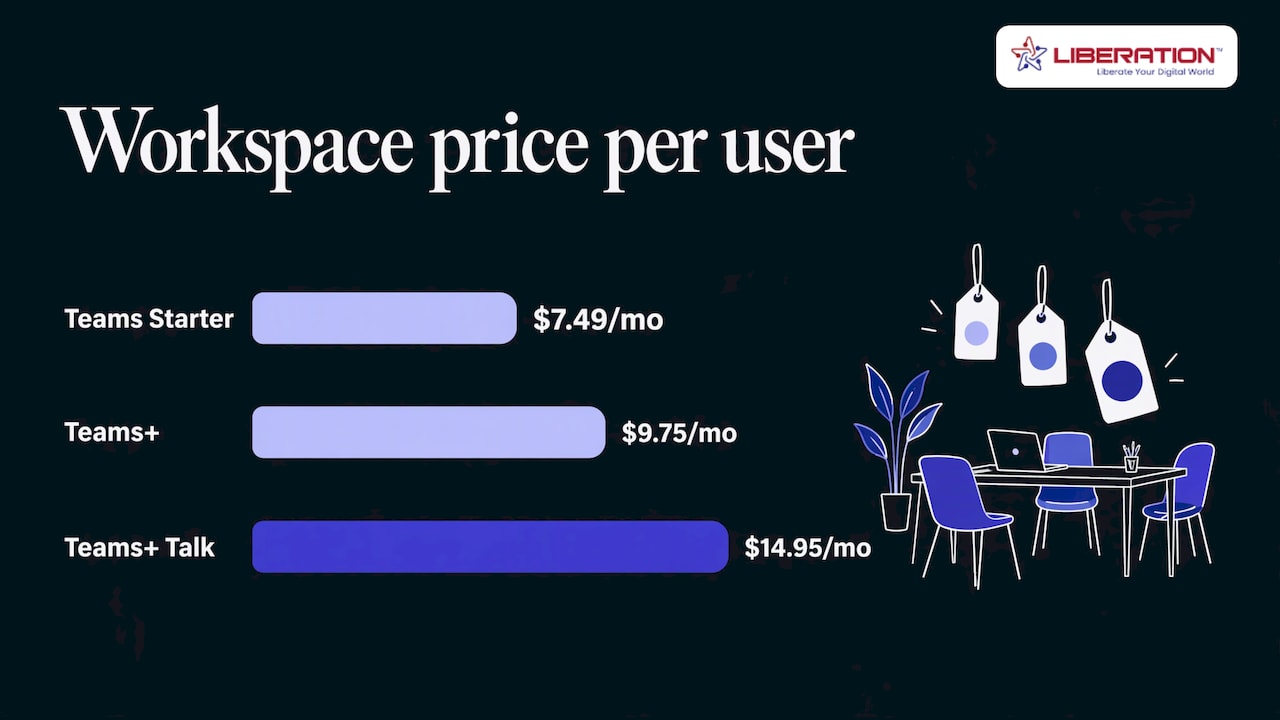
- Price it per user per month and count everyone who needs a seat. Hub for Teams plans run $7.49, $9.75 and $14.95 per user per month.
- Migration and a trial period matter as much as features. Ours is free and every plan has a 30-day money-back guarantee.
Table of Contents
- What business collaboration software actually is
- Where business chat software fits
- What to expect inside a good platform
- The security and privacy questions to ask
- Who this fits
- How to choose, step by step
- What it costs: a worked example
- Moving off the big suites
- Our offer for teams
- FAQ
- Sources
What business collaboration software actually is
The plain definition: it is a shared online workspace where a team talks, shares documents and tracks work. TechTarget’s guide to team collaboration platforms describes core features as messaging, chat, channels, voice calling, video conferencing, screen sharing, calendars and file sharing, with task, project and document management on top. Some platforms add virtual whiteboards and connections to other apps.
The point of the word “platform” is that these pieces talk to each other. A message can point to a file. A meeting invite lives on a shared calendar. A task has a due date everyone sees. When those pieces come from separate vendors, somebody on your team ends up copying things between them.
You will see three names for roughly the same category: collaboration software, collaboration platform and team workspace. A small organization should read all three as the same question: what is the one place where our work happens?
Where business chat software fits
Chat is the fastest part of collaboration and the easiest to start with. A quick question to the front desk, a heads-up to the volunteer coordinator, a link to the budget sheet: chat handles these in seconds, which email does not.
But chat on its own has two weaknesses for a small organization.
- Decisions get buried. A choice made in a chat thread on Tuesday is hard to find on Friday. Tying chat to projects and documents keeps the decision next to the work it affects.
- Files scatter. If every attachment lives in a different thread, nobody knows which version is current.
So treat chat software as a feature of the platform, not the platform. Use chat for the quick back-and-forth, email for anything going outside the organization, shared files for the documents and projects for who does what by when. Hub for Teams puts all of those under one login, so the chat window, the inbox and the document folder are neighbors.
Some teams also add automated replies to answer common questions on a website or in a support inbox. If that is on your list, this overview of chatbots in business shows how they fit around a team’s own tools.
What to expect inside a good platform
Here is a practical checklist, matched to the work most small teams do every week.
| What your team does | What you need from the platform |
|---|---|
| Talk during the day | Chat with channels or group threads, plus direct messages |
| Meet | Video calls with screen sharing, built into the same login |
| Write and edit together | Office apps for documents, spreadsheets and presentations, with shared editing |
| Share files | Shared folders with permissions, so only the right people see donor, client or patient files |
| Plan the week | Shared calendars and a place to track projects and tasks |
| Email clients and members | Business email on your own domain, tied into the same workspace |
TechTarget also advises matching platform tools to the work people need to do, including how many people can join a video meeting, and inviting your own staff to suggest features and add-ons. That advice is worth following literally: ask each department what they did last week, and make sure the platform covers it.
Why one workspace beats five tools
Teams that stitch together separate apps often end up with overlap. A survey by Theta Lake of 500 financial-services professionals in the U.S. and U.K., published in its 2025/26 governance report, found 82% of participating organizations used four or more communication and collaboration tools. That is a regulated industry, but the pattern is familiar to any office: every extra tool is another login to manage, another place data can sit and another bill.
Fewer tools means fewer places to secure, fewer accounts to close when someone leaves and one bill to read.
The security and privacy questions to ask
Collaboration software holds your most sensitive material: client files, member lists, patient scheduling, legal drafts, donor records, campaign strategy. Ask these questions before you commit.
Who owns the servers?
Many providers resell capacity from the largest cloud companies. That means your data sits in someone else’s infrastructure, under someone else’s terms. We run on servers we own in the United States, so there is no middle layer of resold Big Tech capacity between you and your data. We do not track customers or share their data.
Is email encrypted end to end?
End-to-end encryption means only the sender and recipient can read a message, not the provider in between. TechTarget lists end-to-end encryption among the things to consider when evaluating a platform, alongside compliance support for sharing, storage, logging, audits and archiving. Liberation Email, which is part of our offering, is private, ad-free business email with end-to-end encryption.
Who can get in?
TechTarget’s checklist also names single sign-on, guest-access privileges, layered security controls and user training. For a small team that translates into simple habits:
- Give each person their own account, never a shared password.
- Limit guests and outside collaborators to the folders they need.
- Remove access the day someone leaves.
- Train new volunteers and staff on phishing before their first week ends.
Did anyone vet the tool?
A 2021 Ponemon Institute study sponsored by Proofpoint, based on 662 U.S. IT and security professionals, found only 39% said their organizations diligently assess cloud apps before deployment. The same study found 59% used encryption, tokenization or other cryptographic tools to protect sensitive cloud information. The lesson for a small organization: make the assessment a short written list, and do it before the first file goes in.
For a deeper walk through settings, see our guide on optimizing team collaboration tools for security and privacy.
Special cases: health, legal and records
If you run a healthcare practice or law firm, ask your own compliance adviser or attorney which rules apply to how you store and share client information, and bring their requirements to us before you set up. Local government offices and fire districts should do the same with their records officer, since public records and retention rules differ by state.
Who this fits
The platform choice looks different depending on who is using it.
- Churches and ministries: staff, volunteers and committees need shared calendars, one place for bulletins and documents, and email that does not feed an ad profile. Churches and nonprofits receive a 15% discount from us.
- Political campaigns: fast-moving teams need chat, shared documents and a calendar that every field organizer sees, with data that stays in your control.
- Law firms and healthcare practices: confidential files and client messages call for private email and tight folder permissions.
- Second Amendment businesses and FFL stores: customer lists and transfer records are sensitive. A provider that does not track or share customer data is the point.
- Small businesses and podcasters: one affordable seat per person covers email, files, chat and video without a patchwork of subscriptions.
- Fire districts and local government: a shared calendar, file storage and email in one account simplifies administration.
How to choose, step by step
- List what your team does in a normal week. Meetings, document editing, client email, scheduling, project tracking. If a task is not on the list, do not pay for a feature built for it.
- Count seats honestly. Include part-time staff and the volunteers who need real access. Pricing is per user, so the headcount drives the bill.
- Set your security minimums. Encrypted email, permissioned folders, account removal for departing staff and a U.S. support line you can reach.
- Check the exit costs. Theta Lake’s report says 35% of firms cited storage, export or migration costs as a challenge with their existing archiving vendors, and 41% flagged moving on-premises voice recordings to the cloud securely as a key challenge. Those are regulated financial firms, but the takeaway is general: know how your data moves in before you commit. Our migration is free, and we move you from your current provider.
- Run a trial with a real project. Our 30-day money-back guarantee covers every plan, so a small group can run an actual week of work in it.
- Train once, then reinforce. TechTarget points to deployment, adoption and training as part of the work. Pick one person to be the go-to for questions.
What it costs: a worked example
Take a 12-person church staff and volunteer team. Hub for Teams starts at Teams Starter at $7.49 per user per month. Twelve seats come to $89.88 per month. Teams+ is $9.75 per user per month and Teams+ Talk is $14.95 per user per month, so you can step up for the people who need more. The church discount of 15% applies to eligible churches and nonprofits.
Compare that to the true cost of stitching apps together: a chat subscription, a file-sharing subscription, a video subscription and an email subscription, each charging per person. TechTarget notes that some platforms are free but that most organizations pay for enterprise-level features and security. The question to answer is what you get for the money, and who stands behind it.
If you only need email for now, Liberation Email plans are $1.95 (Mail Starter), $4.95 (Mail+) and $7.95 (Mail Pro) per user per month, and you can move up to the full workspace later.
Moving off the big suites
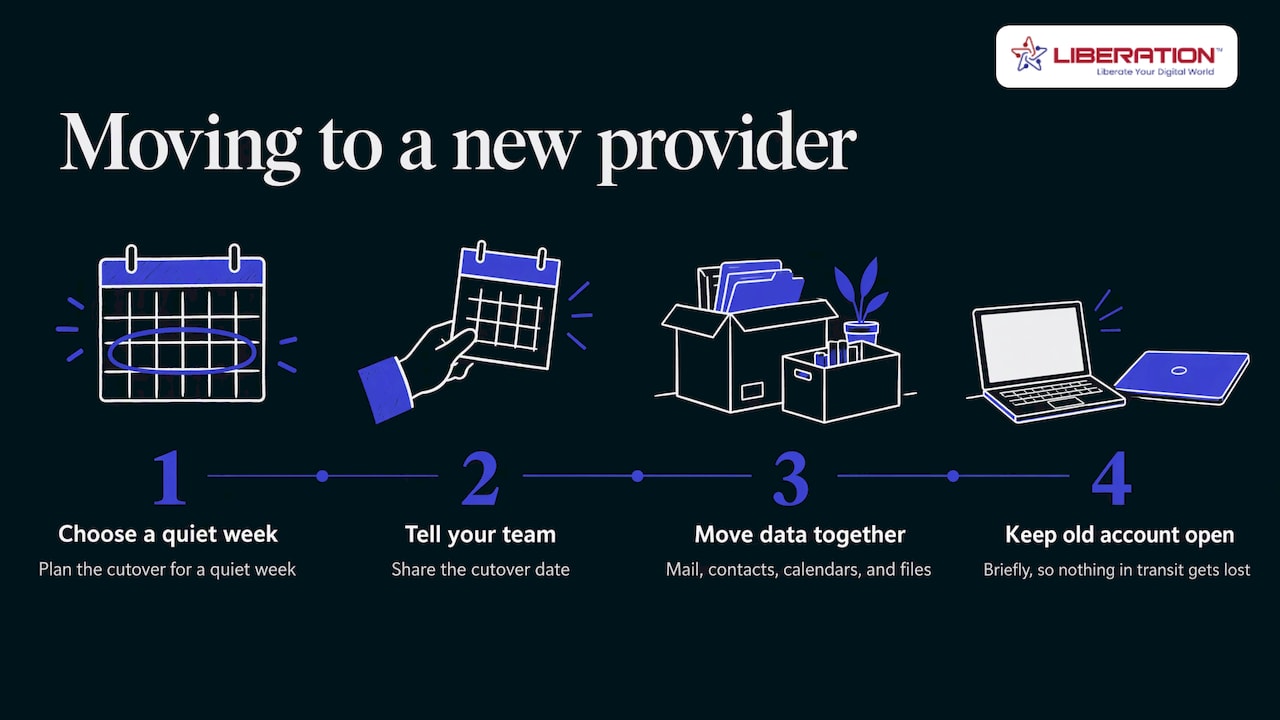
Many of our customers come from the large productivity suites and want out of the ad-driven, data-hungry model. Switching is easier than it looks when someone handles the move: mail, contacts, calendars and files need to travel together. We do the migration for free, and real people in the United States answer support. Plan the cutover for a quiet week, tell your team the date, and keep the old account open briefly so nothing in transit gets lost.
If your website and email also live somewhere you no longer trust, you can consolidate those too. We offer Shared Cloud Hosting, managed WordPress hosting, a Website Builder and custom web development, so your site, mail and team workspace can all sit with one provider.
Our offer for teams
Hub for Teams brings email, files, office apps, chat, video and projects into one workspace, as an alternative to the big productivity suites. Your data stays on servers we own in the United States, we do not track or share it, and every plan includes direct U.S.-based support, free migration and a 30-day money-back guarantee. See the plans and pricing for Teams.

For more reading, our posts on the best collaboration tools in the modern workplace and why collaboration tools are important go further into daily use.
FAQ
What is the difference between collaboration software and chat software?
Chat software handles quick messages. Collaboration software includes chat plus calendars, file sharing, video meetings and project tracking, so conversations stay connected to the work. For most organizations, chat is the entry point and the platform is where the work lives.
How much does business collaboration software cost?
Most platforms charge per user per month. Hub for Teams is $7.49, $9.75 or $14.95 per user per month depending on the plan. Multiply by the number of people who need a seat, and ask about discounts: churches and nonprofits get 15% with us.
Is it hard to switch from another provider?
It takes planning, not technical skill. Mail, calendars, contacts and files need to move together. We handle migration for free on every plan, and a 30-day money-back guarantee applies.
What security features matter most for a small team?
Start with encrypted email, individual accounts, permissioned folders, limited guest access and quick removal of former staff. Add staff training on phishing. Then confirm who owns the servers and whether the provider tracks or shares your data.
Sources
- Ultimate guide to team collaboration platforms, TechTarget
- Cloud Compromise Study, Ponemon Institute and Proofpoint (2021)
- Digital Communications Governance Report 2025/26, Theta Lake
- The Role of Chatbots in Business Success Today