
Shared calendar software gives everyone on your team one schedule they can all see and edit: appointments, service times, shifts, events and deadlines in one place instead of scattered across inboxes and sticky notes. The best place for that calendar is inside the same workspace as your email, files and chat, on servers your provider owns. Hub for Teams from LiberationTek puts a shared calendar next to those tools, with direct U.S.-based support behind it, and it starts at $7.49 per user per month.
This guide explains what a shared team calendar does, which features are worth having, how permissions and privacy work, and how to roll one out without a messy first month.
TL;DR
- A shared calendar works best when it lives in the same workspace as your email, chat and files, so invitations, replies and documents stay connected.
- Look for permission levels, group calendars, mobile access, reminders and a way to see free and busy times at a glance.
- Privacy matters because a calendar shows who meets whom, where and when. Choose a provider that does not track or share your data.
- Create a few purpose-built calendars (staff, events, facilities) rather than one crowded one, and give each person the lowest permission that lets them do their job.
- Hub for Teams plans run $7.49, $9.75 or $14.95 per user per month, with free migration and a 30-day money-back guarantee.
Table of Contents
- What shared calendar software does for a team
- Features worth having in team calendar software
- Privacy: the part most calendar roundups skip
- How to set up a shared team calendar
- Choosing between the main types of tools
- Hub for Teams: a shared calendar inside your workspace
- Ready to put your team on one calendar?
- A practical rollout checklist
- FAQ
- Sources
What shared calendar software does for a team
A calendar becomes “shared” when more than one person can see it, and often when more than one person can change it. That sounds small, but it replaces a lot of back-and-forth. Instead of texting “are you free Thursday?” you look at the calendar and see.
For a small business, that means:
- Fewer double bookings. The front desk, the owner and the technician all see the same appointment slots.
- One source of truth. When a meeting moves, it moves for everyone, and everyone is notified.
- Visible workload. You can see who is stretched thin this week before you assign another job.
For a church or ministry, the same idea covers the sanctuary, the fellowship hall, worship rehearsals, volunteer schedules, small groups and pastoral visits. For a political campaign it covers candidate appearances, canvassing shifts, fundraisers and media hits. For a law firm or healthcare practice it covers hearings, consultations and appointments, where a missed or doubled slot costs real money and trust. For a gun store or firearms instructor it covers class rosters, range time, transfers and vendor deliveries. For a fire district or local government office it covers meetings, inspections and crew coverage.
The common thread is that several people depend on the same dates, and none of them should have to ask someone else what is happening.
Personal calendar versus team calendar
Everyone already has a personal calendar. A team calendar is different in three ways:
- It belongs to the group, not one person. If the person who created it leaves, the calendar stays.
- It has rules about who sees what. Some people see only “busy” blocks, others see full details, and a few can edit.
- It connects to shared tools. Meeting invitations, room or resource bookings, chat reminders and project deadlines can all point to it.
The third point is where most teams gain or lose. A calendar that stands alone is another place to check. A calendar that sits inside your workspace is part of how work moves.
Features worth having in team calendar software
Feature lists on comparison pages run long. For most small organizations, these are the ones that earn their place.
Multiple calendars you can layer
You want a staff calendar, an events calendar and perhaps one for rooms or equipment, and you want to switch them on and off together in a single view. Layering lets a pastor see the building schedule on top of their own appointments, or a shop owner see deliveries on top of staff shifts.
Permission levels
Good shared calendar software separates at least these abilities:
- seeing only whether someone is busy or free,
- seeing full event details,
- adding and editing events,
- managing the calendar and who has access to it.
This is the common pattern across calendar products. For example, administrator documentation for one major suite describes sharing levels that run from free/busy information only up to full access with calendar management. The lesson applies to any tool you choose: you should be able to set the level for each person or group, not just “everyone sees everything.”
Groups and roles
Giving permissions one person at a time becomes a chore at about ten people. Look for the ability to share with a group (all volunteers, all clinicians, all board members) so that new people inherit the right access the day they join. The same principle drives the way roles, scope and audit trails work for teams and agencies: when access is tied to a role, it is easier to keep tidy and easier to review.
Invitations, replies and reminders
You want to invite people by email address, see who accepted, and have reminders arrive on phones. Outside guests such as clients, vendors or volunteers should be able to reply from whatever calendar they use. Behind the scenes, many calendars exchange events using open standards. One of them, CalDAV, defines a standard way of accessing and sharing calendar information so different devices and programs can work together.
Mobile access
Most of your team will check the calendar from a phone. Make sure it syncs to the phones people already carry, and that a change made in the parking lot shows up at the desk within moments.
Recurring events and time zones
Weekly staff meetings, monthly board meetings and Sunday services are all recurring events. Check that you can change one occurrence without breaking the series, and that people traveling or working remotely see the correct local time.
Tie-ins to email, chat, video and projects
This is the feature that separates a calendar from a calendar system. When you accept an invitation in your inbox, it should land on your calendar. When you schedule a call, the video link should be in the invitation. When a project deadline is set, it should be visible to the people responsible. If you want to see how calendar features connect to wider productivity tools, this overview of project management tools for event planners shows how scheduling and task tracking fit together.
Privacy: the part most calendar roundups skip
A calendar is more revealing than it looks. It shows when your attorney meets a client, when a clinician sees a patient, when a candidate will be at a particular address, when a gun store owner will be away from the shop. Even without event titles, the pattern says a lot.
When you evaluate calendar software, ask these questions:
- Who owns the servers? Some providers resell capacity from the largest cloud companies. LiberationTek runs on servers it owns in the United States, so your data is not sitting inside someone else’s infrastructure.
- Is your data used for advertising or shared? LiberationTek does not track or share customer data, and there are no ads.
- Can you control who sees what inside your own team? Use the permission levels above, and keep full-detail access for the few people who need it.
- Is the related email protected? Calendar invitations travel by email. Liberation Email offers end-to-end encryption, so the messages that carry your meeting details can be kept private too.
- Can a real person help when something goes wrong? Every LiberationTek plan includes direct U.S.-based support.
If your organization handles sensitive information, such as client matters in a law firm or patient scheduling in a healthcare practice, talk with your own compliance or legal adviser about the rules that apply to you. Our team can walk you through how Hub for Teams is set up for your size of organization.
How to set up a shared team calendar
The steps are the same in most business calendar tools. Here is the routine, with the points where teams usually go wrong.
Step 1: Decide which calendars you need
Write down the questions your team asks every week. “Who is working Saturday?” “Is the hall free?” “When is the next board meeting?” Each recurring question usually deserves its own calendar. Start with two or three. A single calendar for everything becomes unreadable fast.
Where it goes wrong: creating a calendar per person or per project until nobody knows where to look.
Step 2: Create each calendar under the organization, not a person
Make the calendar a shared, organization-owned one. If it is created under one person’s personal account, it can disappear or lose its owner when that person changes roles.
Step 3: Choose a permission for each person or group
A workable starting point:
| Who | Suggested permission |
|---|---|
| Owner, director or office manager | Manage the calendar and sharing |
| Staff who schedule things | Add and edit events |
| Everyone else on the team | View all event details |
| Part-time helpers, volunteers, contractors | See free/busy only, or view only the events relevant to them |
Give the lowest level that lets a person do their job. You can always raise it.
Where it goes wrong: giving everyone edit rights “to keep it simple.” Then one accidental drag moves the annual banquet to the wrong week.
Step 4: Invite people and connect their devices
Send invitations, then confirm each person has the calendar on their phone and computer. Do this with the team in the room or on a call. Ten minutes of setup together saves weeks of “I never saw that.”
Step 5: Agree on naming and color rules
Pick a short convention: what goes in the title, what goes in the description, which color means which kind of event. Put it on one page and share it.
Step 6: Move your existing schedules in
Import recurring events (weekly meetings, services, payroll dates) and add the next two or three months of one-time events. A calendar that starts empty is not trusted, and a calendar that is not trusted does not get used. If you are moving from another provider, LiberationTek offers free migration on every plan.
Step 7: Review after 30 days
Ask the team what is missing, what is noisy and who has more access than they need. Adjust. LiberationTek plans carry a 30-day money-back guarantee, which gives you a full month to run this review in real use.
Choosing between the main types of tools
Shared calendar software generally comes in three shapes. Here is how they compare for a small organization.
| Type | Strength | Trade-off to plan for |
|---|---|---|
| Calendar bundled in a big-tech suite | Familiar to many people | Your schedule lives inside a large ad-and-data company’s infrastructure, and prices can change over time |
| Stand-alone scheduling app | Easy to start for one narrow job | One more login and one more bill, and it does not share a workspace with your email or files |
| Calendar inside a private team workspace | Calendar, email, files, chat and video connected | Choose a provider that owns its infrastructure and supports you directly |
If you are leaving a big-tech suite because of cost or privacy, LiberationTek has written about how Microsoft 365 prices have risen over the years, which is a useful lens when you compare subscription costs over three to five years.
Hub for Teams: a shared calendar inside your workspace
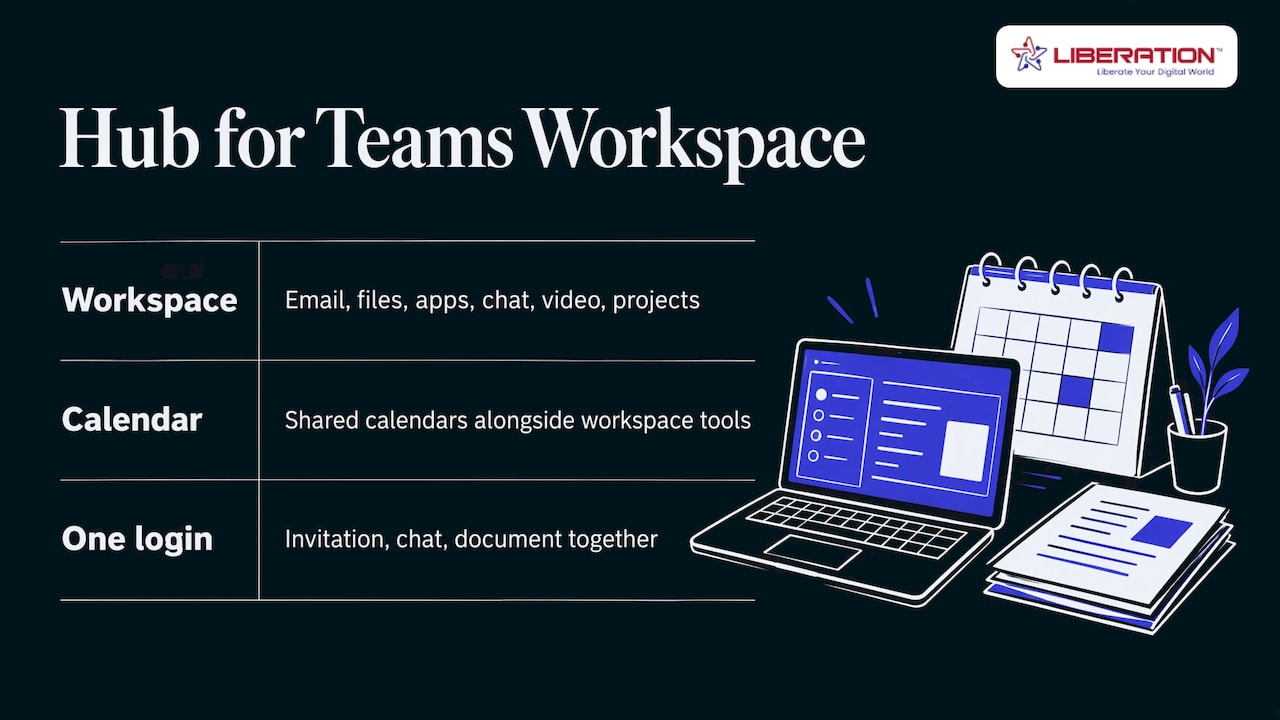
Hub for Teams is LiberationTek’s workspace for organizations that want an alternative to the big suites. It brings email, files, office apps, chat, video and projects into one place, with shared calendars alongside them. Because the calendar sits with the rest of your tools, an invitation, a chat thread about it and the document you will discuss can all be found from one login.
It is built for the groups we serve: small businesses, churches and ministries, nonprofits, conservative and faith-based organizations, Second Amendment businesses, political campaigns, healthcare practices, law firms and local government. If you want to see how the workspace fits a specific kind of team, we have pages for 2A-friendly team collaboration and self-defense team collaboration, plus a broader piece on collaboration tools in the modern workplace.
What it costs
Prices are per user, per month, as published on our site:
| Plan | Price |
|---|---|
| Teams Starter | $7.49 per user per month |
| Teams+ | $9.75 per user per month |
| Teams+ Talk | $14.95 per user per month |
Churches and nonprofits receive a 15% discount. Every plan includes direct U.S.-based support, free migration from another provider and a 30-day money-back guarantee.
If you only need private email for now
Some organizations start with email and add the workspace later. Liberation Email is private, ad-free business email with end-to-end encryption, priced at $1.95 per user per month for Mail Starter, $4.95 for Mail+ and $7.95 for Mail Pro. You can see the details on the Liberation Email plans page.
Ready to put your team on one calendar?
If your schedule is spread across personal calendars, group texts and paper, the fastest fix is a single workspace where the calendar, email and chat live together. Hub for Teams gives your staff, volunteers or campaign team that shared view on servers we own in the United States, with a person to call when you need help.

See the plans and start with the Hub for Teams page. Moving from another provider costs nothing, and you have 30 days to decide.
A practical rollout checklist
Before you switch everyone over, run through this list:
- Count your people. Include part-time staff, volunteers and board members who need access, because pricing is per user.
- List your calendars. Two or three to start.
- Name the owners. Each calendar has one accountable person and one backup.
- Set permissions by group. Not by individual wherever you can avoid it.
- Decide how outside guests are invited. Clients, vendors and visitors should be able to accept from their own calendars.
- Check phones. Every person confirms the calendar is on their device.
- Move recurring events first. Then the next quarter of one-time events.
- Set a review date. Thirty days out, while the guarantee window is still open.
FAQ
What is the difference between a shared calendar and a team calendar?
In practice they mean the same thing: a calendar several people can see, and often edit. “Team calendar” usually points to a calendar for a defined group such as staff or volunteers, while “shared calendar” can include one person sharing their own schedule with a few others. The best setups use team calendars for group work and share individual calendars only as free/busy.
How many calendars should a small business have?
Start with two or three: one for staff schedules and appointments, one for events, and one for rooms or equipment if you have them. Add more only when a recurring question cannot be answered from the ones you have. Too many calendars is the most common reason people stop checking.
Can outside people see our shared calendar?
That depends on the permissions you set. You can invite clients, vendors or volunteers to individual events without opening the whole calendar, and you can limit staff to free/busy views where full details are not needed. Review sharing settings whenever someone joins or leaves.
Is a calendar private if our email is private?
They work together. Calendar invitations travel through email, so protecting the email protects the messages that carry meeting details. Liberation Email offers end-to-end encryption, and LiberationTek does not track or share customer data.
What does Hub for Teams cost for a church or nonprofit?
The plans are $7.49 (Teams Starter), $9.75 (Teams+) and $14.95 (Teams+ Talk) per user per month, and churches and nonprofits receive a 15% discount. Every plan includes free migration and a 30-day money-back guarantee.
Sources
- Set Google Calendar sharing options, administrator help
- RFC 4791, Calendaring Extensions to WebDAV (CalDAV)
- Teams and agencies: roles, scope and the audit trail
- 7 Best Project Management Tools for Event Planners