
Most WordPress compromises come through plugins rather than WordPress itself. Before installing, check when it was last updated, how many sites use it, whether support threads get answered, and who maintains it. Then ask the harder question: do you need this plugin at all? The safest plugin is the one you did not install.
WordPress core is well maintained and reasonably hardened. The security problem in the WordPress ecosystem is not usually WordPress — it is the forty plugins sitting on top of it, several of which nobody has looked at since 2021.
Every plugin you add is code running with full access to your site and database, written by someone you have never met, updating itself automatically. That is worth sixty seconds of scrutiny.
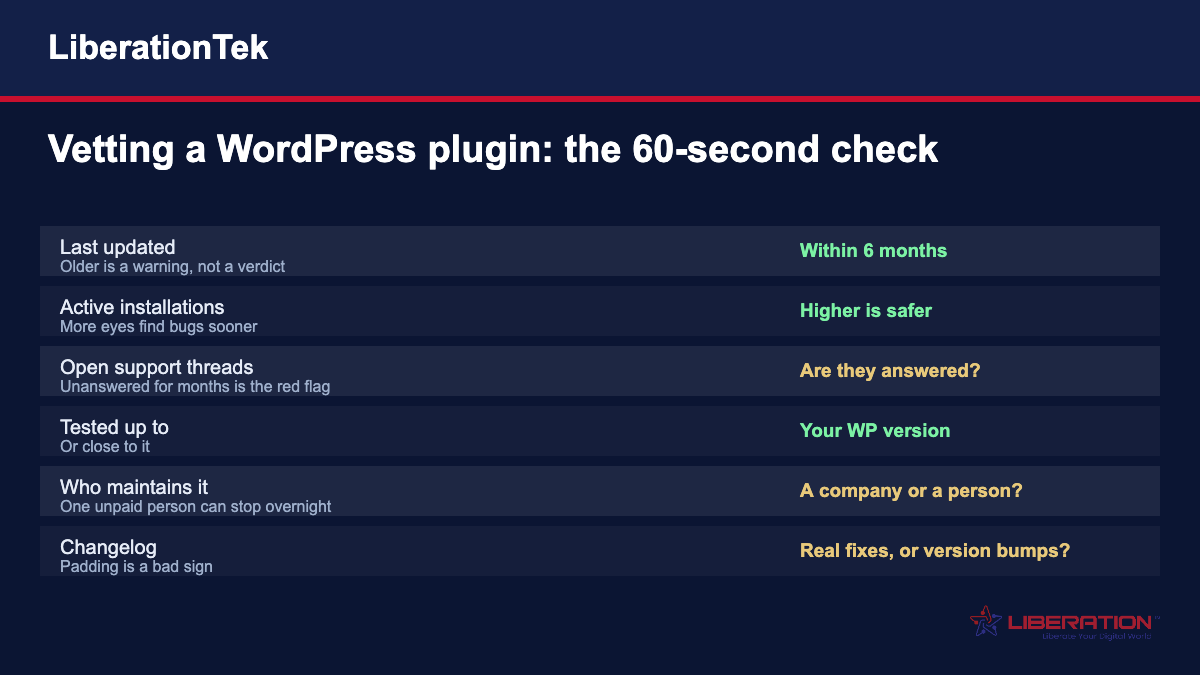
Vetting a WordPress plugin: the sixty-second check
Before you click install, look at four things on the plugin page.
Last updated. Within six months is healthy. A year or more is a warning — not automatically disqualifying, since a genuinely simple plugin may be finished, but it means nobody is watching for problems.
Active installations. More users means more people finding bugs and more pressure to fix them. Ten thousand installs is meaningfully safer than fifty. This is not a quality measure, it is an attention measure.
The support forum. This is the most revealing and the least read. Open the support tab and look at whether recent threads have replies. A plugin with twenty unanswered questions from the last three months is abandoned in practice, whatever the update date says.
Tested up to. Should match your WordPress version or be close. A plugin declaring compatibility only with a version from two years ago is telling you something.
The question most people skip
Do you actually need it?
A surprising proportion of installed plugins do something achievable another way: a few lines in the theme, a setting already in WordPress, or a feature your page builder has. Every one you avoid is one fewer thing to patch, one fewer thing to break on update, and one fewer route in.
The plugins worth having are the ones doing real work you could not otherwise do. The ones to resist are those adding a small convenience at the cost of a permanent dependency.
Who is behind it
There is a meaningful difference between a plugin maintained by a company with a commercial product and one maintained by an individual in their spare time.
Neither is automatically better — some of the finest work in the ecosystem comes from individuals, and plenty of commercial plugins are bloated. But they fail differently. An individual maintainer can stop overnight with no successor. A company can be acquired, and the plugin monetised, degraded, or filled with upsells.
Acquisition is worth watching for specifically. A pattern in this ecosystem is a popular free plugin being bought, then gradually acquiring nag screens, tracking and a paywalled version of what used to be free.
Reading the changelog properly
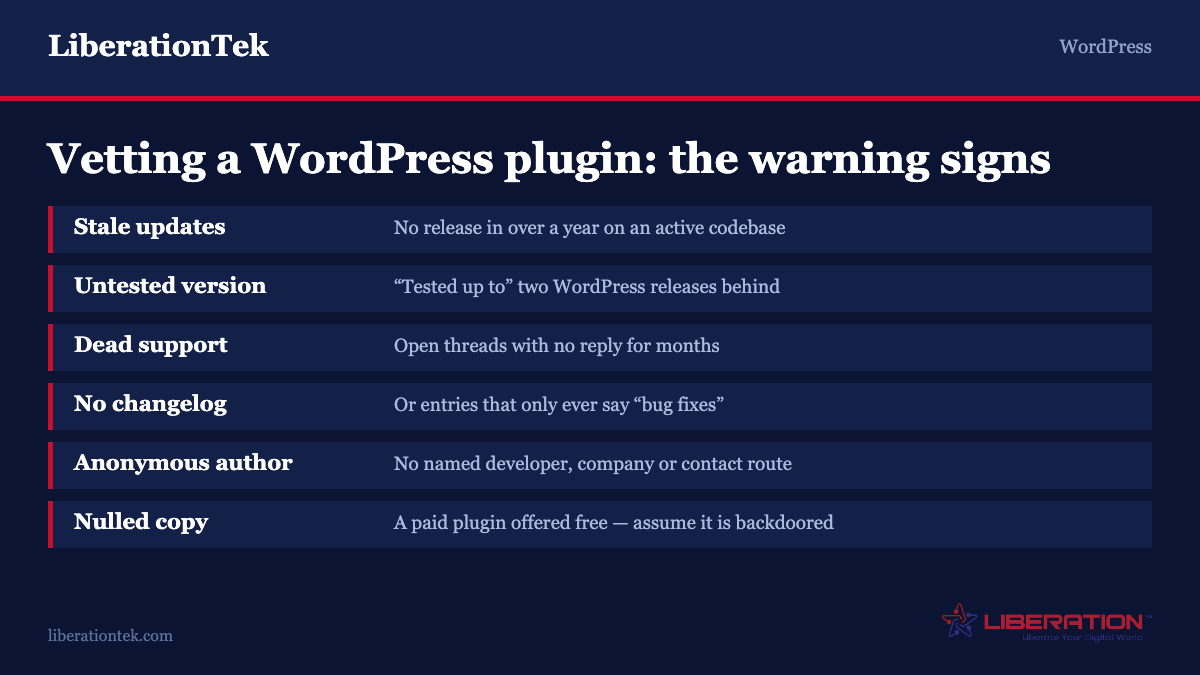
A changelog full of “bug fixes and improvements” tells you nothing. A good one names what changed and why.
What you want to see is evidence of actual maintenance: compatibility updates when WordPress releases, security fixes credited to reporters, specific bugs described. What should give you pause is a long run of version bumps with no substance, which often means someone is keeping the “last updated” date fresh without doing work.
Permissions and what it loads
WordPress plugins do not have a permissions model — every plugin has full access. That is exactly why what a plugin loads matters.
Be wary of anything that calls home unnecessarily, loads scripts from third-party domains on your front end, or asks for an account to function. Each of those is a dependency on someone else’s infrastructure and, if they are loading scripts on your pages, a supply-chain risk. If that third party is compromised, your visitors are.
Nulled plugins
Worth one blunt paragraph. “Nulled” or cracked premium plugins — paid plugins redistributed free with the licence check removed — are one of the most reliable ways to get a site compromised.
The business model of the sites distributing them is not charity. The code is modified, and what was added is frequently a backdoor. We have cleaned up sites infected this way and the cost of the cleanup always exceeded the licence.
If a plugin is worth using, it is worth buying. If it is not worth buying, do not install a tampered copy of it.
Test before you trust
Even a well-vetted plugin can break your specific site through a conflict nobody could have predicted.
Install on staging first if you have one. If you do not, take a backup you have actually verified, install one plugin at a time, and check the site afterwards — not just the homepage, but the checkout, the contact form and anything else that earns money.
Installing five plugins at once and discovering something is broken means you now have five suspects and no way to bisect.
Auditing what you already have
Once a year, open your plugins list and go through it honestly.
Deactivated plugins are not harmless. Their code still sits on the server and can still be reachable. Delete what you are not using rather than leaving it deactivated.
Find the abandoned ones. Anything not updated in over a year, or whose support forum has gone quiet, needs a replacement plan before it becomes urgent.
Find the redundant ones. Sites accumulate three plugins doing overlapping jobs because different people added them at different times.
Ask what each one is for. If nobody can say, that is your answer.
Keeping them updated without fear
The most common reason businesses run outdated plugins is that an update broke something once. That is a real memory and the wrong lesson — outdated plugins are the single largest source of WordPress compromises.
The answer is not to avoid updating. It is to make updating safe: backups that run before the update and that somebody has tested restoring, updates applied on staging where the site earns enough to justify it, and a rollback you can reach in minutes rather than hours.
That is precisely what a maintenance routine is for, and it is why CodeGuard includes automatic recovery when a WordPress update breaks a site. Our backup and disaster recovery guide covers the testing side.
Frequently asked questions
How many WordPress plugins is too many?
There is no magic number, and count matters less than quality and necessity. Twenty well-maintained plugins doing real work are safer than eight abandoned ones. The useful test is whether you can say what each plugin is for and whether the site would genuinely suffer without it. If nobody can answer that for a given plugin, that is your answer.
Is it safe to use a plugin that has not been updated in a year?
It is a warning rather than an automatic no. A genuinely simple plugin may be finished and still work correctly. What matters more is whether the support forum shows recent questions going unanswered, because that indicates nobody is home. If a plugin is both old and unsupported and it touches forms, users or payments, replace it.
What are nulled plugins and why are they dangerous?
Nulled plugins are paid plugins redistributed for free with the licence check removed. The sites distributing them are not doing it out of generosity — the code is modified, and the modification is frequently a backdoor. Every site we have cleaned up after one cost far more to fix than the original licence would have. If a plugin is worth using it is worth buying.
Should I delete deactivated plugins?
Yes. Deactivating a plugin does not remove its code from the server, and in some circumstances that code remains reachable. If you are not using it, delete it. If you might need it again, you can reinstall it in thirty seconds — that is a much better trade than leaving dormant code on a live site.
How do I check whether a plugin is well maintained?
Open the support forum tab, not just the plugin description. Look at whether questions from the last few months have replies from the developer. Then read the changelog for evidence of real work — named bug fixes, compatibility updates at WordPress releases, security fixes credited to reporters — rather than a run of version bumps that only keeps the date fresh.
What should I do before installing a new plugin?
Take a backup you have actually verified, install one plugin at a time, and check the site afterwards including the parts that earn money: checkout, contact forms, booking. Use staging if you have it. Installing five plugins at once and then finding something broken leaves you with five suspects and no easy way to work out which.
Are page builder add-ons a risk?
They carry the same risks as any plugin plus one more: they are tied to a builder that may change. When the builder releases a major version, third-party add-ons can break or go unmaintained, and because they are woven into your page layouts, removing one can damage the pages themselves. Prefer add-ons from the builder’s own developer where the feature matters.
Auditing a plugin you cannot remove
Vetting a WordPress plugin is straightforward before you install it. The harder situation is the one most sites are actually in: a plugin that is load-bearing, has not been updated in two years, and cannot simply be deleted because the site depends on it. Deleting it is not an option and ignoring it is not either.
Establish whether it is abandoned or merely finished. These look identical from the outside and are not the same thing. A small plugin that does one narrow job may genuinely need no changes for years. Check whether the last release actually broke anything: does it still work on the current WordPress version, do its support threads contain unanswered bug reports or only feature requests, and has it been flagged in any vulnerability database. A quiet plugin with no open defects is a different risk from a quiet plugin with a year of unanswered crash reports.
Find out whether it is still in the directory. A plugin removed from WordPress.org stops receiving updates entirely, including security fixes, and your dashboard will not tell you. It simply goes quiet. Visit the plugin’s directory page directly. If it returns a 404 or a security notice, treat that as urgent rather than informational — this is the single most common way a site ends up running known-vulnerable code while appearing fully up to date.
Reduce what it can reach. If a plugin only serves one page or one role, it does not need to load everywhere. Conditionally disabling plugins by context cuts both the performance cost and the attack surface, and it is reversible. Where a plugin exposes a public endpoint you do not use, block it at the firewall or the host level.
Work out the replacement before you need it. The worst time to research alternatives is the morning a vulnerability is disclosed. Identify the two nearest replacements now, note what migrating would involve, and write it down. That note is worth more than any monitoring you could buy, because it turns an emergency into a scheduled job.
Consider paying for the thing you depend on. If a free plugin is genuinely critical to your business and its author has a paid tier, buying it is often the cheapest risk mitigation available. It is the difference between being a user and being a customer, and it materially changes how quickly a report gets attention.
Building a habit rather than doing an audit
A one-off review makes a site safe on one day. What keeps it safe is a small amount of recurring attention, and the recurring version is much less work than people expect.
Keep the list short on purpose. Every plugin is code you did not write running with full access to your database. The most effective security measure available to most sites is uninstalling the eleven plugins nobody uses. Deactivating is not enough — deactivated plugin files remain on disk and can still be reachable. Delete them.
Review quarterly, not continuously. Once every three months, open the plugins screen and ask three questions of each entry: do we still use this, is it still maintained, and is there now a simpler way to do the same thing. Fifteen minutes, four times a year.
Subscribe to vulnerability notifications. Several services publish WordPress plugin vulnerability feeds and will email you when something you run is affected. This is the one piece of monitoring genuinely worth setting up, because it catches the case where a plugin you vetted carefully turns out to have a flaw eighteen months later.
Update on a schedule, with a restore point. Take a backup, apply updates, check the pages that matter — front page, checkout or contact form, and one logged-in view. On a site where downtime costs money, do it on staging first. The fear of updating causes far more damage than updating does, because the alternative is running known-vulnerable code deliberately.
Write down why each plugin is there. A one-line note per plugin, kept anywhere, so that whoever inherits the site in two years does not face thirty entries with no context and deactivate the one holding the contact form together. This takes twenty minutes once and is the single most appreciated thing you can leave behind.
Free, freemium or paid
Price is not a proxy for quality, but the business model behind a plugin tells you something useful about whether it will still be maintained in three years.
Free plugins in the directory are maintained out of goodwill, professional reputation, or because the author uses the plugin themselves. The first two are unreliable over long periods; the third is the most durable reason a small plugin stays current. A free plugin from a developer who clearly runs it on their own client sites is a better bet than one from an author who has moved on to other work, and you can usually tell which is which from the support forum.
Freemium plugins fund development through upgrades, which is a healthier model — but check where the line falls before you build on the free tier. Some reserve genuinely essential functionality behind the paywall, and a few have moved features from free to paid after establishing an install base. Look at what the free version did two years ago versus today.
Paid plugins buy you a support obligation and, usually, a roadmap. They also introduce a licence key that has to be renewed, and a plugin whose licence has lapsed often stops receiving updates entirely while continuing to appear installed and current. Track renewals somewhere you will actually see them.
The model matters most for anything load-bearing. For a plugin that renders your checkout, takes bookings or handles memberships, paying an active company is usually the cheaper decision once you price in the cost of an emergency migration.
Before you click activate
Two last habits, both of which take under a minute and prevent the majority of bad afternoons.
Install one plugin at a time. When something breaks after you have installed four, you have four suspects and no way to separate them. Install, activate, load the front page and one logged-in view, then move on. This is tedious exactly once, on the day it saves you an hour of bisecting.
Take a restore point first. Not because activation usually breaks things — it usually does not — but because the failure mode when it does is a white screen with no dashboard access, and recovering from that without a backup means editing files over SFTP under time pressure. A snapshot takes seconds.
Vetting a WordPress plugin properly is perhaps ten minutes of work. Recovering from one that was installed without any of these checks is regularly a weekend.
Sources
Two references worth bookmarking: the rules every plugin in the official directory has agreed to follow, and the handbook that tells you what a competently written plugin looks like from the inside.
- Detailed Plugin Guidelines — WordPress.org. What a directory-hosted plugin is and is not permitted to do.
- Security APIs — WordPress Developer Handbook. The sanitisation and nonce practices referenced above.