
A website backup service is a tool or provider that copies your site’s files and database to a separate location on a schedule, so you can restore a website after a hack, a bad update or a server failure. Choose one that backs up daily, stores copies off the server, keeps version history, and lets you test a restore before it goes live.
This guide is for business owners and the developers or agencies who look after their sites. It walks through seven steps to choose and set up a website backup service, including what to back up, how often, where to keep copies, and how to prove the backups actually work.
Step 1: Decide what a website backup service must protect
Start with an inventory. A working site is more than one folder, and a website backup that misses a piece will fail you at the worst moment.
For a WordPress site, the WordPress developer documentation says a complete WordPress backup needs both the files (core, themes, plugins, uploads, wp-config.php and .htaccess) and the database. It also notes that you usually cannot capture the database by downloading the WordPress directory, because the database lives in a separate system, usually MySQL or MariaDB.
Then add the pieces people forget: email, DNS records, SSL certificates, and the logins to payment gateways, booking tools and your CRM. Write the list down. It becomes the scope of your disaster recovery plan.
Check: can you name every system the site depends on? Common mistake: backing up files only, then discovering the orders, posts and users were all in the database.
Step 2: Set the frequency and retention you actually need
Frequency answers one question: how much recent work can you afford to lose? A brochure site that changes monthly can live with daily copies. A store taking orders all day needs the database captured as often as your host and plan allow, and you should ask about that before you buy.
Retention answers a different question: how far back can you go? Malware and bad edits often sit unnoticed for days. If your website backup service only keeps the latest copy, you may be restoring the infected version. Look for version history, ideally per file, so you can roll back one changed file instead of the whole site.
Our own setup shows both ideas. The CodeGuard layer on our backup and disaster recovery page takes daily backups with per-file version history, and the length of that history depends on the plan. A separate data-center layer runs daily with 7 days of retention on all hosting.
Check: ask any provider for the exact retention window in days. Common mistake: assuming “daily backups” means you can go back a month.
Step 3: Require offsite backup, kept apart from the server
A backup stored on the same server as the site is not much of a backup. If the server fails, is compromised or is deleted, both copies go with it. An offsite backup lives on separate infrastructure, so one event cannot take out the site and its safety net together.
The WordPress documentation recommends keeping at least 3 to 5 recent backups in different locations, for example one on the hosting server, one in cloud storage and one downloaded to a local computer. Many IT teams summarize this as the 3-2-1 rule: three copies, on two kinds of storage, with one copy offsite. I could not retrieve CISA’s guidance pages to confirm that wording, so treat 3-2-1 as a common industry rule of thumb and check the current text of CISA’s backup guidance yourself.
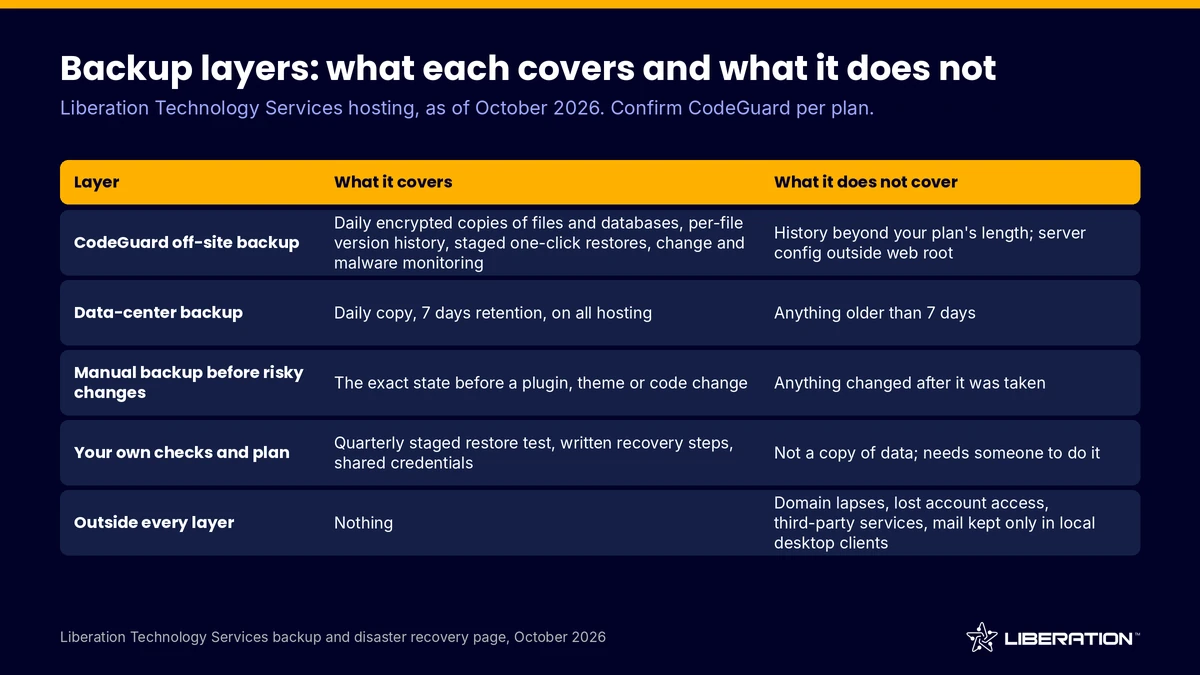
The table above separates the layers we describe on our own backup page. No single layer covers everything, which is why the next steps matter.
Check: where physically do the copies live, and who controls the account that holds them? Common mistake: counting a plugin that saves backups into the same hosting account as an offsite backup.
Step 4: Pick how your website backup service connects
Every website backup service falls into one of two broad designs. A plugin runs inside WordPress, which is simple but depends on WordPress being healthy and uses your server’s resources. An external service connects from outside, so it keeps working when the site itself is broken.
CodeGuard, which we offer, is the external type. It connects over SFTP and MySQL rather than running inside WordPress, so it can still reach your files and database when a plugin conflict has taken the dashboard down. It also works for sites that are not WordPress at all.
When you compare options, ask four questions:
- Does it back up both files and the database?
- Does it run independently of the site it protects?
- Can it keep version history, and for how long?
- Can a restore be staged and tested before it replaces the live site?
Common mistake: choosing on price alone. As of October 2026, CodeGuard is listed from $2.09 per month on our law firm page and is included on most hosting plans, so confirm the details for your specific plan before you rely on it.
Step 5: Turn on encryption and monitoring
Any website backup service you hire becomes a copy of your most sensitive data. Backups hold everything an attacker wants: customer records, user tables, configuration. Ask whether backups are encrypted in transit and at rest. Our CodeGuard backups are encrypted and stored off-site.
Monitoring is the other half. A backup job that silently fails is worse than none, because you believe you are protected. Look for alerts when a backup does not complete. Daily change and malware monitoring, as in our CodeGuard setup, adds a second benefit: it can show you that files changed unexpectedly, which is often the first sign of a compromise.
Pair this with sound basics on the site itself. Our guide to secure WordPress hosting covers the hardening that keeps you from needing the backup in the first place.
Check: who gets the failure alert, and do they read it? Common mistake: sending alerts to a mailbox nobody opens.
Step 6: Test how you restore a website, every quarter
A backup you have never restored is a hope, not a plan. Testing is the step most owners skip, and it is the one that decides whether a bad day takes an hour or a week.
We recommend testing restores quarterly. The safest method is a staged restore: bring the backup up on a staging copy, click through the pages that earn money (checkout, contact forms, login), and only then promote it. With CodeGuard, one-click restores can be staged and tested before going live. If you need to restore a website after a real incident, you will already know what a good restore looks like.
The WordPress documentation makes a related point: it recommends occasionally making a manual backup alongside automated ones to confirm the process is working. Also take a manual backup before risky changes such as a major plugin update or a theme switch.
Write the result down: date, what you restored, how long it took, and what broke. That record is the proof your website backup service works.
Common mistake: testing by looking at a list of backup files instead of loading a restored site.
Step 7: Write a disaster recovery plan around your website backup service
A backup tells you the data exists. A disaster recovery plan tells people what to do with it. For a small business, one page is enough: who decides to restore, who has the logins, which backup to use first, how to confirm the site works afterward, and who tells customers.
NIST’s Contingency Planning Guide for Federal Information Systems (SP 800-34 Rev. 1) is written for federal agencies, but its core idea applies to any organization: plan for recovery before an outage, and keep the plan current. If your site handles regulated data, confirm the requirements with your own counsel.
Include the people side. If one person holds every password, the plan fails the day that person is unavailable. If your business email is part of the same recovery, see our Liberation Email page, and our custom IT solutions team can help design the wider plan.
What a website backup service does not cover
No backup covers everything, and it is better to know the gaps now. From our own backup page, the following are not covered:
- Anything older than the retention window
- Server configuration outside the web root
- Domain registration lapses
- Lost account access, such as a single person holding every credential
- Third-party services such as payment gateways, booking systems and CRMs
- Email that lives only in local desktop clients, such as PST files
Each gap has a fix. Set domain auto-renew and a second contact, share credentials through a password manager, export third-party data on its own schedule, and keep mail on a server rather than only on one laptop. If you are moving to a new host anyway, our website transfer service and free WordPress migration offer are a good moment to set the whole backup routine up cleanly.
Choosing a website backup service on our hosting
If you host with us, CodeGuard is included on most plans (confirm per plan), and the separate data-center layer runs daily with 7 days of retention on all hosting. Our WordPress hosting plans and WordPress care plans show how that fits with the rest of site management. For the full description of each layer, see the backup and disaster recovery page, or contact us and we will check your current setup against the steps above.
Frequently asked questions
What is a website backup service?
A website backup service automatically copies your site’s files and database to a separate location on a schedule. It keeps older versions so you can restore a website to an earlier point. The best ones also monitor for changes and alert you when a backup fails.
How often should I run a website backup?
Daily is a sensible minimum for most business sites. Sites that take orders or accept new content all day may need more frequent database backups, so ask what your plan supports. Take an extra manual backup before any major update.
Is a WordPress backup plugin enough?
A plugin is better than nothing, but it runs inside the site it protects and often stores copies on the same server. An external service that connects over SFTP and MySQL can still work when WordPress is down. Whichever you choose, make sure at least one copy is offsite.
How do I know my backups will work?
Restore them. Test quarterly by bringing a backup up on a staging copy and clicking through key pages such as checkout and forms. Record the date and result so you can show the process works.
What is the 3-2-1 backup rule?
It is a common rule of thumb: keep three copies of your data, on two different types of storage, with one copy offsite. It is easy to remember and works for small sites too. The WordPress documentation gives similar advice to keep copies in different locations.
Sources
- WordPress Developer Resources: WordPress Backups (accessed October 2026)
- NIST SP 800-34 Rev. 1, Contingency Planning Guide for Federal Information Systems (May 2010, updated November 2010)
- Liberation Technology Services: Backup and Disaster Recovery (October 2026)
Related reading: managed WordPress hosting, what is WordPress hosting, WordPress hosting cost