
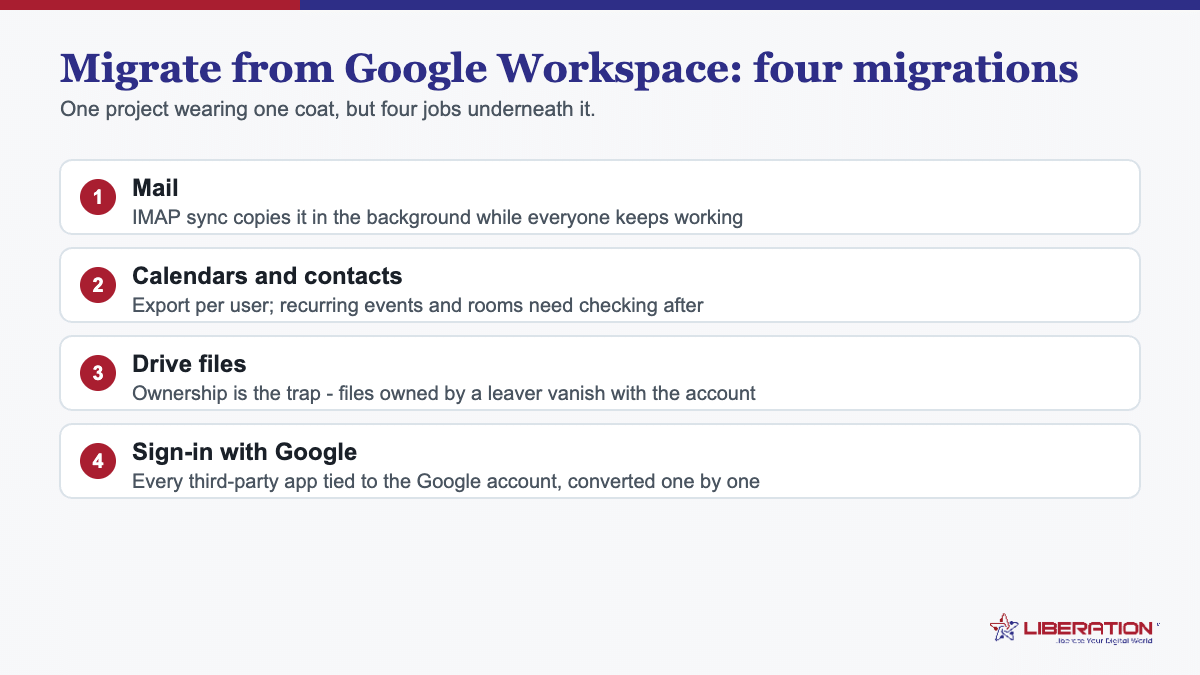
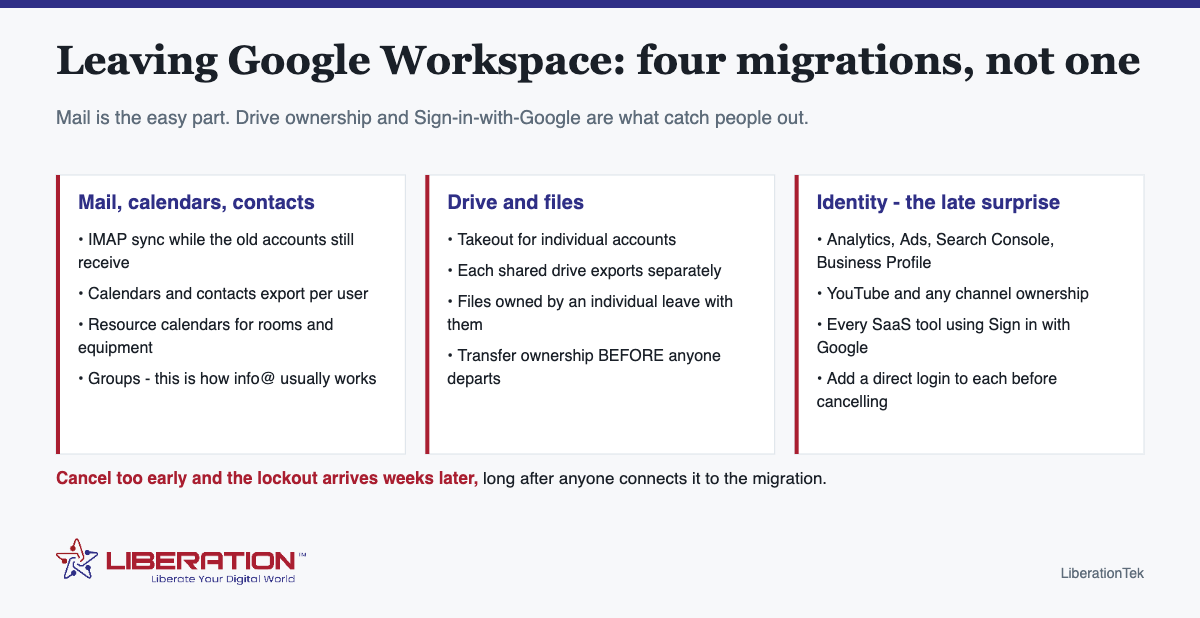
To migrate from Google Workspace is to run four separate migrations wearing one coat: mail, calendars and contacts, Drive files, and every third-party app someone signed into with a Google account. Mail is the easy one. Drive ownership and the “Sign in with Google” logins are what catch people out, and both are much easier to sort while the subscription is still active.
This is the checklist, in the order that avoids losing anything.
Step 1: inventory before you migrate from Google Workspace
Spend an hour listing what is actually in use. Almost every migration that goes badly skipped this step.
- Every user account, alias and group. Groups are the ones people forget – they are how info@ and sales@ usually work.
- Shared drives, and who owns which files. Files owned by an individual leave with that individual.
- Calendars, including resource calendars for rooms and equipment.
- Every service signed in with Google. Analytics, Ads, Search Console, Business Profile, YouTube, and any SaaS tool where someone clicked “Sign in with Google”.
- Anything sending mail as your domain – the website, an invoicing tool, a CRM, a newsletter platform.
That last category is the one that produces a week of confused “did you get my email?” messages a month later.
Step 2: how to migrate from Google Workspace, in order
- Lower the DNS TTL on the domain to 300 seconds, a day or two ahead.
- Create the new mailboxes on your domain at the new provider. Nothing points at them yet.
- Copy mail across by IMAP sync while the Google accounts are still live and receiving.
- Export calendars and contacts per user, and import them. These are not part of a mail sync.
- Export Drive – Google Takeout for individual accounts, and a separate export for each shared drive. Transfer ownership of anything owned by someone who is leaving before they go.
- Move the third-party logins. For every service on your list, add a login that does not depend on a Google account, and confirm you can sign in with it.
- Switch MX and SPF, and add DKIM and DMARC for the new provider.
- Re-run the mail sync to catch anything that arrived during the switch.
- Reconfigure anything that sends as your domain, then test each one by actually sending.
- Wait two to four weeks, verify, then cancel.
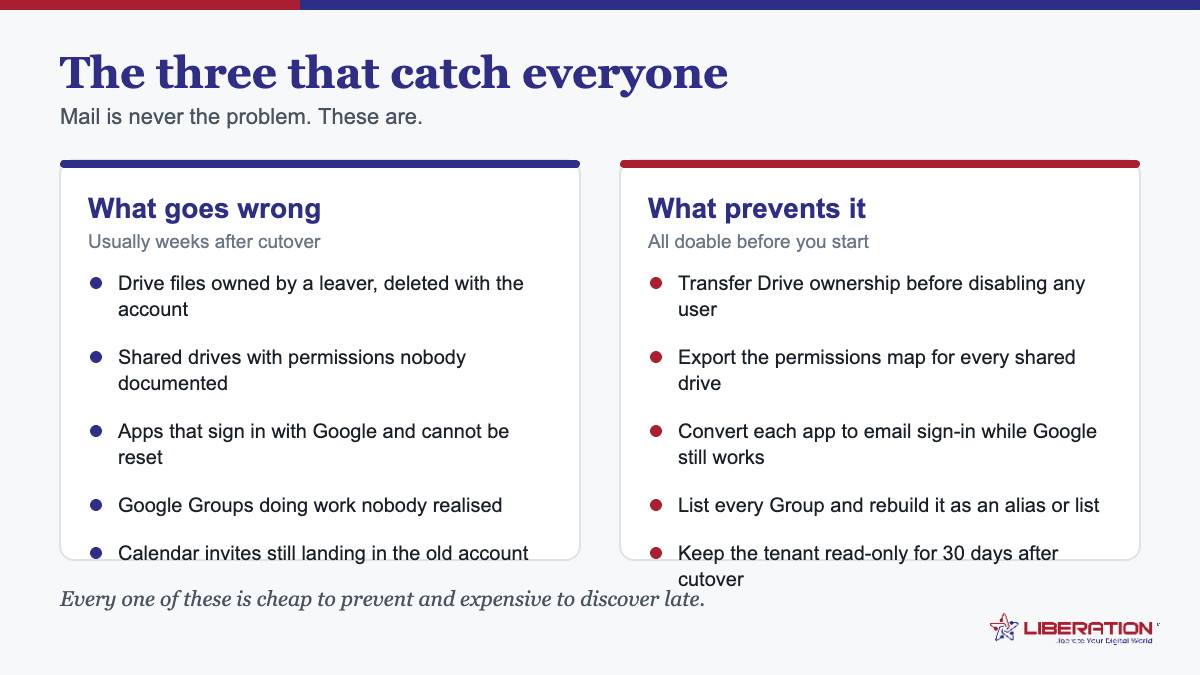
The three that catch everyone who migrates from Google Workspace
| Problem | Why it happens | Fix it by |
|---|---|---|
| “Sign in with Google” locks you out | Accounts on other services authenticate through the Google account you just canceled | Adding a direct login to every such service before canceling |
| Files disappear with a departing user | Drive files are owned by individuals, not the organization | Transferring ownership to a shared drive first |
| Groups stop delivering | info@ and sales@ were Google Groups, not mailboxes | Recreating them as shared inboxes or aliases on the new provider |
Choosing what to migrate from Google Workspace to
Two honest options, depending on what you actually use:
- If you mainly use mail, calendar and contacts – Liberation Email from $1.95 per user per month. It speaks IMAP, SMTP, CalDAV and CardDAV, so Outlook, Apple Mail, Thunderbird and mobile apps connect normally, and there is a full export whenever you want one.
- If the team also lives in chat, video calls and shared files – Hub For Teams from $7.49 per user covers email, calendar, files, documents, chat and video in one subscription rather than a license per product.
Both keep your existing domain and addresses, and both run on hardware we own and operate in the United States. Nothing in your mail is scanned for advertising, used to train a model, or passed to a data broker – there is no revenue line here that would require it.
If you would rather not run the checklist yourself, we do the migration – mail, folders and contacts moved, with the cutover planned around your working hours.
Sequencing the move from Google Workspace around a working week
A five-person team can do this comfortably across two weeks without anyone losing a working day.
- Week one, Monday to Wednesday: inventory, create the new mailboxes, start the bulk IMAP copy overnight. Nothing is pointed anywhere yet, so there is no risk.
- Week one, Thursday and Friday: export Drive and shared drives, transfer file ownership, and work through the Sign-in-with-Google list adding direct logins.
- Week two, Tuesday morning: switch MX, SPF, DKIM and DMARC. Re-run the sync. Verify.
- Week two, rest of the week: repoint anything that sends as your domain, and watch for stragglers.
- Two to four weeks later: cancel.
The reason to keep paying Google for a few extra weeks is simple: while the subscription is live, every mistake is recoverable. After cancellation, some of them are not.
What genuinely does not come across when you migrate from Google Workspace
| Item | Moves? | What to do instead |
|---|---|---|
| Mail, folders, labels | Yes | IMAP sync; labels arrive as folders |
| Calendars and contacts | Yes | Export and import per user |
| Drive files | Yes | Takeout, plus each shared drive separately |
| Docs and Sheets, with formulas | Converted | Export to open formats; check complex sheets by hand |
| Comment and version history | Generally not | Export anything needed as a record first |
| Chat history | No | Archive what matters; treat the new platform as a fresh start |
| Sharing permissions | No | Re-apply on the new store – a good moment to tidy them |
The last row is worth reframing as an opportunity. Most organizations discover during a migration that a surprising number of files are shared with “anyone with the link”, and a move is the easiest time to fix that.
The Sign-in-with-Google audit, properly done
This is the step that produces the phone call six weeks later. Work through it methodically:
- In each user’s Google account, open the list of connected apps and third-party access.
- For every entry, decide whether it is still used. Most are not.
- For the ones that are, add an email-and-password login using the new address, and sign in with it once to confirm it works.
- Pay particular attention to anything with billing attached, anything a client depends on, and anything only one person uses – that last category is where the forgotten ones hide.
- Check ownership separately for Analytics, Search Console, Business Profile, Ads and YouTube. These have their own ownership models, and losing admin on a Business Profile is genuinely painful to recover.
Budget an hour per user. It is dull and it is the difference between a clean migration and a slow trickle of problems.
What it looks like after you migrate from Google Workspace
Mail, calendar and contacts on your own domain from $1.95 per user per month with Liberation Email, or the full working set – shared inboxes, chat, video, files and documents – from $7.49 per user with Hub For Teams, on hardware we own and operate in the United States. Same addresses, same apps, no license tier per product.
If the inventory above reads like a fortnight you do not have, we do the migration and plan the cutover around your working hours.
What to tell your team before you migrate from Google Workspace
Migrations go badly when people find out by discovering something broken. Three short messages prevent most of that.
- A week before: what is changing, what is not, and the date. Emphasize that email addresses stay the same – that is the question everyone asks first.
- The morning of the switch: a one-liner saying it is happening today, mail may be briefly delayed, and where to report anything odd.
- A week after: a reminder of what to do with anything still arriving at the old system, and a request to flag anything missing while the old subscription is still live.
Also worth saying explicitly: ask people not to delete anything from the old account “to tidy up” during the transition. It happens, and it is the one action that is genuinely unrecoverable once the sync has already run.
What it costs to migrate from Google Workspace, in time and money
The money side is usually the reason people start looking, and it is the easier half to work out. The time side is what determines whether the project actually happens, and it is almost always underestimated.
The licence arithmetic is straightforward. Take your per-user monthly cost, multiply by users and by twelve, and compare it against the same figure for whatever you are moving to. Include the things Google bundles that you might have to buy separately elsewhere, and the things you pay Google for that you would no longer need. For most small teams the annual difference is real but not dramatic; the larger savings usually come from dropping seats for people who only need email, not a full office suite.
The storage question is the one that bites. Pooled storage in Workspace means a single user with a very large Drive can be invisible until you try to move. Check total usage per user before you plan anything, because the difference between 40GB and 400GB is the difference between a weekend and a fortnight. Google’s Takeout export service will produce a full archive per user, and it is worth running one early simply to see how large the result is.
Time: budget three weeks, not three days. Mail and calendar sync run in the background and cost almost no attention. The inventory takes an afternoon. The Drive ownership transfers take a day. The sign-in-with-Google conversions take two to three weeks of small tasks, because they depend on people responding rather than on machines finishing. Firms that plan to migrate from Google Workspace over a single weekend are budgeting for the sync and forgetting the humans.
Whose time, specifically. Someone has to own this, and it should not be whoever is busiest. One named person, two hours a week for a month, is a realistic shape. If nobody has that, either pay a provider to run the migration or postpone it – a half-finished move is worse than not starting, because you end up paying both bills while trusting neither system.
What you get back. Beyond the licence difference, the useful outcome is an inventory you did not have before: every service the business depends on, who owns what, and what would happen if any one of them disappeared. Most teams find that list more valuable than the monthly saving.
Priced honestly, the decision to migrate from Google Workspace is rarely about cost alone. It is about whether the business wants its email, files and identity somewhere it controls – and whether it has three weeks of someone’s attention to spend on getting there properly.
One closing thought. Teams that migrate from Google Workspace smoothly are not the ones with the best tooling – they are the ones that wrote the inventory first and gave the work to a named person with real hours. Everything else on this page is detail. Get those two right and you can migrate from Google Workspace without anybody outside the business noticing it happened.
Frequently asked questions
How do I migrate away from Google Workspace?
Inventory what you use first – mail, calendars, contacts, Drive files, shared drives, groups and any app signed in with Google. Set up the new mailboxes on your domain, copy mail across by IMAP while the old accounts still receive, export Drive and calendars, switch MX and SPF, then keep Workspace active for a few weeks before canceling.
Will I lose my Google Drive files if I cancel Workspace?
Files stay in the account until the account is deleted, so export them before canceling rather than after. Shared drives need their own export, and anything owned by a departing user needs ownership transferred first.
Can I keep my email address if I leave Google Workspace?
Yes, provided the address is on your own domain. You simply point its MX records at the new provider; nothing about the address itself changes.
What is the most common mistake when leaving Google Workspace?
Canceling too early. The subscription should stay active until mail, Drive, calendars and contacts are all verified on the new provider – typically two to four weeks after the switch.
What replaces Google Workspace for a small team?
For mail, calendar and contacts on your own domain, Liberation Email starts at $1.95 per user per month. For teams that also need shared inboxes, chat, video, files and documents in one subscription, Hub For Teams starts at $7.49 per user.
Related reading
- Migrate Business Email: 5 Simple Steps, No Lost Mail
- Business Email Setup — Putting business email on your own domain.
- Big Tech Alternatives — The full set of replacements, by category.