
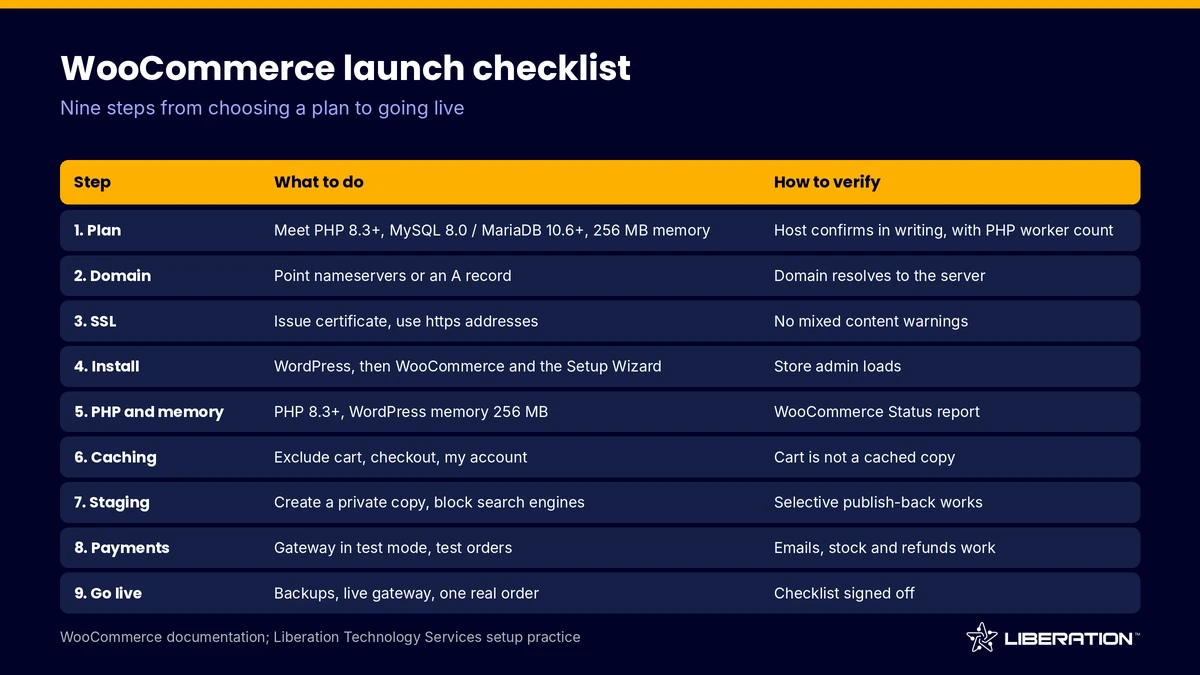
How to set up WooCommerce hosting: choose a plan that meets the WooCommerce server requirements, point your domain, turn on SSL, install WordPress and then WooCommerce, set caching rules that skip the cart and checkout, test payments in test mode on a staging copy, and run a go-live checklist. Done in order, the whole process takes an afternoon for a small store.
This guide is for business owners launching a first store and for developers handing one over to a client. It follows the real order of work from plan to launch, so you know how to set up WooCommerce hosting in the right sequence. It also flags the settings that most often cause trouble on launch day.
1. How to set up WooCommerce hosting: pick a plan from the requirements
Start with the official WooCommerce server requirements, because a plan that misses them will cause problems later. As of October 2026, the WooCommerce documentation lists PHP 8.3 or greater (tested up to PHP 8.4), MySQL 8.0 or greater or MariaDB 10.6 or greater, WordPress 6.9 or greater, a WordPress memory limit of 256 MB or greater, and HTTPS support. Apache or Nginx is recommended.
Beyond the minimums, a store needs reserved capacity for checkout. Each checkout step is an uncached request that uses one PHP worker, so ask for the worker count in writing. Our WooCommerce hosting requirements guide explains how to read a plan against those numbers.
For reference, our WooCommerce hosting plans start at $59 per month on annual billing for WP Growth (4 PHP workers). Commerce is $109 per month with 6 workers reserved for checkout, and Commerce Scale is $179 per month with 10. Pick the smallest tier that handles your busiest week, and upgrade as orders grow. Plan for a sale or an email campaign, not an average Tuesday.
2. Point your domain to the server
Domain setup is the second step in how to set up WooCommerce hosting, and it is the one that people rush. You can register a domain with any registrar. To use it with your new host, change the nameservers to the ones your host gives you, or add an A record that points the domain to the server IP address. Your host’s welcome email lists both.
DNS changes can take time to spread. If the domain already serves a live site, do not change DNS until the new store is built and tested. Build on a temporary address or a staging URL first, then switch the domain at launch. If you are moving an existing store, our free migration is done by a person, who copies the site before you cut over.
3. Turn on SSL before anything else
WooCommerce lists HTTPS as a requirement, and shoppers will not enter card details on a page the browser marks as not secure. Our plans include a free SSL certificate, and most hosts offer a free option such as Let’s Encrypt.
Without it, the browser warns visitors and the payment gateway may refuse to load. Issue the certificate once the domain resolves to the server. Then set both the WordPress Address and the Site Address under Settings, General to start with https. Test that http addresses redirect to https and that no page loads mixed content, such as an image served over http.
4. WooCommerce hosting setup: install WordPress, then install WooCommerce
This is the core of any WooCommerce hosting setup, and the point where you install WooCommerce on a clean WordPress. Most hosts offer a one-click WordPress installer in the control panel. Choose the current WordPress release, set a strong admin password and avoid the username “admin.”
To install WooCommerce, go to Plugins, Add New Plugin in the WordPress admin, search for WooCommerce, then select Install Now and Activate. The WooCommerce documentation says the Setup Wizard appears automatically and walks you through store details, industry, product types and suggested features.
Take the wizard slowly, because the defaults it picks affect tax and shipping later. Set your currency, tax and shipping basics now, and skip any suggested extension you do not need yet. Every extra plugin adds load and another thing to update.
5. Check PHP version and memory
Every guide on how to set up WooCommerce hosting should cover PHP, because it affects speed and security. Open the PHP settings in your control panel and confirm the version meets the requirements. Pick PHP 8.3 or newer, and test any version change on staging first. Our guide to WordPress hosting cost explains why current PHP matters for security as well as speed.
Memory needs a closer look. The WordPress documentation says WordPress tries to raise its memory limit to 40 MB on a single site by default, far below the 256 MB WooCommerce asks for. If the plan does not already set it, add define( 'WP_MEMORY_LIMIT', '256M' ); to wp-config.php, or ask your host to raise it. A low limit shows up as white screens and failed product imports.
6. Set caching rules for cart and checkout
Caching rules are the part of WooCommerce hosting setup that most often goes wrong. Caching speeds up product and category pages. It must leave some pages alone. The WooCommerce caching guide says the cart, my account and checkout pages must stay dynamic because they show customer-specific data. It also lists cookies, including woocommerce_cart_hash, woocommerce_items_in_cart and wp_woocommerce_session_, that cache rules should respect.
On managed plans these exclusions are already in place. If you run your own caching plugin or CDN, set them yourself. Then test in a private window: add a product, open the cart, and confirm it is not a cached copy. Add a persistent object cache such as Redis if your host offers it, since page caching cannot help carts and sessions. Our plans include one.
For deeper troubleshooting later, see why a store can feel slow in our post on why is WooCommerce slow.
7. Create a WooCommerce staging site
A WooCommerce staging site is a private copy of your store where you can test plugin updates, theme changes and payment settings without risking real orders. Create one before launch, and keep using it afterward.
The detail that matters is publishing back. If publishing staging overwrites the live database, orders placed while you were testing can disappear. Our staging supports selective publish-back, so you push chosen files or tables rather than everything. Whatever host you use, ask how it handles this before you rely on it.
Block search engines on the staging copy, and keep payment gateways in test mode there so a test order never charges a real card. A second copy of a store may also send duplicate emails, so check email settings on staging.
8. Connect the payment gateway in test mode
Payments are the step where a store becomes a business, so how to set up WooCommerce hosting safely means testing here first. Choose a gateway you already trust. Our plans let you keep the processor you use today. Install its plugin, enter the test (sandbox) credentials and place several test orders with the test card numbers the gateway publishes.
The WooPayments documentation, for example, says test mode does not charge fees and warns against testing by placing live orders and refunding them, since fees are not returned. Other gateways have their own test modes, so read their documents.
Check the whole order path: the confirmation email, the order record in WooCommerce, stock reduction, a refund and a failed payment. Payment security is shared work. The host supplies a hardened, firewalled environment, and your gateway handles card data. Ask your host exactly what it covers.
9. Set backups and run the go-live checklist
The last stretch of how to set up WooCommerce hosting is protection and proof. Before launch, confirm backups are running and that you know how to restore one. Our Commerce plans keep daily backups for 30 days, and WP Growth keeps 14 days. Take a manual backup right before launch as well. For stores that cannot afford downtime, our backup and disaster recovery service adds a further layer.
Then walk through this go-live checklist, the last check in how to set up WooCommerce hosting.
- HTTPS works on every page, with no mixed content warnings
- Payment gateway switched from test mode to live, with one small real order placed and refunded
- Cart, checkout and my account pages are not cached
- Tax, shipping and currency settings are correct for each destination
- Order, password reset and refund emails arrive and are not marked as spam
- Search engine visibility is on, and staging is blocked from search
- Terms, privacy policy and refund pages are published
- Domain points to the live server, and www and non-www both resolve
Switch the gateway to live only at the end, then place one real order yourself. Keep an eye on the store for the first few days, and check your host’s resource graphs after the first promotion.
How to set up WooCommerce hosting without managing the server
If you would rather not manage the server, a managed plan removes much of this work. The host handles PHP settings, caching rules, backups and security monitoring, and you keep control of the store. Our managed WooCommerce hosting guide covers when that trade makes sense, and our team can size a plan for your catalog.
A VPS gives you more power for the money, but you handle updates, tuning and security yourself. For a first store, managed hosting is usually the lower-risk answer to how to host WooCommerce. Free migration helps if you are leaving another host: tell us what you run today and a person moves it.
Frequently asked questions
How to set up WooCommerce hosting from scratch?
Choose a plan that meets the WooCommerce server requirements, point your domain, enable SSL, install WordPress and the WooCommerce plugin, set caching rules, test payments on staging and run a go-live checklist. Most small stores can finish in a day.
What are the WooCommerce server requirements?
The WooCommerce documentation lists PHP 8.3 or greater, MySQL 8.0 or greater or MariaDB 10.6 or greater, WordPress 6.9 or greater, 256 MB of WordPress memory and HTTPS support (checked October 2026).
Do I need a WooCommerce staging site?
You do not need one to run a store, but you should have one, and it belongs in any plan for how to set up WooCommerce hosting. It lets you test updates and payment changes without risking live orders. Confirm that publishing back from staging cannot overwrite new orders.
Can I use ordinary shared hosting for WooCommerce?
A small store can run on a plan that meets the requirements and has enough PHP workers. Check the worker count and memory limit before you buy, because shared plans often cap both.
Which pages should never be cached?
The cart, checkout and my account pages. The WooCommerce documentation says they contain customer-specific data and must stay dynamic.
Sources
- WooCommerce documentation, server requirements
- WooCommerce documentation, installing WooCommerce
- WooCommerce developer docs, configuring caching plugins
- WooPayments documentation, test mode and test cards
- WordPress developer resources, wp-config.php
- WordPress.org, requirements
Related reading: WordPress hosting, how much does WooCommerce cost and secure WordPress hosting.