
A website migration goes wrong in predictable ways: an untested backup, a DNS change made before the new site works, forgotten email accounts, and canceling the old host too early. Work through the checklist below in order and a host switch becomes an uneventful afternoon rather than a lost weekend.
Switching hosts is not technically difficult. It is just unforgiving about sequence. Almost every migration horror story traces back to doing the right steps in the wrong order, usually pointing DNS at a server before the site on it has been properly tested. This is the full website migration checklist we work through, in the order the steps have to happen.
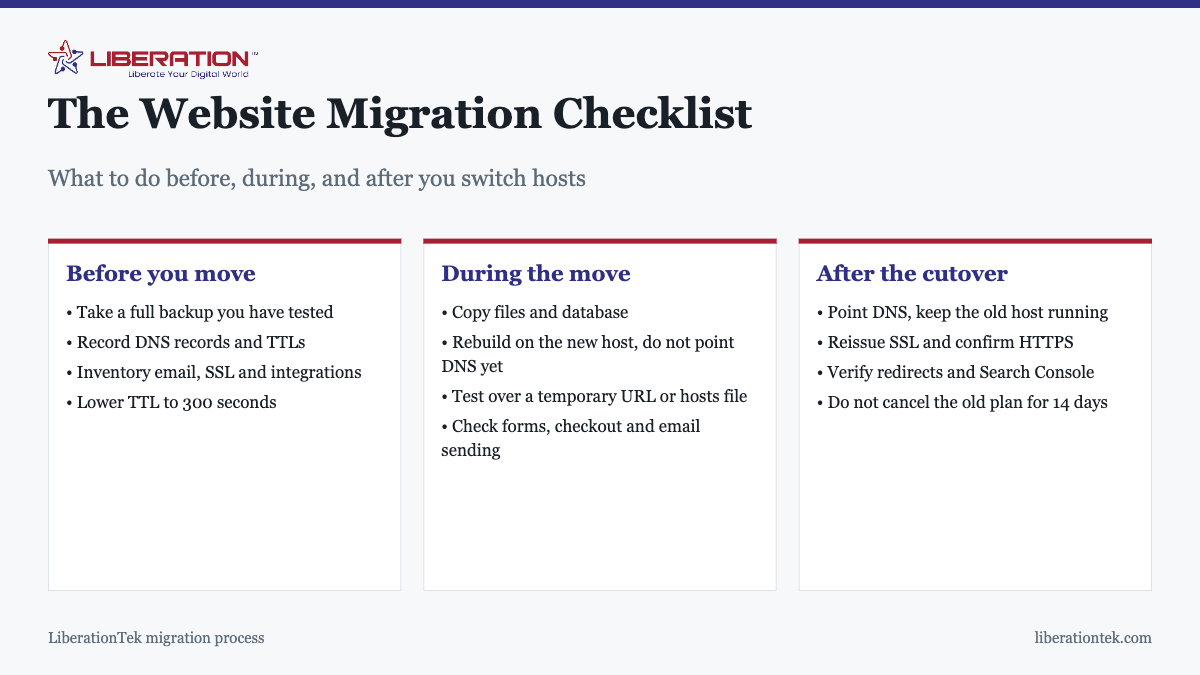
Before you move: preparation
Take a backup, then prove it works
Back up files and database together, download a copy somewhere that is not either hosting account, and then restore it to a test location. A backup you have never restored is an assumption. This single step is what turns a failed migration from a disaster into an inconvenience.
Write down every DNS record
Export or screenshot your current DNS zone before you change anything. You need the A records, any CNAMEs, your MX records for email, and TXT records including SPF, DKIM and DMARC. Missing MX records is the most common cause of mail disappearing during a move, and the most common reason people think a migration “broke email.”
Lower your TTL a day ahead
TTL tells the internet how long to cache your DNS. Drop it to 300 seconds at least 24 hours before the move. When the cutover happens, the change propagates in minutes instead of hours. Raise it again once everything is confirmed working.
Inventory what the site actually depends on
Sites are rarely just files and a database. Write down the email accounts and where they are hosted, the SSL certificate and whether it is free or paid, payment gateway and form integrations that may whitelist your server’s IP address, any cron jobs, and any subdomains. Anything that connects to your site from outside needs to be on the list.
Confirm what the new host will do for you
Get this in writing before you commit. How many sites are included, whether email is part of it, who handles the DNS change, and what the rollback plan is. LiberationTek includes a free migration of one site with VPS plans and quotes other migrations from $250, covering more than 25 source platforms including GoDaddy, Squarespace and Wix. Details are on the website transfer page.
During the move: rebuild and test
Copy files and database to the new host
Move the whole document root and export and import the database. Update configuration files with the new database credentials. On WordPress that is wp-config.php. Do not change DNS yet.
Test on the new server before anyone else can see it
This is the step that separates smooth migrations from bad ones. Use a temporary URL or edit your local hosts file so that your machine resolves the domain to the new server while the rest of the world still sees the old one. Then check, in this order:
- The homepage and a representative sample of interior pages, not just the front page
- Every form, including the one nobody uses, and confirm the submission actually arrives
- Checkout end to end if you sell anything, with a real test transaction
- Outbound email from the site, which frequently breaks because the new server is not yet authorized to send as your domain
- Logins for both admins and customers
- Anything behind a paywall or membership
Block search engines from the staging copy
If the site is reachable at a temporary URL, keep it out of the index while you test. A staging copy that gets crawled creates duplicate content pointing at a URL you are about to abandon. Remove the block before you go live, and set a reminder, because forgetting to remove it is its own kind of disaster.
The cutover
Point DNS, and leave the old host running
Change the A record to the new server. Because you lowered the TTL, most traffic moves within minutes. The old host must stay online and serving the site throughout, because visitors with cached DNS will keep arriving there for a while. Both servers serving the same working site is exactly what you want during this window.
Move email deliberately
If mailboxes are moving too, make sure both servers accept mail during the transition, and only change MX records once the new mailboxes exist and are receiving. Mail sent during a badly sequenced move bounces or vanishes, and unlike a web page it cannot be re-requested.
Reissue SSL
Certificates are tied to the server, not the domain, so a new host means a new certificate. Confirm HTTPS works on the real domain after the DNS change, and check that HTTP requests redirect to HTTPS. Free SSL is included with LiberationTek hosting and issues automatically.
After the cutover: verification
Check redirects and URLs
If any URL changed, every old URL needs a 301 redirect to its new equivalent. Crawl the site and look for 404s. If the URL structure did not change, confirm that too rather than assuming it.
Update Search Console
Submit a fresh sitemap and watch coverage reports for the next couple of weeks. A short crawl dip after a migration is normal. A sustained one means something is wrong, usually redirects or an accidental noindex left over from staging.
Watch for a fortnight, then cancel
Keep the old hosting for at least 14 days. Stale DNS caches, a forgotten subdomain, a cron job on the old server, mail routing you did not know about. All of these surface in the first two weeks, and all of them are trivial to fix while the old account still exists and painful afterwards. Two weeks of duplicate hosting is the cheapest insurance in this entire process.
Confirm backups are running on the new host
Backup schedules do not travel with the site. Set them up again, and restore one to confirm it works, before you consider the migration finished.
The mistakes that cause most migration failures
| Mistake | What happens | Prevention |
|---|---|---|
| Pointing DNS before testing | Visitors see a broken site | Test via hosts file first |
| Forgetting MX records | Email stops, silently | Export DNS before changing anything |
| Canceling the old host immediately | Unrecoverable data loss | Wait 14 days |
| High TTL left in place | Hours of split traffic | Lower to 300s a day ahead |
| Untested backup | No rollback when needed | Restore it once, in advance |
| Staging left indexable | Duplicate content | Block, then unblock at launch |
| Changed URLs, no redirects | Lost rankings and 404s | Map old to new before the move |
Should you do it yourself?
If your site is a handful of pages with no e-commerce and email hosted elsewhere, this website migration checklist is genuinely enough to do it alone in an afternoon. If you run a store, have custom server configuration, or have email on the same account, the failure modes get expensive quickly and a managed migration is usually worth it. We walk through the full process in how to move a site to a new host without downtime.
Frequently asked questions
What should be on a website migration checklist?
A complete website migration checklist covers four things: a tested backup, a full inventory of what the site depends on (DNS records, email, SSL, payment and form integrations), a rebuild and test on the new host before any DNS change, and a verification pass afterwards covering redirects, HTTPS, forms and Search Console. Keep the old hosting running for at least two weeks after cutover.
How long does a website migration take?
A small brochure site usually moves in a few hours of work, with DNS propagation adding up to 48 hours before every visitor reaches the new server. Larger sites with e-commerce, custom code or many email accounts take longer, mostly because of testing rather than the copy itself. LiberationTek migrates one site free with a VPS plan and quotes other migrations from $250.
Will my website go down during migration?
It should not. Downtime happens when DNS is pointed at a server before the site is working there. If the site is rebuilt and fully tested on the new host first, and the old host stays online through the DNS change, visitors move across without seeing an outage.
What do I need to do before switching web hosts?
Take a backup and confirm you can restore it, write down every DNS record currently in use, lower your DNS TTL to 300 seconds at least a day ahead, list every email account and integration the site depends on, and confirm exactly what the new host will move for you versus what you have to move yourself.
Do I need to move my email when I move my website?
Often yes, and it is the step most people forget. If your email runs on the same hosting account as your site, moving the site without planning for the mailboxes can lose mail in transit. Move mailboxes first or in parallel, keep both servers accepting mail during the DNS change, and only then retire the old one.
When can I cancel my old hosting after migrating?
Wait at least 14 days. DNS caches, forgotten subdomains, cron jobs and email routing can all keep pointing at the old server after the main site has moved. Canceling early turns a small oversight into lost data. The cost of two extra weeks of hosting is trivial against that risk.
Can I migrate my website without losing my search rankings?
Yes, if the URL structure is preserved and redirects are in place for anything that changes. Rankings are at risk from changed URLs without redirects, extended downtime during the move, or a staging site left open to indexing, not from changing hosts as such.