
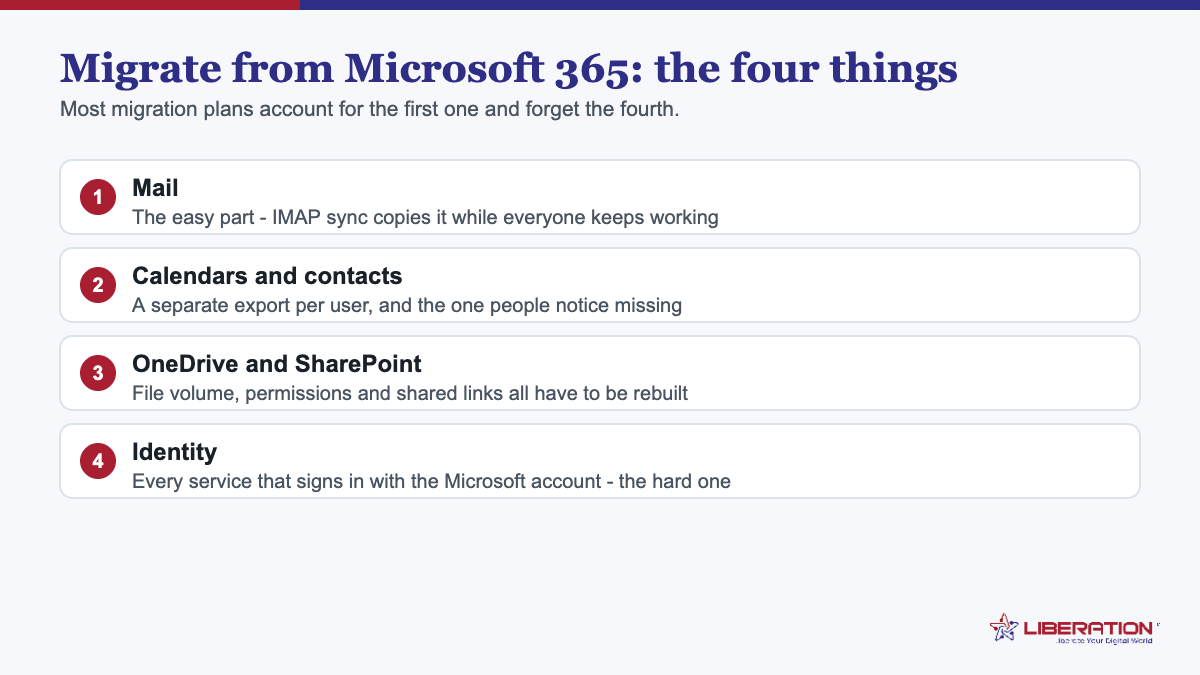
To migrate from Microsoft 365 means moving four things, and most plans only account for one. Mail is straightforward. Calendars and contacts are a separate export. OneDrive and SharePoint are a third. The fourth – identity, meaning every service where someone signs in with their Microsoft account – is the one that locks people out weeks later, and it is invisible until it bites.
Here is the full inventory and the order of operations.
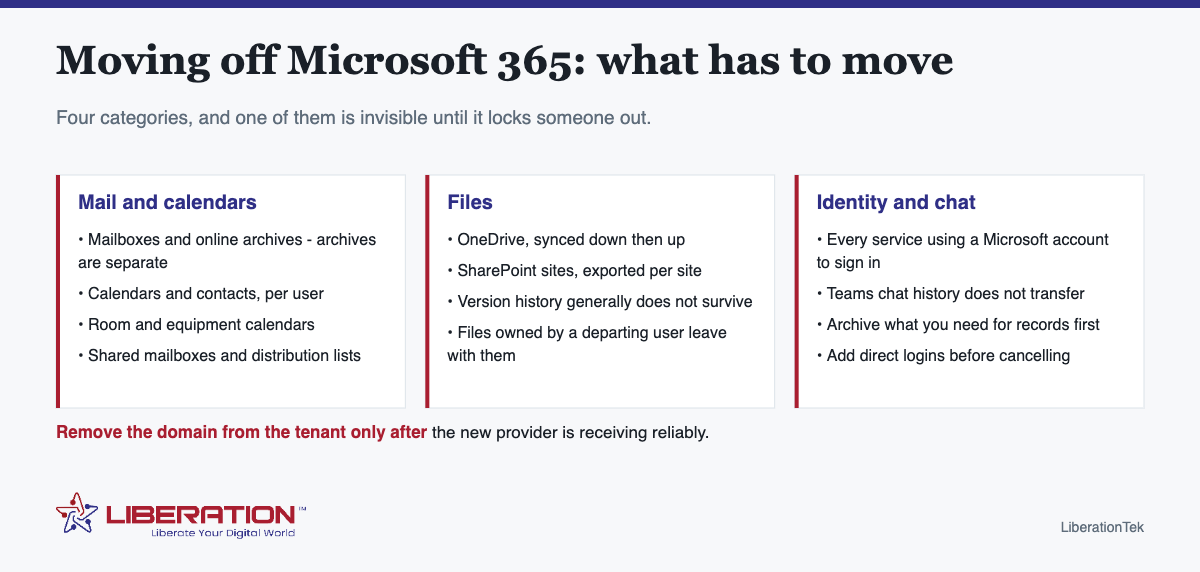
What has to move when you migrate from Microsoft 365
| Thing | How it moves | Watch out for |
|---|---|---|
| Mailboxes and archives | IMAP sync to the new provider | Online archives are separate from the main mailbox |
| Calendars and contacts | Export and import per user | Room and equipment calendars are easy to forget |
| Shared and resource mailboxes | Recreated as shared inboxes | Nobody owns them, so nobody lists them |
| Distribution lists | Recreated as aliases or groups | These are usually how info@ and sales@ work |
| OneDrive files | Sync down, then up to the new store | Files owned by a departing user leave with them |
| SharePoint sites | Exported per site | Version history generally does not survive |
| Teams chat history | It does not, practically speaking | Archive anything needed for records first |
| Identity | Add a direct login on every third-party service | The one that locks people out later |
The order of operations to migrate from Microsoft 365
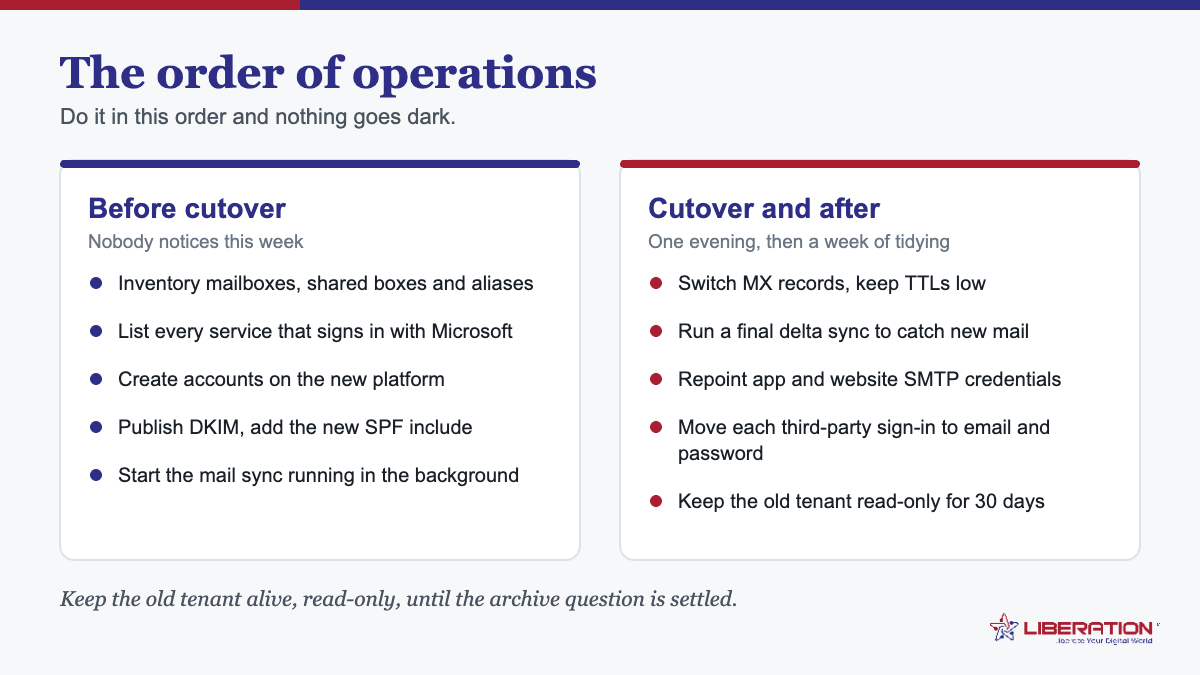
- Lower the domain’s DNS TTL to 300 seconds, a day or two ahead.
- Create the new mailboxes on your own domain. Nothing points at them yet, so there is no risk at this stage.
- Copy mail by IMAP sync while the Microsoft mailboxes are still live and receiving. Include online archives explicitly.
- Export calendars and contacts for each user, plus any room or equipment calendars.
- Pull down OneDrive and SharePoint files, transferring ownership of anything held by a departing user first.
- Sort out identity. For every third-party service on your list, create a login that does not depend on the Microsoft account, and confirm it works.
- Switch MX and SPF, add DKIM and DMARC for the new provider.
- Re-run the mail sync to catch mail that landed during the switch.
- Repoint anything that sends as your domain – website forms, invoicing, CRM – and test each by sending.
- Remove the domain from the Microsoft tenant only after the new provider is receiving reliably, then cancel a few weeks later.
The license-per-product question
The reason most small teams look at this is not ideology, it is the bill: a license tier per product, per user, where a five-person business ends up paying for capability it does not use while still buying a separate tool for the one thing it does need.
Worth doing the arithmetic honestly before you move. Count what you actually use – mail, calendar, file storage, chat, video – and price the alternative against that rather than against the headline. If your team genuinely lives in Excel and SharePoint, moving is a bigger project than the saving justifies. If your team uses mail, a calendar, a shared folder and a video call, you are paying for a suite to get four things.
What to migrate from Microsoft 365 to
- Mail, calendar and contacts only – Liberation Email, from $1.95 per user per month, no long-term contract. IMAP, SMTP, CalDAV and CardDAV, so Outlook and Apple Mail keep working exactly as they do now.
- Replacing the suite – Hub For Teams, from $7.49 per user, covering email, calendar, files, documents, chat and video in one subscription instead of a license per product. It runs on hardware we own and operate in the United States, and you keep your existing domain and addresses.
Nothing in your mail is scanned for advertising, used to train a model or passed to a data broker. On the practical question people ask next: yes, we do the migration, and the cutover is planned around your working hours rather than ours.
Doing the arithmetic before you migrate from Microsoft 365
Most teams look at this because of the bill, so it is worth pricing honestly rather than emotionally. Count what your team actually opens in a normal week – not what the license includes.
| If your team uses… | Then moving is… |
|---|---|
| Mail, calendar, a shared folder and video calls | Straightforward. You are paying for a suite to get four things |
| The above plus light document editing | Reasonable. Check your heaviest documents convert acceptably first |
| Complex Excel models, macros, Power BI | Probably not worth it. The saving will not cover the disruption |
| SharePoint as a genuine intranet with workflows | A real project. Scope it separately rather than as part of an email move |
The honest version: if your business runs on Excel and SharePoint, stay. If your business runs on email, a calendar, a shared drive and a video call, you are buying a suite to get four things and there is a cheaper shape available.
The archive trap that catches people who migrate from Microsoft 365
Microsoft mailboxes often have a separate online archive that does not appear in a standard IMAP connection. People migrate the main mailbox, verify it, cancel the subscription, and discover months later that everything older than two years is gone.
Check explicitly for an archive on every mailbox, and copy it as its own step. This is the single most expensive mistake in this particular migration, because by the time anyone notices, the recovery window has closed.
Shared mailboxes and distribution lists when you migrate from Microsoft 365
These carry no license, so they are invisible in a per-user inventory and get missed constantly. Before you start, list every shared mailbox, every distribution list and every mail-enabled security group, and decide what each becomes on the new platform.
Most become shared inboxes, which is usually an improvement – replies come from the role rather than from whichever person happened to answer, and nothing depends on one individual’s mailbox rules.
A realistic timeline to migrate from Microsoft 365 with ten users
- Days 1-2: inventory, including archives, shared mailboxes, distribution lists and the Sign-in-with-Microsoft list.
- Days 3-5: create mailboxes, start the bulk mail copy including archives, begin pulling down OneDrive and SharePoint.
- Days 6-8: identity work – direct logins on every third-party service, verified one by one.
- Day 9, morning: switch MX, SPF, DKIM and DMARC. Re-run the sync. Verify.
- Days 10-12: repoint anything sending as your domain; test each by actually sending.
- Weeks 3-4: remove the domain from the tenant, then cancel.
Two working weeks, most of it unattended copying. The parts that need attention are the inventory and the verification, which is exactly where a rushed migration cuts.
Hub For Teams from $7.49 per user covers email, calendar, files, documents, chat and video in one subscription, and we handle the migration including the archives people forget.
Three questions to answer before you migrate from Microsoft 365
Scope creep is what turns a two-week email migration into a three-month project. Settle these first, in writing.
- Are we moving email, or are we moving everything? Email, calendar and contacts is a fortnight. Email plus a full SharePoint intranet is a different project with a different budget, and combining them is how both end up late.
- What are we deliberately leaving behind? Teams chat history, document version history, and old shared links will not survive. Decide now what gets archived as a record and what is simply let go – that decision is much harder to make calmly mid-migration.
- Who signs off that it worked? One named person who checks the verification list and says yes. Without that, the old subscription gets canceled on a hunch that everything is probably fine.
Answer those three and the rest is scheduling.
The identity problem, and why it decides the timeline
If a plan to migrate from Microsoft 365 goes wrong, it is almost never the mail. It is the fourth item – identity – and it goes wrong weeks after cutover, when somebody tries to log into a service nobody remembered was tied to the Microsoft account.
Find them before you move, not after. In the admin centre, look at enterprise applications and consented permissions; that list shows which third-party services your staff signed into with “Continue with Microsoft”. Add the ones that never appear there because somebody set them up personally: the design tool, the e-signature service, the scheduling app, the accounting package, the VPN. Ask each member of staff what they log into. It is a ten-minute conversation that saves a fortnight.
Convert each one deliberately. For every service on the list, switch the sign-in method to email and password before you shut anything down, while the Microsoft account still works. Doing it afterwards means a password reset to an address that no longer receives mail, which is the specific failure that turns a clean migration into a month of small emergencies.
Watch for services where the account IS the identity. A few tools tie the licence or the workspace to the originating Microsoft identity rather than to an email address, and converting means migrating data inside that tool as well. Find these early, because they set the pace of the whole project rather than the other way round.
Do not forget the machines. If staff laptops are joined to Entra ID, signing in locally after the tenant lapses is its own problem. Make sure there is a working local administrator account on every device before the tenant expires, and confirm BitLocker recovery keys are stored somewhere other than the tenant you are leaving – Microsoft’s own device identity documentation is worth reading on this point if your fleet is domain-joined.
Then the timeline makes sense. For ten users, mail and files are a weekend. Identity is two to three weeks of small tasks done properly, mostly waiting on people rather than machines. Firms that plan to migrate from Microsoft 365 in a single weekend are planning for the first three items and discovering the fourth afterwards.
Handled deliberately, none of this is difficult – it is simply a list that has to be written down before anything is switched off. Make the list first and the rest of the project is ordinary work.
The short version: to migrate from Microsoft 365 successfully, write the inventory before you touch anything, treat identity as the long pole rather than an afterthought, and keep the old tenant read-only for a month after cutover. Businesses that migrate from Microsoft 365 this way describe it afterwards as uneventful, which is exactly the outcome worth aiming for.
Frequently asked questions
How do I move my business off Microsoft 365?
Inventory mail, calendars, contacts, OneDrive and SharePoint files, shared and resource mailboxes, distribution lists, and any service authenticating with a Microsoft account. Create the new mailboxes, copy mail by IMAP while the old ones still receive, export files and calendars, switch MX and SPF, then keep the subscription active for a few weeks before canceling.
What has to move when leaving Microsoft 365?
Four things: mailboxes and archives, calendars and contacts, files in OneDrive and SharePoint, and identity – every third-party service where someone signs in with their Microsoft account. Teams chat history is generally the one thing that does not transfer.
Can I keep my email address after leaving Microsoft 365?
Yes, if the address is on a domain you own. Remove the domain from the Microsoft tenant only after the new provider is receiving mail, and point the MX records at the new host.
Does Teams chat history transfer to another platform?
No. Chat history does not move between platforms in any practical way. Export or archive anything needed for records before the subscription ends.
What is a good Microsoft 365 alternative for a small business?
For mail, calendar and contacts on your own domain, Liberation Email starts at $1.95 per user per month. For teams replacing chat, video and file sharing as well, Hub For Teams covers email, calendar, files, documents, chat and video in one subscription from $7.49 per user.
Related reading
- Migrate From Google Workspace: 4 Essential Steps
- Migrate Business Email: 5 Simple Steps, No Lost Mail
- Business Email Setup — Putting business email on your own domain.
- Big Tech Alternatives — The full set of replacements, by category.