
Email migration means moving your mailboxes from one provider to another while keeping the same email addresses. Your messages and folders are copied to the new provider, then your domain’s DNS records are pointed at it so new mail arrives there. Your address never changes. Only the company hosting it does.
If you have been asking what does email migration mean in practice, the phrase sounds more technical than the reality. If you have ever changed mobile provider and kept your number, you already understand the shape of it: the thing customers know stays the same, and the infrastructure behind it changes hands.
Why your email address does not change
This is the part that reassures most business owners, and it is worth being clear about. Your email address belongs to your domain name, not to your email provider. If you own yourbusiness.com, then every address at that domain is yours regardless of who runs the mail servers.
Changing provider means telling the internet, through DNS records, that a different server now handles mail for your domain. Nobody emailing you notices. Your cards, your signage and your website all stay accurate.
The exception is if your current address ends in your provider’s domain rather than your own. In that case the address genuinely is tied to that company and you cannot take it with you, which is the strongest practical argument for using a domain you own.
What actually happens during an email migration
1. The new mailboxes are created
Accounts are set up at the new provider for each address you use. Nothing is live yet and no mail is flowing there.
2. Existing mail is copied across
Messages, folders, and usually contacts and calendars are copied from the old provider to the new one. This is a copy rather than a move, so the originals remain where they are. It runs in the background and can take hours for large or long-established mailboxes.
3. DNS is updated
The MX records for your domain are changed to point at the new provider, along with the SPF, DKIM and DMARC records that authorize it to send mail as you. From this point new mail arrives at the new provider. This is the only genuinely disruptive step, and it takes minutes.
4. A final sync catches anything in between
Mail that landed at the old provider during the DNS change is copied across so nothing is stranded. Both providers keep accepting mail through this window, which is the precaution that makes a clean migration clean.
5. Devices are reconnected
Phones, laptops and mail clients are pointed at the new server. On most modern providers this is a settings change rather than a reinstall.
What does not come across
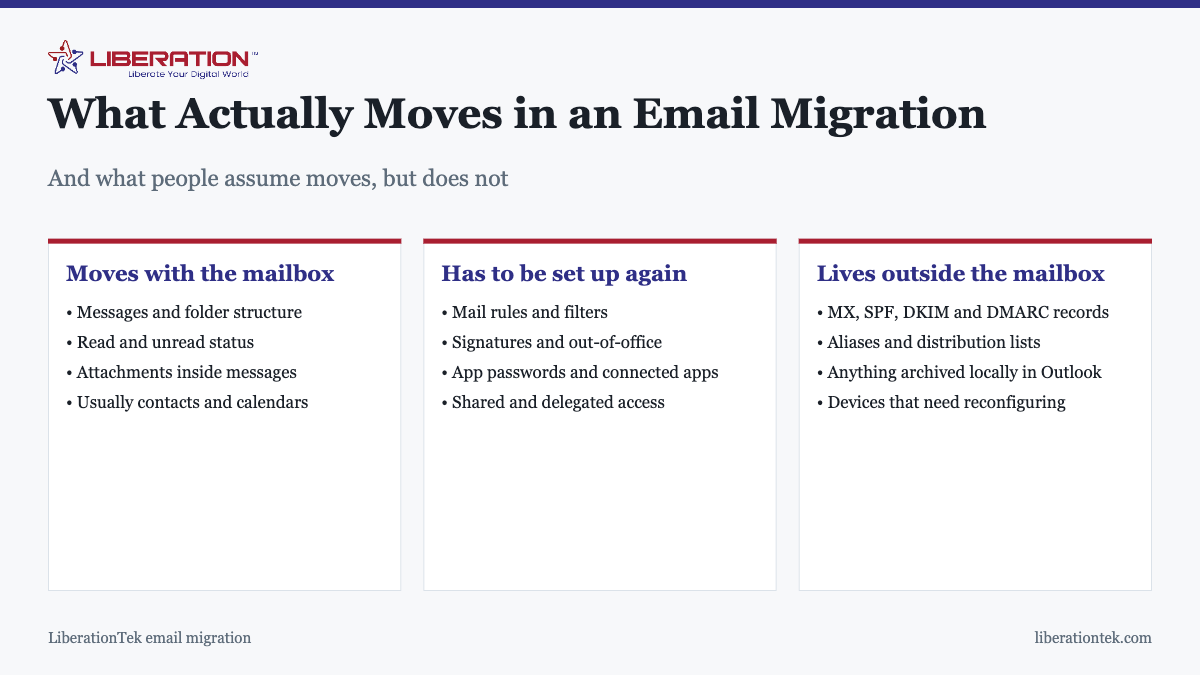
This is where expectations and reality diverge, and where most of the post-migration friction comes from. Messages transfer reliably. The things built around your mailbox usually do not:
- Rules and filters. Years of accumulated sorting logic has to be rebuilt. Export or screenshot them first.
- Signatures and out-of-office replies. Quick to redo, easy to forget until a customer notices.
- App passwords and connected applications. Anything signing in to send mail as you needs reconnecting: your CRM, your website’s contact form, your invoicing system.
- Shared mailbox and delegation permissions. Who can see whose calendar, who sends on behalf of whom. These are configuration, not data.
- Aliases and distribution lists. Recreated on the new provider.
- Locally archived mail. Anything stored only in Outlook’s local files rather than on the server is invisible to a server-to-server migration and needs importing separately. This one catches people out.
How long it takes, and what can go wrong
| Stage | Typical duration | Disruption |
|---|---|---|
| Creating mailboxes | Under an hour | None |
| Copying existing mail | Hours to a day | None, runs in background |
| DNS change | Minutes to a few hours | The only real window |
| Final sync | Under an hour | None |
| Reconnecting devices | Minutes per device | Per-person, minor |
The failure modes are few and predictable. Mail sent during the DNS change can bounce if the new mailboxes are not ready to receive, which is why they are created first. Sending can break if SPF and DKIM are not updated alongside MX, meaning your mail starts landing in spam folders. And retiring the old provider too quickly strands anything that had not finished copying. Keeping the old account alive for a couple of weeks removes that last risk entirely.
Preparing for it: what to gather first
Whoever does the work, the migration goes faster and breaks less if you can hand over a short inventory before it starts. Most of it takes half an hour to assemble:
- Every address in use, including the ones nobody checks. Old aliases still receive mail from old forms and old invoices.
- Which addresses are real mailboxes and which are forwarders, because they migrate differently and are easy to confuse.
- Roughly how much mail each mailbox holds. A fifteen-year-old mailbox takes considerably longer to copy than a new one, and that changes the schedule.
- Anything that sends mail as your domain: website forms, invoicing software, a CRM, marketing tools. Each needs reconnecting, and each is a silent failure if it is missed.
- Who has access to whose mailbox, including shared inboxes such as info@ or accounts@ and any calendar delegation.
- Where your DNS is managed, and whether you can log in to it. This one stops more migrations than any technical problem, and finding out on the day is the wrong time.
The last point deserves emphasis. If your domain was registered years ago by someone who has since left, tracking down access can take longer than the migration itself. Check it before you book anything, and if you cannot get in, start the recovery process with your registrar straight away rather than treating it as a detail to sort out later.
Is it worth doing?
Usually the trigger is cost, privacy, or both. Per-user pricing at the large providers adds up, and the terms of service at most of them permit scanning your mail for advertising and product development.
LiberationTek Email starts at $1.95 per user per month, runs on standard IMAP, SMTP, CalDAV and CardDAV so nothing is locked in, exports in full whenever you want, and does not scan messages for advertising, model training or data brokers. There is no long-term contract. For teams that also want calendars, files, chat and video in one place, Hub For Teams starts at $7.49 per user per month.
If you are weighing up the move, our email transfer service handles the sequencing.
The four stages of an email migration
An email migration follows the same four stages almost every time, whether you have two mailboxes or two hundred. Knowing the stages makes the whole email migration less mysterious and helps you ask better questions of whoever does the work.
First comes the inventory. List every mailbox, alias, shared inbox and forwarding rule, because an email migration that misses one of them leads to lost messages later. Second, the mail itself is copied from the old server to the new one, usually over IMAP, which is described in RFC 3501. Third, you switch your MX records so that new mail arrives at the new provider. Fourth, you verify that sending and receiving both work.
- Ask which folders, labels and calendar items the email migration will include.
- Ask whether contacts move with the mail or need a separate step.
- Plan the switch for a quiet hour, such as a weekend morning.
- Tell your team the date so nobody is surprised by a new login screen.
If you want a deeper walkthrough, read our email transfer guide. It covers the practical details that an email migration glossary usually skips.
How to make an email migration painless
A smooth email migration comes from preparation, not luck. Lower the DNS time to live a day or two ahead, so the switch takes effect quickly. Keep the old mailboxes open during the email migration, so nothing is deleted before you have checked the new ones. After the move, confirm that your messages arrive and that replies do not land in spam.
Many business owners worry that an email migration will interrupt work. With a good plan, most people notice nothing except a new webmail address or app setting. Free migration from another provider is part of the service at LiberationTek, so you do not pay extra to have your old mail moved. See professional email addresses for what you can use once you move, and private email hosting if you want mail on your own domain.
Finally, keep your expectations realistic. An email migration copies what is on the server. Messages stored only on a laptop, or in an old desktop app, may need to be uploaded separately. Ask your helper to check for them before the email migration begins, and keep a backup until you are sure everything arrived. This is general information, not legal advice, so if your business must retain mail for compliance reasons, confirm the rules that apply to you before any email migration.
In short, an email migration is a planned move of your mail from one provider to another, done in stages, with your address unchanged. Prepare well, switch at a quiet time, and verify the result. Done that way, an email migration is a small project with a big payoff.
Frequently asked questions
What does email migration mean?
Email migration means moving your mailboxes from one email provider to another while keeping the same email addresses. Your messages, folders and usually your contacts and calendars are copied to the new provider, then your domain DNS records are pointed at it so new mail arrives there instead. Your address does not change, only the company hosting it.
Will I lose emails during a migration?
You should not. Messages are copied to the new provider, not moved, so the originals stay on the old system until you retire it. The genuine risk window is mail sent during the DNS change, which is why both providers should accept mail until the new one is confirmed working.
Do my email addresses change when I migrate?
No. Email addresses belong to your domain name, not to your provider. As long as you own the domain, you keep every address exactly as it is. This surprises a lot of business owners who assume switching provider means new addresses and reprinting stationery.
How long does email migration take?
The copy itself runs in the background and depends on how much mail there is, typically hours for a small business and longer for large or old mailboxes. The disruptive part, the DNS change, takes minutes and is usually complete within a few hours. Most small businesses are fully moved within a day or two.
What does not transfer in an email migration?
Mail rules and filters, signatures, out-of-office messages, app passwords, and shared or delegated mailbox permissions generally have to be set up again on the new provider. Aliases and distribution lists are recreated too. Anything archived locally in Outlook rather than stored on the server needs to be imported separately.
Can I migrate email from Google Workspace or Microsoft 365?
Yes. Both use standard protocols that support migration, and moving away from either is a well-established process. What takes planning is the surrounding pieces: shared drives, calendar sharing, and any apps signed in with those accounts. LiberationTek Email starts at $1.95 per user per month and supports IMAP, SMTP, CalDAV and CardDAV.
Do I need technical help to migrate business email?
It depends on how many mailboxes and how much is connected to them. A one or two person business with simple mail can often self-migrate. Once you have shared mailboxes, delegated access, or mail deeply integrated into other systems, the sequencing is where things go wrong and help is worth having.