
WordPress reseller hosting works best when you size the plan by how much WordPress traffic your clients generate, not by how many accounts the plan allows. Set sensible per-account limits, pick one standard stack, back up every account daily and write down an updates policy before you move the first client in. The eight steps below walk through each part of WordPress reseller hosting.
This guide is for agencies (the classic WordPress hosting for agencies use case) and freelancers, including reseller hosting for web designers, who already build WordPress sites and want to host them under their own brand. If you are still deciding whether to resell at all, start with how to start a reseller hosting business, then come back to compare WordPress hosting plans and set up WordPress reseller hosting properly.
1. Size your WordPress reseller hosting plan by load, not by account count
What to do: Whether you use cPanel reseller hosting or another model, start with the sites themselves. List the sites you will host in the next six months and mark each as light (brochure site, a few hundred visits a day), medium (blog, membership or busy lead-gen site) or heavy (large catalog, heavy editing, lots of logged-in users). Heavy sites decide your plan size, because logged-in visitors and shop pages skip page caching.
What to check: Look at the memory each account gets when the plan is full. The table below divides each Liberation Technology Services reseller plan by its account limit. These are our own plan specs, and the per-account figures are simple division, so they show the average share, not a hard cap on any one site.
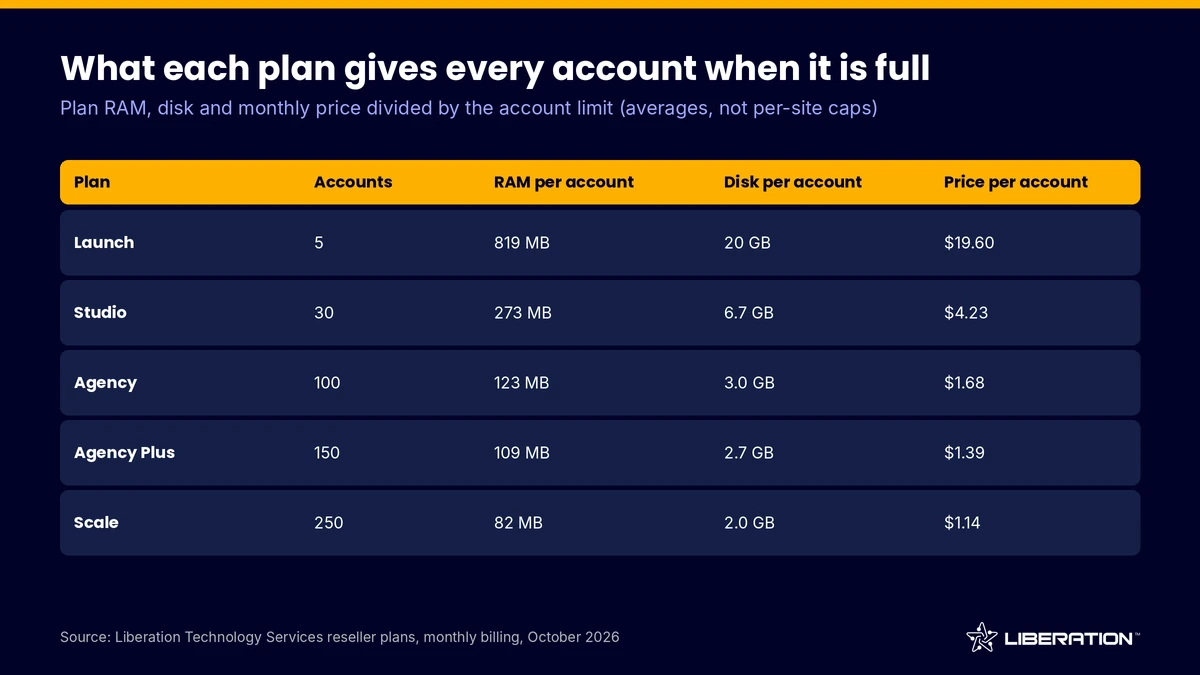
A full Launch plan gives each of 5 accounts about 819 MB of RAM and 20 GB of disk, which suits a few demanding sites. A full Scale plan gives each of 250 accounts about 82 MB, which only works if most sites are light and idle most of the day. For a WordPress-heavy portfolio, aim to fill a plan to about half of its account limit.
Common mistake: Buying the plan with the most accounts because the price per account looks lowest. A cheap slot is no bargain if five busy sites use the memory that 50 slots were counting on. Our guide to choosing hosting reseller plans covers the cost side in more detail.
2. Create WordPress packages and per-account limits in WHM
What to do: In WHM, build two or three packages instead of setting limits account by account. A common split is “Starter” for small brochure sites and “Business” for sites with more traffic or more mailboxes. The WHM package options include a disk quota, a monthly bandwidth limit, and caps on email accounts, FTP accounts, SQL databases, subdomains and addon domains, all described in the cPanel documentation for adding a package.
What to check: Give each package a disk quota that covers the media library plus backups of your own, and cap the number of addon domains so one client cannot quietly host five other businesses.
Common mistake: Setting every limit to unlimited. Without a ceiling, one runaway plugin affects every other client on your server. Per-account limits are how cPanel reseller hosting protects your best clients from your worst-behaved ones.
3. Choose a WordPress installer and a standard stack
What to do: Decide how each new site gets installed and managed. Two types of tool are common in cPanel environments. WP Toolkit is a cPanel and WHM plugin for installing and managing WordPress. Softaculous-style auto-installers offer one-click installs of WordPress and many other apps. Which tool is available depends on your host’s licensing, so ask your provider before you plan a workflow around either one.
What to check: The cPanel documentation for WP Toolkit lists what each edition does. Both editions cover installs, one-click admin login, backups, manual updates and plugin and theme management. The Deluxe edition adds automatic updates, staging, cloning, security hardening and smart updates, and an administrator has to enable it in WHM. If your plan needs staging or one-click hardening, confirm that Deluxe is actually switched on for your server.
Common mistake: Letting every site be built a different way. Pick one starter setup (theme framework, caching plugin, security plugin policy) and use it for every client.
4. Set PHP versions and caching for WordPress reseller hosting
What to do: Use WHM’s MultiPHP Manager to set a default PHP version for new accounts and to override it per domain. According to the cPanel MultiPHP Manager documentation, you can set global PHP and PHP-FPM defaults for new accounts and adjust domain-specific settings later. WordPress itself recommends PHP 8.3 or greater, plus MariaDB 10.11 or greater or MySQL 8.0 or greater, and HTTPS (as of October 2026), so make that your default.
What to check: Test each old site on a newer PHP version in staging before you switch it. Then add page caching. Use a caching plugin or any server-level cache your host supports, and keep an exclusion rule for cart, checkout and account pages. If you also host stores, our WooCommerce hosting page explains why those pages need more headroom.
Common mistake: Stacking two page-cache plugins on one site, or caching logged-in pages. Both create bugs that take hours to trace.
5. Secure every WordPress reseller hosting account with Imunify360
What to do: Turn on malware scanning and a web application firewall for every account, and set a rule that no site runs a plugin that has been abandoned. Imunify360 is included on every Liberation Technology Services reseller plan. Its documentation describes a malware scanner, a firewall with a web application firewall component and proactive defense that blocks malicious scripts in real time.
What to check: Confirm who gets the alerts. If a scan flags a file in a client account, you want the notice, not the client. Also check that SSL is active on every domain, since WordPress lists HTTPS as a requirement. Our guide to secure WordPress hosting covers hardening.
Common mistake: Treating the server-level scanner as a replacement for updates. A scanner reduces damage, but an out-of-date plugin is still an open door.
6. Build a WordPress reseller hosting backup routine you can restore from
What to do: Back up every account on a schedule and keep at least one copy off the server. The WordPress backup handbook is clear that a complete backup needs both the files (core, themes, plugins, uploads and wp-config.php) and the database, because you need both to restore a typical site.
What to check: Restore one real client account to a test location every quarter. A backup you have never restored is only a hope. On our plans, daily automated backups come with Studio and above, and Launch has them as a paid add-on. You can read more about off-server options on our backup and disaster recovery page, and CodeGuard is available as an add-on for separate website backups.
Common mistake: Backing up only the files, or only the database.
7. Write an updates policy for managed WordPress hosting for clients
What to do: Decide, in writing, who updates what and how often. Many agencies sell managed WordPress hosting for clients as a tier: the agency applies core, plugin and theme updates on a set schedule, tests them on a copy first and rolls back if something breaks. Others hand updates to the client and charge a fee when something goes wrong.
What to check: Put the policy in your service agreement. State the maintenance window, which updates are automatic, which are tested first and how fast you will respond to a critical security fix. Make sure the backup from step 6 runs before the update batch, not after. If you would rather not run updates yourself, you can point clients to WordPress care plans instead.
Common mistake: Promising updates in your sales pitch without scheduling the time to do them.
8. Migrate clients in with free client migrations
What to do: Move sites in small batches, starting with the easiest, and keep the old host live until DNS has fully switched. Free client migrations for WordPress reseller hosting are included on every Liberation Technology Services reseller plan with no per-site fees, so a batch of 20 sites does not add 20 line items to your costs. You can submit a request on the website transfer page, and our post on WordPress hosting with free migration explains the process.
What to check: Before cutover, lower the DNS TTL, compare the new copy against the old one (forms, checkout, email routing) and record which client approved the move.
Common mistake: Moving email together with the website without checking MX records. A site can load perfectly while the client’s mail goes missing.
WordPress reseller hosting for agencies and web designers
The same WordPress reseller hosting setup serves two business models. With WordPress hosting for agencies, hosting is usually bundled with a retainer, so reliability and fast restores matter more than the lowest price. Our post on WordPress hosting for agencies compares the options.
With reseller hosting for web designers, hosting is often a small monthly line item added to each project. There the main task is branding. Clients should see your name on the nameservers and the login page, which is where reseller hosting for web designers earns its keep. Full cPanel branding is available on our Agency, Agency Plus and Scale plans, and private nameservers on every plan. Read white label reseller hosting for how that works.
When you compare WordPress hosting plans for client sites, check dedicated resources, backups, malware protection and migration terms. Our reseller hosting page lists the five plans, each on its own private VPS, with a 30-day money-back guarantee and renewals price-locked with increases capped at 5%.
Frequently asked questions
What is WordPress reseller hosting?
WordPress reseller hosting is a hosting plan that lets you create separate cPanel accounts for client WordPress sites and sell them under your own brand. You pay the host one fee and set your own prices.
How many WordPress sites can one reseller plan handle?
With WordPress reseller hosting, it depends on traffic, not just the account limit. Light brochure sites can fill a plan, while a few busy stores can use up the memory of a much smaller one. Divide the plan’s RAM by your expected sites and check the average share before you commit.
Do I need WP Toolkit or Softaculous?
No, you can install WordPress by hand or with a script. An installer saves time and makes updates and cloning easier. WP Toolkit’s Deluxe edition adds staging, cloning and smart updates, so confirm what your host has enabled.
Is cPanel reseller hosting good for web designers?
Yes, because each client gets an isolated cPanel account and a familiar interface, and you manage everything from WHM. Branding options and the number of accounts vary by plan, so check both before you buy.
Can I offer managed WordPress hosting for clients on a reseller plan?
Yes. You provide the updates, backups and monitoring as a service on top of the reseller account and charge for the management. Write the scope into your agreement so clients know what is covered.
Sources
- WordPress.org, Recommended Requirements
- cPanel documentation, WP Toolkit
- cPanel documentation, Add a Package
- cPanel documentation, MultiPHP Manager for WHM
- Imunify360 documentation, Features
- WordPress Advanced Administration Handbook, Backups
- Liberation Technology Services reseller hosting plans and terms
Related reading: hosting reseller plans, how to start a reseller hosting business and white label reseller hosting.