
Why is my WooCommerce store slow? Usually for reasons ordinary websites do not have: cart and checkout cannot be cached, cart fragment requests run on every page, and order tables grow without limit. Those sit on top of the usual causes, mainly oversized product images and extensions loading everywhere. Work out which layer is responsible before paying for anything.
General WordPress speed advice only gets a store part of the way, because it assumes pages can be cached and served identically to everyone. A store has pages where that is not merely inadvisable but actively dangerous.
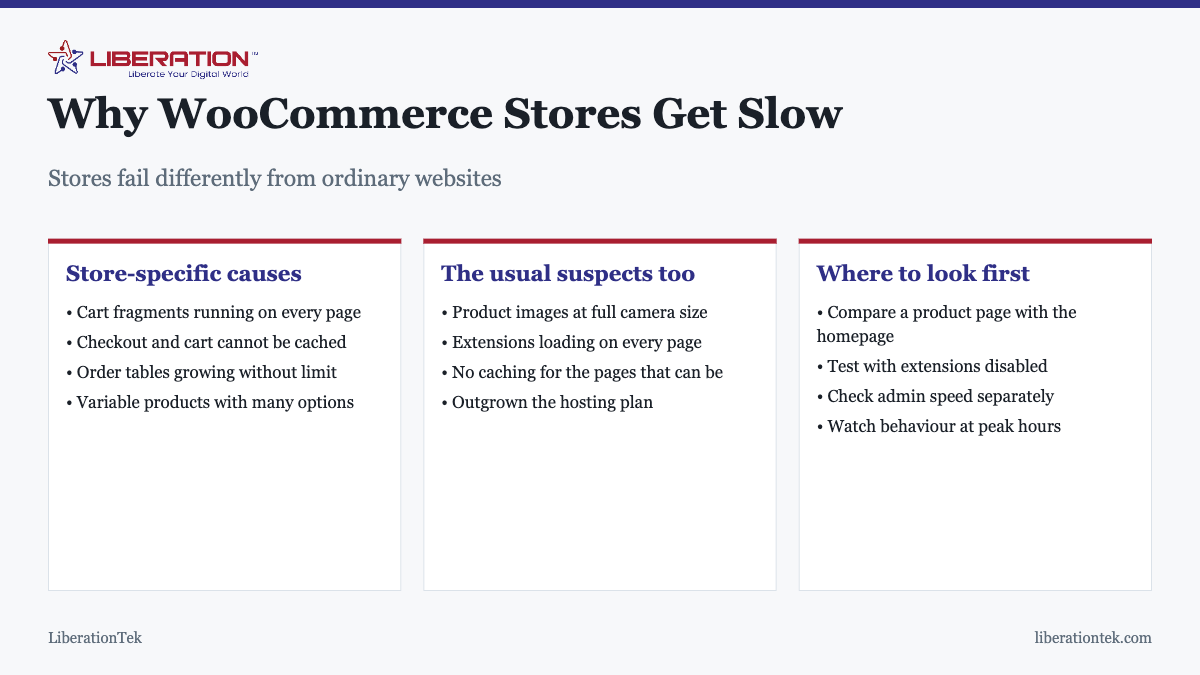
What makes a store different
Cart and checkout cannot be cached
Caching works by preparing a page once and serving the same copy to everyone. Cart, checkout and account pages are specific to one shopper, and serving a cached copy would show one customer another customer’s cart and details.
So those pages are generated fresh every time, hitting PHP and the database on every request. This is correct and unavoidable, and it is why a store’s most commercially important pages are also its slowest. Any caching setup for a store must exclude them explicitly, and general caching guides often omit that warning entirely.
Cart fragments
WooCommerce keeps the cart total in your header current using background requests called cart fragments. Each one bypasses the cache and runs PHP.
The problem is that these frequently run on every page, including blog posts and contact pages where no cart is shown and nothing needs updating. On a busy store this is meaningful load for no benefit. Limiting fragments to pages that genuinely display cart contents is one of the highest-return store-specific fixes available.
Database tables that only grow
Orders, order metadata, customer sessions, logs, and abandoned carts accumulate and are never removed by default. A store trading for a few years carries a great deal of data that is queried on every admin page load.
The clearest symptom is a slow admin area with a normal-feeling front end. If managing orders has become sluggish while the shop pages are fine, this is almost certainly why.
Variable products, quietly expensive
One store-specific cause deserves singling out because it surprises people: variable products with a large number of combinations.
A shirt in six sizes and eight colors is forty-eight variations, each with its own price, stock level and potentially its own image. WooCommerce loads that data so the page can update as the shopper makes selections. Multiply by a category page showing twenty such products and the page is doing a great deal of work before anyone has clicked anything.
This is why a catalogue of simple products can feel instant while a catalogue of the same size built on variable products feels sluggish. Things that help:
- Do not create variations you do not actually sell. Generating every theoretical combination is easy and expensive.
- Reduce what category pages show. Variation pickers belong on the product page, not repeated across a listing.
- Paginate generously. Showing sixty products per page to save clicks is a poor trade when each carries dozens of variations.
- Consider separate simple products where the options are genuinely different items rather than variants of one.
The ordinary causes, which still apply
| Symptom | Likely cause | Fix |
|---|---|---|
| Product pages heavy, homepage fine | Product image sizes | Compress and resize before upload |
| Everything slow, evenly | Theme or hosting | Test with a default theme |
| Slow only at peak times | Resource limits | Move to a VPS |
| Admin slow, front end fine | Database bloat | Clear sessions, transients, old logs |
| Checkout much slower than browsing | Expected, plus extensions on checkout | Audit what loads there |
| Category pages slow with many products | Filtering and variable products | Paginate; reduce variations shown |
| Slow since adding an extension | That extension | Disable and re-test |
Product photography is the single most common cause on stores, and the most understandable. Product images matter commercially, so they get uploaded at full quality, and a category page showing twenty products then asks visitors to download twenty full-resolution photographs.
Resize to the largest dimension actually displayed, compress, and use a modern format. Stores routinely cut page weight by eighty per cent this way without any visible quality loss.
A diagnostic order that works for stores
- Test three page types separately: homepage, a product page, and a category page with many products. The differences tell you where to look.
- Compare server response time with total load time. Slow server response means hosting; fast response with slow rendering means page weight.
- Check the admin separately. Slow admin with a healthy front end points at the database.
- Fix product images first. Largest return, no cost, no risk.
- Add caching with cart, checkout and account excluded.
- Limit cart fragments to pages that display the cart.
- Clean the database of expired sessions, transients and old logs. Back up first.
- Audit extensions for anything loading on pages that do not need it.
- Re-test, then consider hosting if server response is still slow with a light, cached page.
When hosting genuinely is the answer
For stores, more often than for brochure sites, because the work is real and cannot be cached away. Two patterns point clearly at hosting: the store is fine when quiet and slow whenever several people are shopping at once, or server response is slow even for a cached, lightweight page.
Shared hosting at $7.99 a month handles a small catalogue with modest traffic. Managed VPS hosting gives dedicated resources so peak-time slowness stops being a recurring event, keeps cPanel and WHM, and includes a free migration of one site.
The general, non-store version of this diagnosis is in why is my WordPress site so slow, and the relationship between hosting and search performance in does web hosting affect SEO.
Why this matters commercially
On a brochure site, slowness costs you some rankings and some patience. On a store it costs orders directly, and it does so at the worst possible moment, because the slowest pages are the cart and the checkout, which is exactly where someone has already decided to buy from you.
That asymmetry is the argument for treating store performance as a commercial task rather than a technical one. The pages worth optimizing hardest are the ones nearest the money.
A Quick Health Check for Your WooCommerce Store
Before you change anything, measure. A slow WooCommerce store usually has one or two bottlenecks, and the fix depends on which pages are slow. Test the home page, a product page, the cart and the checkout separately, because each behaves differently in a WooCommerce store.

- Run Google’s free PageSpeed Insights tool on a product page and on the home page.
- Compare logged-in and logged-out speed. If only the admin is slow, the problem is different from a slow public WooCommerce store.
- Note how many extensions load on every page, and switch off any you no longer use.
- Check image sizes on product pages, since large photos are the most common cause of a slow WooCommerce store.
Google explains the main user-experience measurements in its guide to Web Vitals. They give you a shared language for talking to a developer or a host about your WooCommerce store, and they show whether a change helped.
Fixes That Help a WooCommerce Store Most
Once you know where the time goes, work through the fixes in order of effort. The cheap ones come first, and most WooCommerce store owners never need the expensive ones.

- Compress product images and serve them at the size they are displayed.
- Remove extensions that overlap, and keep only what the WooCommerce store needs to sell.
- Clean up old sessions, expired transients and stale data so the database stays lean.
- Cache the pages that can be cached, and leave cart and checkout uncached.
- If the numbers are still poor, look at the plan. Our guide to VPS web hosting and the notes on why a WordPress site is slow show when more resources really help.
The WordPress project also documents general performance optimization steps that apply to any WooCommerce store. A faster WooCommerce store converts more visitors, which is why speed work pays for itself. For the cost side, see the cost to build a WooCommerce store. Keep a short log of each change, so you always know what made your WooCommerce store faster and what did nothing.
Frequently asked questions
Why is my WooCommerce store slow?
Stores are slower than brochure sites for structural reasons: cart and checkout cannot be cached, every page may run cart fragment requests, and order tables grow indefinitely. On top of that sit the ordinary causes, mainly oversized product images and extensions loading everywhere. Diagnose which layer is responsible before spending anything.
What are cart fragments and why do they slow WooCommerce down?
Cart fragments are background requests WooCommerce makes to keep the cart total current in your header. Each one bypasses caching and hits PHP and the database. On a busy store, or on pages where no cart is displayed, this adds load for no benefit. Limiting fragments to pages that actually show cart contents is a common and effective fix.
Can I cache a WooCommerce store?
Partly, and that is the key point. Product and category pages cache well. Cart, checkout and account pages must not be cached, because caching them would serve one shopper another shopper’s cart. A caching setup for a store therefore has to exclude those pages specifically, which general-purpose caching guidance often fails to mention.
Does WooCommerce need better hosting than a normal website?
Generally yes, because the work cannot be avoided by caching in the way a brochure site’s can. Every checkout writes to the database and every cart is unique to its visitor. Shared hosting is fine for a small catalogue with modest traffic; concurrent shoppers or a large catalogue are the point at which a VPS earns its cost.
Why is my WooCommerce admin slow but the front end fine?
Almost always database size. WooCommerce stores orders, order metadata, sessions and logs, and these tables grow indefinitely without maintenance. The admin queries them heavily, so it degrades first. Clearing expired sessions and transients, and archiving very old orders, usually restores admin performance noticeably.
Will a faster host fix my slow store?
Only if hosting is genuinely the constraint. Check server response time separately from page load time. If the server responds quickly but pages still take seconds, the problem is image weight and extensions, and a faster server will barely help. If the store is fine when quiet and slow at peak, that is a resource limit and upgrading will help.
How many extensions is too many for a store?
There is no fixed number; what matters is what each one loads and where. A shipping calculator that loads its scripts on every blog post, or a review extension running queries on pages with no reviews, costs more than several well-built extensions. Audit by what loads on a product page rather than by counting entries.