
A hosting migration is safe when you treat it as a copy, not a move: the old host stays live until the new one is tested, and DNS (the system that points your domain name to a server) changes last. Do it in that order and visitors never see a broken site. Most failed moves skip the testing step or cancel the old plan too early. If you would rather not carry the work yourself, LiberationTek offers free migration from another provider on every plan, backed by U.S.-based support and a 30-day money-back guarantee.
This guide is for small businesses, churches, nonprofits, campaigns and practices that depend on their website and email every day. It covers the full routine: inventory, backup, copy, test, DNS cutover, and the first week afterward.
TL;DR
- Keep the old host running until the new site is tested and DNS has fully settled. Cancel last.
- Back up files, the database and your DNS records before you touch anything, and write down every email account.
- Lower your DNS TTL a day or two ahead so the switch takes minutes instead of hours.
- Test the new site on its own before changing DNS, then switch during a quiet hour.
- Free migration is included on every LiberationTek plan, so you do not have to do the copying yourself.
Table of Contents
- Why people switch hosts, and what can go wrong
- Step 1: Take inventory before you copy anything
- Step 2: Back up files, databases and DNS records
- Step 3: Set up the new host and copy the site
- Step 4: Test the new site before anyone else sees it
- Step 5: Lower the TTL, then switch DNS
- Step 6: Watch the site for a week
- What a hosting migration should cost you
- Moving from a specific kind of host
- Hosting your site where you control the data
- A one-page migration schedule
- FAQ
- Sources
Why people switch hosts, and what can go wrong
People usually switch for one of four reasons: the site has outgrown shared hosting, support has become slow, renewal prices have jumped, or the organization wants its data on servers it can trust. Whatever the reason, the risks of the move are the same.
- Missing files. Hidden files such as
.htaccess(which controls redirects) are often skipped by file-transfer programs. - Broken email. Your website and your email often live in the same account. Move the site and forget the mailboxes, and mail stops arriving.
- Lost DNS records. The records that prove your email is legitimate (SPF, DKIM) are easy to forget and hard to diagnose later.
- Early cancellation. Canceling the old plan before DNS settles can take the site down for some visitors and lose the only good copy.
Every step below is aimed at one of those four problems.
Step 1: Take inventory before you copy anything
Open a simple document and list everything the old host does for you. This takes thirty minutes and prevents most surprises.
- Domains and who controls them. Where is the domain registered, and whose login is it? Many organizations discover the domain sits in a former employee’s account.
- Websites. The main site, plus any subdomains such as
shop.orgive.and any test sites. - Databases. WordPress and most online stores keep content in a database, separate from the files.
- Email accounts. Every mailbox, forwarder and shared inbox, with the approximate size of each. Mailboxes count against the same disk allowance as your site on many shared plans, so size matters.
- Scheduled tasks and integrations. Cron jobs (tasks that run on a timer), payment gateways, newsletter connections, forms that send mail.
- SSL certificate. The certificate that gives your site the padlock. A new host needs one issued for the domain.
- Redirects. Old URLs that forward to new ones.
Take screenshots of your current setup too. When something looks different on the new host, you will want proof of how it was.
LiberationTek publishes a website migration checklist with 12 steps that follows the same logic if you want a printable version.
Step 2: Back up files, databases and DNS records
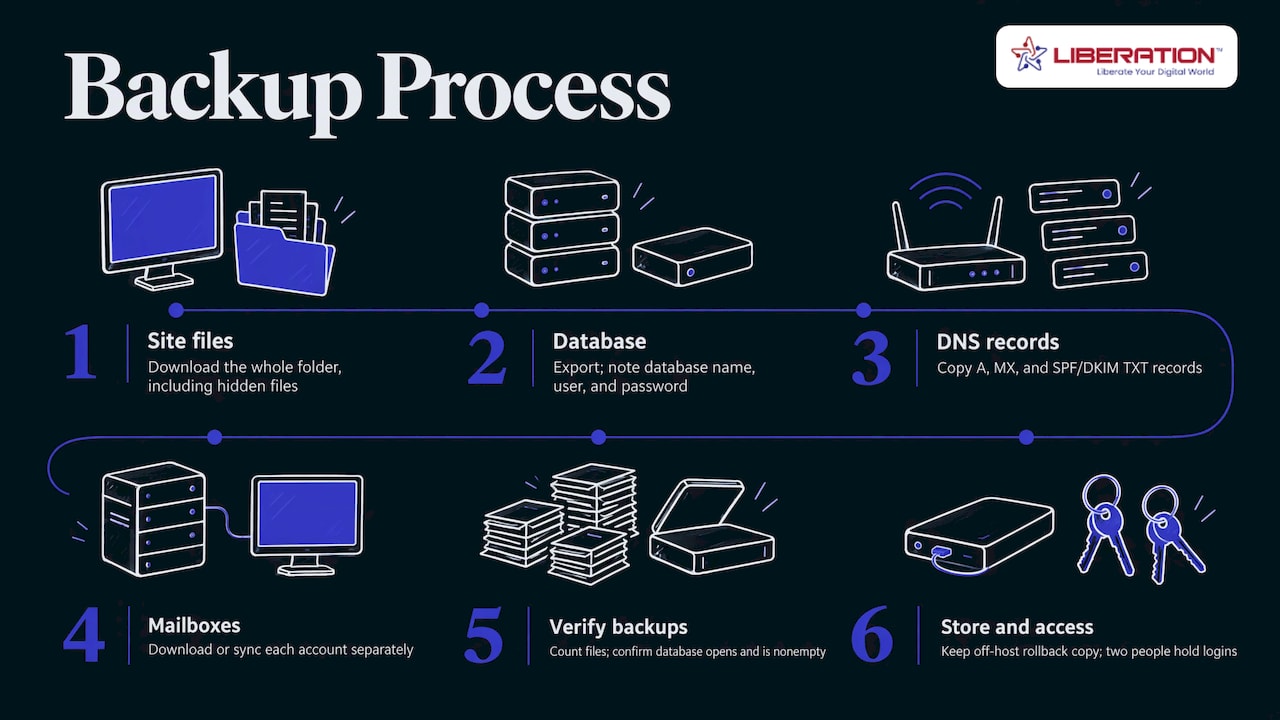
A backup you have never opened is a hope, not a backup. Make three copies of the pieces that matter.
Files. Download the whole site folder (often called public_html) and include hidden files. In cPanel, the Backup tool creates a full account archive in a few clicks. If you use an FTP program, turn on the setting that shows hidden files first, or you will miss .htaccess and, on WordPress, the wp-config.php file that holds your database connection details.
Database. Export it from phpMyAdmin or from your host’s backup tool. Save it as a .sql file and note the database name, user and password.
DNS records. Copy every record at your current DNS provider: A records (point the domain to the server), MX records (route your email), and the TXT records for SPF and DKIM (they tell receiving mail servers your messages are genuine). Paste them into your document. If you skip this, you may rebuild them from memory later and quietly lose email deliverability.
Mailboxes. Download or sync mail from each account to a mail program, or note that your new provider will copy it for you. Do not assume mail travels with the website files.
Then check the backup. Count the files on both sides, and confirm the database file opens and is not empty. Store a copy somewhere other than the old host, such as an encrypted external drive. This same copy becomes your rollback plan if something fails.
As for ownership, make sure at least two people at your organization hold the registrar, DNS and hosting logins. A church or campaign that depends on one volunteer’s password is one lost phone away from trouble.
Step 3: Set up the new host and copy the site
Create the account on the new host first, with the domain added but not yet pointed there. You now have an empty home waiting for the copy.
The copy itself depends on what you run.
A standard site or static site
Upload the files to the new document folder, import the database if there is one, and update any configuration file with the new database details. If the new host also uses cPanel, an account archive from the old host can often be restored directly, which keeps file permissions and mail settings intact.
A WordPress site
WordPress adds two details. First, wp-config.php must contain the new host’s database name, user, password and server. Second, if the domain name is changing at the same time, the site stores the old address inside the database, including inside data that other tools have packed into long text strings. A plain find-and-replace can break those strings, which is why developers use a tool built for WordPress to rewrite addresses. Do not change the domain and the host in the same weekend unless you have to. Moving first and renaming later is easier to troubleshoot.
If you are deciding whether to do this yourself, LiberationTek explains the trade-off in its guide on whether to migrate WordPress yourself or hire help and describes the free WordPress hosting migration that comes with its plans.
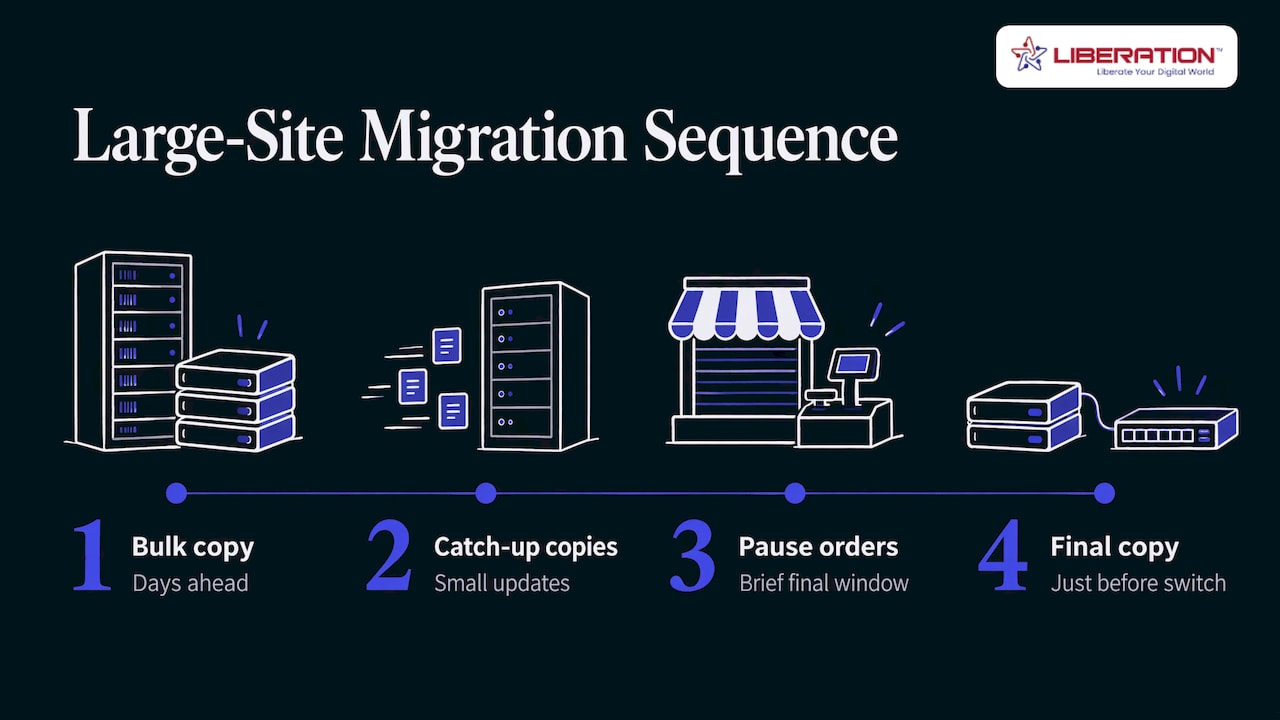
A very large site or a busy store
For a big media library or an online store taking orders, a single copy on migration day is risky because new orders and uploads keep arriving. The usual approach is a bulk copy days ahead, then a few small catch-up copies, and a final one just before the switch. Pause orders for the short final window, so no sale lands on the old server after the last copy.
Create the mailboxes on the new service and copy the old messages across before you change MX records. If you are also leaving a big-tech email suite, this is a good moment to move to private, ad-free mail. Liberation Email offers end-to-end encryption and starts at $1.95 per user per month on Mail Starter, with Mail+ at $4.95 and Mail Pro at $7.95. Teams that want email, files, chat and video in one place can look at Hub for Teams, from $7.49 per user per month.
Step 4: Test the new site before anyone else sees it
This is the step that separates a smooth move from a bad Monday. The site now exists in two places. Visitors still reach the old one. You want to look at the new one without changing DNS.
The trick is your computer’s hosts file, a small text file that lets you tell your own machine which server a domain name belongs to. Add a line pairing your domain with the new server’s IP address, save it, and only your computer will load the new copy. Everyone else keeps landing on the old host. Remove the line when you finish testing. Some hosts also give a temporary address for the same purpose.
Then go through a short test list:
- The home page and your five most-visited pages load with images and styling intact.
- The padlock appears and there are no mixed-content warnings.
- Contact, donation, booking and checkout forms submit, and the notification email arrives.
- Logins work, including the admin area.
- Menus, internal links and redirects behave as before.
- Uploads and downloads (sermon audio, PDFs, product files) open.
Open the site on your phone too. Anything that works only on your office computer is not finished.
Step 5: Lower the TTL, then switch DNS
When you change DNS, no central system pushes the update to everyone. Each visitor’s internet provider keeps its own saved copy of your record and refreshes it only when the saved copy expires. The expiry time is the TTL (time to live), counted in seconds. A TTL of 86400 means a day. As one DNS guide explains, lowering the TTL to 300 seconds ahead of the change lets most visitors switch within minutes, but you have to lower it at least one full old-TTL period before the move, not at the same moment.
A practical sequence:
- Two days before, lower the TTL on your A and MX records to 300 seconds.
- On cutover day, do a final copy if the site changes often (new orders, new posts).
- Update the A record to the new server’s IP address.
- Leave MX records alone until the new mailboxes are verified, then switch them in a second step if mail is moving too.
- Check the site from a phone on cellular data, not your office network, to see what an outside visitor sees.
- Keep an eye on the site for a few hours.
Pick a quiet time: late evening for a business site, early Monday before the week starts for a church (not Saturday night before a service). If you are changing nameservers at the registrar instead of individual records, allow longer. The same guide notes registry-level changes for .com and .net domains can take up to 48 hours to reach everyone.
If the domain itself is also moving
Transferring the domain registration to a new registrar is a separate job from moving the website, and you do not need to do both together. Keep in mind that under ICANN’s transfer policy a registrar must lock a domain against transfer for 60 days after a change of registrant, and transfers requested within 60 days of a domain’s creation can be denied. Plan around that rather than discovering it on migration day.
Step 6: Watch the site for a week
Do not cancel yet. Over the first week:
- Send test emails in both directions and to a few outside addresses. Check they land in the inbox, not spam.
- Confirm the SPF and DKIM records exist at the new setup.
- Check that scheduled backups are running on the new host.
- Review your search listings: confirm your pages are still indexed and that no old URLs return errors. Comparing a crawl taken before and after the move shows what changed, and a guide on keeping rankings during a site migration walks through mapping every URL for that comparison. LiberationTek also covers this in its piece on protecting rankings during a move.
- Watch for contact-form complaints. People tell you quickly when something broke.
After seven days of normal traffic and normal mail, and once the TTL is back to a longer value like a few hours, cancel the old plan. Keep your backup for at least a month.
What a hosting migration should cost you
It should not cost much beyond your time. LiberationTek includes free migration with every plan, so you are not paying a separate project fee to leave your old provider. The 30-day money-back guarantee gives you room to confirm the new setup suits you.
Which plan fits depends on the site:
| What you run | LiberationTek plan | Price |
|---|---|---|
| Small brochure site, church or practice site | Shared Cloud Hosting, Starter | $14.99 per month |
| Growing site with more pages and traffic | Shared Cloud Hosting, Ramping Up or Growth | $19.99 or $29.95 per month |
| WordPress site managed for you | WP Starter | $35 per month |
| Busier WordPress site | WP Growth | $69 per month |
| Online store | Commerce | $129 per month |
| Dedicated resources for large or sensitive sites | Private Cloud, Sentinel to Citadel | $179 to $679 per month |
Private Cloud includes unmetered monthly data transfer with no egress fees, which matters when you move a large media library. Churches and nonprofits receive a 15% discount.
Moving from a specific kind of host
The steps are the same whichever provider you leave, but the starting point differs.
- Shared hosting with cPanel. The easiest case. A full account backup carries files, databases and mail settings together.
- A site builder. Many site builders do not let you export the site as files. Plan to rebuild the pages, and treat it as a chance to tidy the structure. LiberationTek’s Website Builder starts at $10.99 per month and is on its website builder page.
- A web agency’s hosting. Ask the agency in writing for the files, the database and the DNS records. These are yours.
- Reseller accounts. Moving many client sites at once needs a plan per site. See the reseller hosting migration steps.
Hosting your site where you control the data
If the move is also about privacy, the host matters as much as the steps. LiberationTek runs on servers it owns in the United States, rather than reselling capacity from large cloud companies, and it does not track or share customer data. Direct U.S.-based support answers your questions during the move. That is a good fit for law firms, healthcare practices, churches, campaigns and firearms businesses that want their site, mail and files in one accountable place.

To have the copying done for you, start with LiberationTek’s migration services. To compare hosting types first, see Shared Cloud Hosting and managed WordPress hosting. Every plan includes free migration and a 30-day money-back guarantee.
A one-page migration schedule
Here is the whole process on a calendar so you can set dates.
| When | What you do |
|---|---|
| One week before | Inventory, confirm logins, create the new account |
| Five days before | Full backup, test restoring it |
| Three days before | Copy the site to the new host, set up mailboxes |
| Two days before | Lower TTL to 300 seconds, test with the hosts file |
| Cutover day | Final copy, change the A record, test from a phone |
| Day after | Switch MX records if mail is moving, send test emails |
| Days 2 to 7 | Monitor, check search listings and forms |
| After day 7 | Raise TTL, cancel the old plan, keep the backup |
FAQ
How do I move a website to a new host without losing data?
Copy, do not move. Back up the files, the database and your DNS records, restore them on the new host, and test there. Change DNS only when the copy works, and leave the old plan active until the site and email have run normally for about a week.
How long does a hosting migration take?
The copy itself can take under an hour for a small site and longer for large media libraries. The DNS change is quick if you lowered the TTL beforehand, and the full cycle from inventory to canceling the old plan is usually about a week. Plan for a few days if you are moving email too.
Will my site go down during the switch?
It should not. Because the old host keeps serving visitors until DNS points to the new one, there is no gap. For a store, pause orders during the final copy so nothing lands on the old server after it.
Does my email move with my website?
Not automatically. Mailboxes and their messages need their own copy, and MX records decide where new mail goes. Create the mailboxes first, copy the messages, then switch the MX records.
Can LiberationTek do the migration for me?
Yes. Free migration from another provider comes with every plan, and you can start on the migration services page.